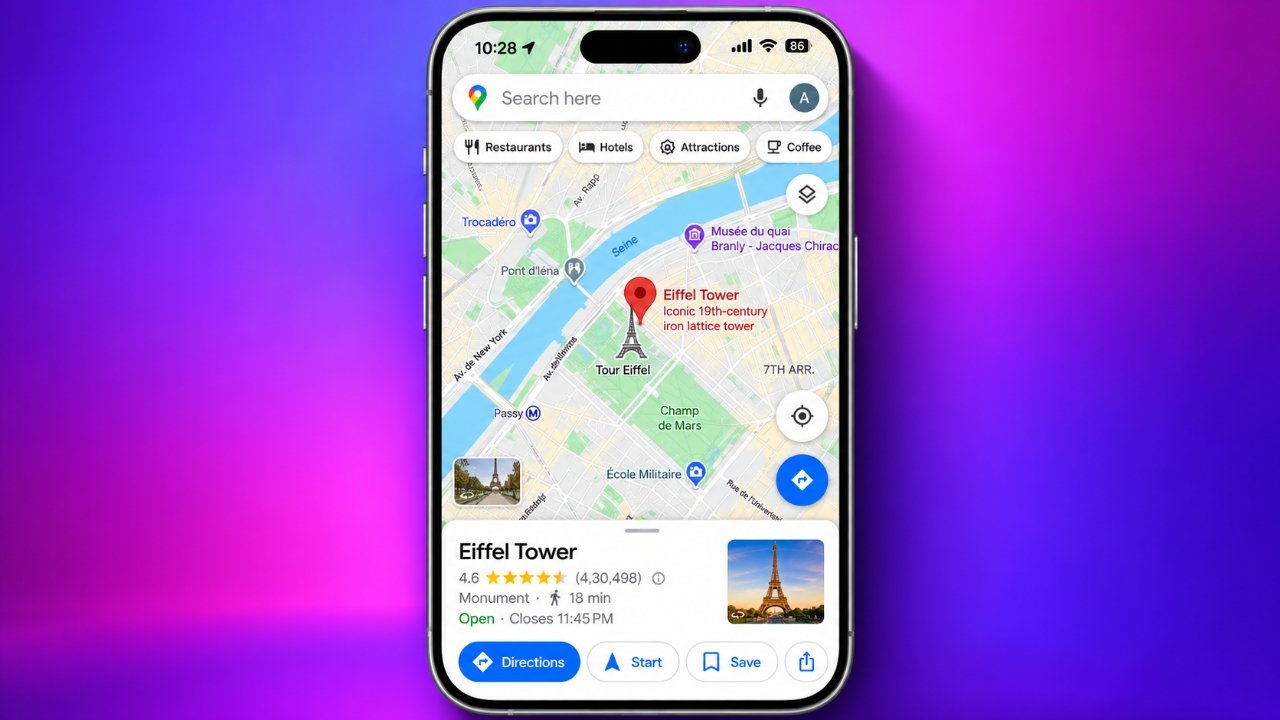
Google Maps is a useful tool for finding places, planning journeys, and exploring unfamiliar areas. One of its most practical features is the ability to drop a pin on almost any point on the map. Whether you want to remember where you parked, share a meeting spot with friends, or mark a destination for an upcoming trip, a location pin can make the process much easier.
Learning how to pin a location in Google Maps takes only a few moments. The feature is available on Android phones, iPhones, and desktop computers, allowing you to mark places and access their details whenever needed.
In this guide, you will learn how to drop a pin, save and share locations, get directions, manage saved places, and use Google Maps more effectively.
Also Read: How to Create and Organize Saved Place Lists in Google Maps on iPhone
What Is a Location Pin in Google Maps?
A location pin is a marker that identifies a specific point on the map. Unlike searching for a business or a well-known landmark, dropping a pin lets you select a precise spot manually.
This is especially helpful when a place does not have a recognizable name or a clearly listed address. For example, you can mark a picnic area, a meeting point in a park, a building entrance, or a location along a road.
Once you place a pin, Google Maps may display available details such as the address, nearby businesses, photographs, and directions. The information shown depends on the selected location and the data available in Google Maps.
How to Drop a Pin on Google Maps Using a Mobile Phone
You can place a pin on both Android and iPhone devices. The steps are almost identical, making the feature easy to use regardless of your smartphone.
Step 1: Open Google Maps
Launch the Google Maps app on your phone. If you want to identify your current position, make sure location services are enabled and the app has the necessary location permission.
You can search for a destination using the search bar at the top of the screen. Alternatively, browse the map manually until you find the spot you want to mark.
Step 2: Select the Exact Location
Move around the map and zoom in to identify the correct point. Once you find it, touch and hold that location for a moment.
A pin will appear on the selected spot. Depending on the location, Google Maps may also display a label or an information card at the bottom of the screen.
Take a moment to check the position before continuing. Zooming in can help you distinguish between nearby roads, buildings, and entrances.
Step 3: View the Location Details
Tap the information card associated with the dropped pin to see the available options. You may find the address, coordinates, nearby places, or other location information.
For a business or a recognized landmark, additional details such as ratings, reviews, photographs, and opening hours may be available. An unlisted location may show only basic information.
Step 4: Save the Location for Later
If you want to revisit the place, look for the Save option in the location details.
Choose an existing list, such as Favorites, or create a new list for a particular purpose. You could organize locations into categories such as vacation spots, restaurants, shopping destinations, or places you plan to visit.
Saving a location makes it easier to find again without repeating the entire search process.
Sharing a Google Maps Pin With Other People
Sharing a location is useful when arranging meetings, giving directions, or helping someone find a particular place.
After dropping a pin, open its information card and select Share if that option is available. Choose a compatible app or copy the link to send it through a message, email, or another communication service.
The recipient can open the shared link in Google Maps or a compatible browser to view the location.
Before sending the link, verify that the pin points to the intended place. This is particularly important when sharing locations in large buildings, parking areas, parks, or unfamiliar neighborhoods.
Getting Directions to a Pinned Location
A dropped pin can also serve as the destination for a journey.
Follow these steps:
- Place a pin on your chosen location.
- Open the location information card.
- Select Directions.
- Enter your starting point if necessary.
- Review the available routes and select a suitable option.
Google Maps may offer directions for driving, walking, cycling, or public transportation, depending on the area and the selected route.
Travel times and route suggestions can change because of traffic, road closures, transport schedules, and other conditions. Review the directions before starting your journey and follow local road signs.
Using Google Maps Pins Without an Internet Connection
Google Maps supports downloaded offline maps in many areas. This can be helpful when traveling somewhere with limited mobile data or an unreliable internet connection.
To prepare, open Google Maps while connected to the internet, access your profile menu, and find the offline maps section. Download the area you expect to visit.
Once the map is downloaded, you can view the covered area without a live internet connection. However, offline functionality has limitations. Some features, including live traffic updates and certain public transportation or walking directions, may not be available.
For the best results, save important locations before your trip and check that the necessary map area has been downloaded.
How to Pin a Location in Google Maps on a Desktop
If you use a laptop or desktop computer, you can drop a pin directly from the Google Maps website.
Place a Pin on the Map
Open Google Maps in your web browser.
Use the search bar to locate a destination, or navigate manually by dragging the map and adjusting the zoom level.
When you find the correct point, click it on the map. Google Maps will generally place a marker or display a location information card, depending on the selected point and the current interface.
You can also search for a specific address or business and select the corresponding result.
Check the Address and Available Information
After selecting the location, review the information displayed on the screen. Depending on the place, you may see its address, coordinates, nearby landmarks, or other details.
If the marker is not positioned accurately, select another point on the map and check the information again.
Save a Location on Your Computer
Open the location details and select Save when available. Choose the appropriate list to organize the place for future reference.
Saved places associated with your Google Account can generally be accessed on other devices where you use the same account. Availability may depend on your account settings and whether the information has synchronized.
Get Directions From Your Desktop
Select Directions in the location panel and enter your starting point. Google Maps will display suitable route options for the selected destination.
You can compare the available routes, review estimated travel times, and choose the option that best fits your journey.
Practical Ways to Use Location Pins Every Day
Location pins are useful for more than finding a destination. They can help organize everyday activities and make travel planning more convenient.
Remember where you parked
Mark your parking space or the approximate location of your vehicle before leaving. This can be particularly helpful in large parking lots or unfamiliar areas.
Plan holidays and weekend trips
Save hotels, attractions, restaurants, and other destinations before traveling. Organizing places into separate lists makes it easier to review your plans.
Arrange meetings
Share a pin for a meeting point when a street address alone might be confusing. Check the location carefully so everyone knows where to go.
Explore nearby attractions
Use the map to look for cafés, parks, museums, shops, and other points of interest around a selected location. Check available reviews and opening hours before visiting.
Measuring the Distance Between Two Places
Google Maps includes a distance measurement feature that can help you understand how far apart two points are.
On a desktop, right-click the starting point and choose Measure distance from the available menu. Then select another point on the map to see the distance between them.
You can add further points to measure a longer line or a series of segments.
On mobile devices, the available measurement controls may differ slightly. You can generally select a point on the map, open its location details, and look for the distance measurement option.
Remember that the measured distance is not necessarily the same as the distance you would travel by road. Actual travel routes may follow streets, paths, bridges, and other accessible connections.
How to Edit or Remove Saved Locations
Keeping your saved places organized makes it easier to find important destinations.
Manage a Saved Location
- Open Google Maps.
- Go to the Saved section.
- Find the list containing the location.
- Select the relevant place.
- Use the available options to update its list membership, label, or other editable details.
The exact controls may vary depending on the type of place and the version of Google Maps you are using.
If you want to remove a location from a saved list, open that list and deselect the saved status or use the available removal option. Removing a place from a list is different from deleting a business or landmark from Google Maps itself.
For a temporary dropped pin that has not been saved, you can usually select another point or close the location details to move on.
Tips for Placing More Accurate Pins
A small mistake in pin placement can send someone to the wrong entrance or section of a property. These simple habits can help improve accuracy.
- Zoom in before selecting a point: This is especially useful in busy city areas with closely spaced buildings and roads.
- Check the surrounding landmarks: Compare the selected point with nearby streets, buildings, and recognizable features.
- Verify the address when available: Make sure the displayed information matches the intended destination.
- Keep Google Maps updated: An up-to-date app can provide access to current features and interface improvements.
- Check location permissions: If you need to identify your current position, confirm that your device allows Google Maps to access your location.
- Review the shared link: Open the location before sending it to another person to ensure that it points to the correct spot.
Location accuracy can vary depending on your device, GPS reception, surrounding buildings, and the map data available for the area.
How Google Maps Helps Local Businesses Reach Customers
Google Maps is also an important discovery tool for businesses that serve customers in a particular area. A well-maintained business profile can help people find a shop, restaurant, office, or service provider when searching online.
Businesses can improve the usefulness of their profiles by providing accurate information, including:
- Business name and address
- Current opening hours
- Contact details and website
- Relevant photographs
- A suitable business category
- Responses to customer reviews
Accurate information helps potential customers understand where a business is located and how to contact it. Owners should keep their details updated whenever operating hours, contact information, or other important information changes.
Local search visibility depends on several factors, including relevance, distance, and prominence. Maintaining a complete profile can support discoverability, but it does not guarantee a particular ranking or a specific number of customers.
Businesses may also use local SEO strategies to improve their presence in search results. These efforts work best when they focus on accurate information, helpful website content, a good customer experience, and genuine customer feedback rather than misleading claims or artificial reviews.
Frequently Asked Questions
Can I drop a pin anywhere in Google Maps?
You can generally select many points on the map, including locations that do not have a business name or a recognized address. However, the amount of information available for a selected point can vary.
How do I find a pin I saved earlier?
Open Google Maps and visit the Saved section. Browse your lists to find the location. If you saved the place while signed in to your Google Account, it may also be available on your other signed-in devices after synchronization.
Can I share a Google Maps pin through WhatsApp?
Yes. Open the location details, select Share, and choose WhatsApp if it is available in your device’s sharing options. You can also copy the location link and paste it into a conversation.
Is dropping a pin on Google Maps free?
Dropping a pin, viewing location details, and using many basic Google Maps features are generally free for ordinary users. Internet access or mobile data charges may still apply.
What is the difference between a dropped pin and a saved place?
A dropped pin marks a point you select on the map. A saved place is a location you add to a list so you can find and organize it more easily later. You can share a dropped pin without necessarily saving it.
Can I use Google Maps pins offline?
Downloaded offline maps can help you view areas without an internet connection. However, offline access does not provide every online feature, and route availability depends on the downloaded area and the type of directions you need.
Also Read: How to Turn Off Location Sharing on Instagram Map
Final Thoughts
Knowing how to pin a location in Google Maps can make everyday navigation, travel planning, and sharing destinations much simpler. Whether you are using an Android phone, an iPhone, or a desktop computer, you can select a point on the map, review its details, save it for later, and share it with others.
For the best experience, check the pin’s position before saving or sharing it, organize important locations into useful lists, and download offline maps before traveling to areas with limited connectivity.
With these straightforward techniques, Google Maps can become a more effective tool for remembering places, finding destinations, and planning your next journey.

Ankita Kumar, founder of sabhigyan.com, is passionate about technology, smartphones, apps, and digital tools. With 8+ years of experience in the digital and tech space, he focuses on creating easy-to-understand, practical, and helpful content that makes everyday technology simpler for readers.
Advertisements