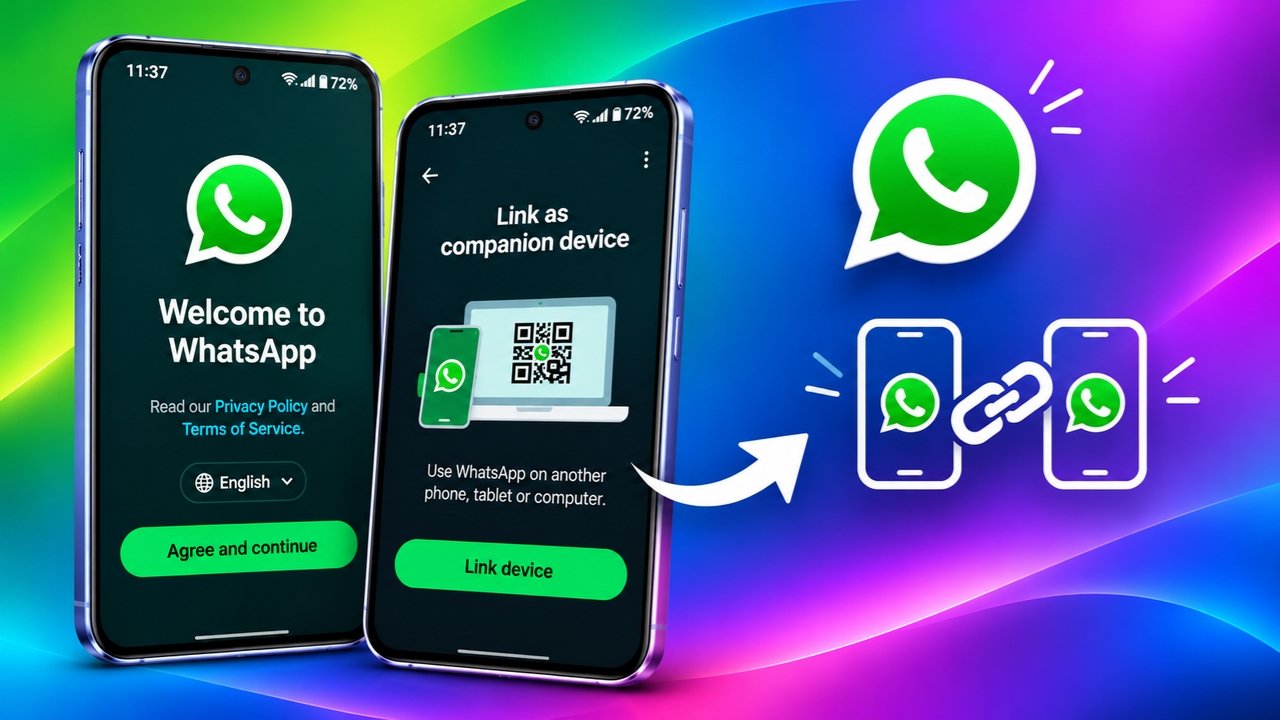
WhatsApp has become an essential communication tool for millions of people. However, if you own more than one smartphone, managing your account across different devices can sometimes be inconvenient. Fortunately, WhatsApp offers a feature called Companion Mode, which allows you to access the same account on multiple phones without transferring your account or signing out of your main device.
With this feature, you can send messages, receive updates, share media, and make calls from a secondary phone while keeping your primary WhatsApp account active.
The setup process is straightforward and works on both Android and iPhone. In this guide, we will explain how to connect WhatsApp to another phone, remove a linked device, and understand the important restrictions you should know before using Companion Mode.
Also Read: How to Edit Photos and Videos on WhatsApp Before Sending Them
What Is WhatsApp Companion Mode?
Companion Mode is a WhatsApp feature that allows users to connect additional smartphones to an existing WhatsApp account. Instead of registering a new account with a different phone number, you can link another device to the account you already use.
This means you don’t need to transfer your conversations or repeatedly switch between phones. Your primary smartphone and linked phone can operate independently while accessing the same WhatsApp account.
WhatsApp supports linking up to four additional devices, although the exact device limit and supported features may depend on the current app version.
The feature is particularly useful if you:
- Use separate phones for personal and professional communication.
- Want to access your messages from another smartphone.
- Keep a secondary phone for travel or everyday convenience.
- Prefer using one WhatsApp account across multiple devices.
Things to Prepare Before Connecting a Second Phone
Before starting the linking process, take a few minutes to check the following requirements. These simple preparations can help prevent connection problems.
1. Update WhatsApp on both devices
Install the latest available version of WhatsApp from the Google Play Store or Apple App Store. Keeping your phone’s operating system updated is also recommended because older software versions may eventually lose support.
2. Keep your primary phone nearby
You will need the smartphone on which your WhatsApp account is already registered. It will be used to scan a QR code displayed on the secondary device.
3. Check your internet connection
Both smartphones should have a working internet connection during setup. The secondary phone can connect through Wi-Fi and does not necessarily need its own SIM card.
4. Review your linked devices
WhatsApp has a limit on how many additional devices can be connected to one account. The limit includes supported linked devices such as computers, tablets, and other phones.
If you have already reached the maximum number, disconnect an unused device before proceeding.
5. Back up important conversations
Although linking a companion phone is not intended to replace your primary device, creating a recent chat backup is a sensible precaution before changing account settings.
Important: Do not register your existing phone number directly on the secondary phone. Doing so through the normal verification process may transfer your WhatsApp account instead of linking an additional device.
Step-by-Step: How to Connect WhatsApp to Another Phone
Once both smartphones are ready, follow the instructions below to connect your account.
Step 1: Install WhatsApp on Your Secondary Smartphone
Download WhatsApp from the official app store and launch it on the phone you want to connect.
Accept the initial terms and conditions by tapping Agree and Continue.
The application will then display the phone number registration screen.
Step 2: Select the Companion Device Option
Instead of entering your existing phone number, look for the additional options menu.
On many Android devices, you can access it by tapping the three-dot icon in the upper-right corner.
Choose the option labeled Link as companion device or a similar option, such as Link to existing account, depending on your WhatsApp version.
A QR code should appear on the secondary phone.
If you are using an iPhone and the option is displayed differently, follow the available on-screen instructions to reach the device-linking screen.
Step 3: Open WhatsApp on Your Main Phone
Now pick up the smartphone where your original WhatsApp account is active.
The next steps depend on which operating system you use.
- Android: Open WhatsApp, tap the three-dot menu, and select Linked devices. Then choose Link a device.
- iPhone: Launch WhatsApp, open Settings, select Linked Devices, and tap Link a Device.
Your phone may ask you to verify your identity using its fingerprint sensor, Face ID, or device passcode.
Step 4: Scan the QR Code
After opening the device-linking scanner on your primary phone, point its camera toward the QR code displayed on the secondary smartphone.
Keep both screens visible until WhatsApp completes the connection.
Once the process finishes, your secondary phone will be linked to your existing account. WhatsApp will begin synchronizing the available conversations and account information.
Step 5: Confirm That the Connection Works
Open WhatsApp on the secondary device and check whether your conversations are appearing.
You may also visit the Settings section to confirm that the phone is identified as a linked device.
That’s it! You can now use the same WhatsApp account on both smartphones without registering your number again.
How to Remove a Linked Phone From Your WhatsApp Account
If you stop using your secondary smartphone or no longer want it connected to your account, you can disconnect it remotely.
You don’t need to reset the phone or uninstall WhatsApp to remove its access.
Follow these instructions:
- Open WhatsApp on your primary smartphone.
- Navigate to the Linked devices section.
- Find the secondary phone you want to disconnect.
- Select that device.
- Tap Log out to remove its access.
After completing these steps, the selected phone will no longer have access to your WhatsApp account.
Your original account will remain active on the primary smartphone, and removing the companion device will not automatically delete your primary conversations.
Important Limitations of WhatsApp Companion Mode
Although using WhatsApp on multiple smartphones is convenient, Companion Mode does have certain restrictions. Understanding them beforehand can help you avoid unexpected issues.
1. Primary Phone Inactivity Can Disconnect Linked Devices
Your companion phone can continue working even when your primary smartphone is temporarily offline or switched off.
However, WhatsApp may automatically log out linked devices if the primary phone remains inactive for an extended period. The commonly documented inactivity period is 14 days.
To keep your linked devices connected, make sure you use WhatsApp on your primary phone regularly.
2. Some Features May Not Be Available
Not every WhatsApp feature works identically across primary and companion devices.
For example, live location sharing may be unavailable or restricted on certain linked devices. If you cannot access a particular feature, try using your primary smartphone.
Feature availability can change as WhatsApp releases application updates.
3. Device Management Must Be Done From the Primary Phone
Your secondary smartphone is connected to the existing account rather than acting as its main administrator.
For this reason, you should use the primary phone to manage linked devices, including connecting new phones and removing existing ones.
4. Older Conversations May Not Synchronize Completely
When you connect another smartphone, WhatsApp transfers a portion of your recent conversation history to that device.
However, you should not assume that every message from your account’s entire history will immediately appear on the companion phone.
Some older conversations or media files may be unavailable, depending on synchronization behavior and app limitations.
Keep your primary phone and its backups as the main reference for important historical conversations.
Security Tips for Using WhatsApp on Multiple Phones
Connecting another phone gives that device access to your WhatsApp conversations and other account information. Therefore, protecting your secondary smartphone is just as important as securing your primary one.
Here are some precautions worth following:
- Enable app locking: Use WhatsApp’s fingerprint lock or other available app-locking options where supported.
- Use a secure screen lock: Protect both smartphones with a PIN, password, fingerprint, or facial authentication.
- Check linked devices regularly: Review your device list and remove anything you don’t recognize.
- Avoid suspicious QR codes: Never scan a WhatsApp linking code sent by an unknown person.
- Never share verification codes: Do not give anyone your WhatsApp registration or device-linking codes.
- Enable two-step verification: Add an extra layer of protection to your account through WhatsApp’s security settings.
Be particularly careful if someone claims they need you to scan a QR code to receive a payment, participate in a promotion, or fix an account problem. Such requests can be attempts to gain unauthorized access to your account.
WhatsApp and India’s Upcoming SIM-Binding Requirements
WhatsApp users in India should also pay attention to regulatory developments concerning SIM binding.
India’s Department of Telecommunications has introduced directions involving SIM-binding requirements for certain messaging and communication services, with implementation associated with January 2027.
These requirements may affect how messaging applications operate across devices. However, the precise impact on WhatsApp Companion Mode and the experience of users with multiple smartphones should be confirmed through official government and WhatsApp announcements.
If you regularly use WhatsApp on a secondary phone in India, keep the application updated and follow official guidance as the implementation date approaches.
Frequently Asked Questions (FAQs)
Can I use the same WhatsApp account on two smartphones?
Yes. WhatsApp Companion Mode allows you to connect another smartphone to your existing account. You can access the same account on multiple devices without registering a separate phone number for each one.
Does the second phone require a SIM card?
No. A SIM card is not generally required on a companion phone. It can connect to WhatsApp through Wi-Fi or another available internet connection.
Your primary phone must have the original WhatsApp account registered on it.
Can I send messages from both phones?
Yes. You can send and receive WhatsApp messages from either connected smartphone. Messages sent through one device will synchronize with the other when the devices are connected and synchronization is available.
Can I make voice and video calls from a companion phone?
Yes. WhatsApp supports voice and video calling on compatible linked devices. Availability may depend on the device, application version, and supported features.
Will linking another phone delete my existing WhatsApp chats?
No. Linking a companion device is different from transferring or moving your WhatsApp account. Your primary account remains active, and the linking process does not require you to erase your existing conversations.
However, not all historical messages may appear on the secondary phone.
Can I use WhatsApp on a second phone without logging out of the first one?
Yes. That is one of the main advantages of Companion Mode. Both smartphones can remain connected to the same WhatsApp account simultaneously.
What happens if my primary phone is switched off?
Your linked phone can generally continue using WhatsApp even when the primary smartphone is offline. However, prolonged inactivity on the primary device may eventually cause linked devices to be disconnected.
How many phones can I connect to one WhatsApp account?
WhatsApp has traditionally allowed up to four additional linked devices alongside the primary phone. This limit includes other supported linked devices, not just smartphones.
Also Read: WhatsApp Tests Scheduled Messages and Reels Shortcut on Android
Final Thoughts
WhatsApp Companion Mode makes managing one account across multiple smartphones much easier. Whether you use two phones for work and personal activities or simply want access to your conversations on another device, the feature provides a convenient solution.
The setup only requires installing WhatsApp on the secondary smartphone, selecting the companion-linking option, and scanning its QR code using your primary phone.
Just remember to protect every connected device, review your linked-device list regularly, and avoid sharing QR codes or verification details with strangers.
By following these precautions, you can enjoy the convenience of using WhatsApp on two phones while keeping your account more secure.

Ankita Kumar, founder of sabhigyan.com, is passionate about technology, smartphones, apps, and digital tools. With 8+ years of experience in the digital and tech space, he focuses on creating easy-to-understand, practical, and helpful content that makes everyday technology simpler for readers.
Advertisements