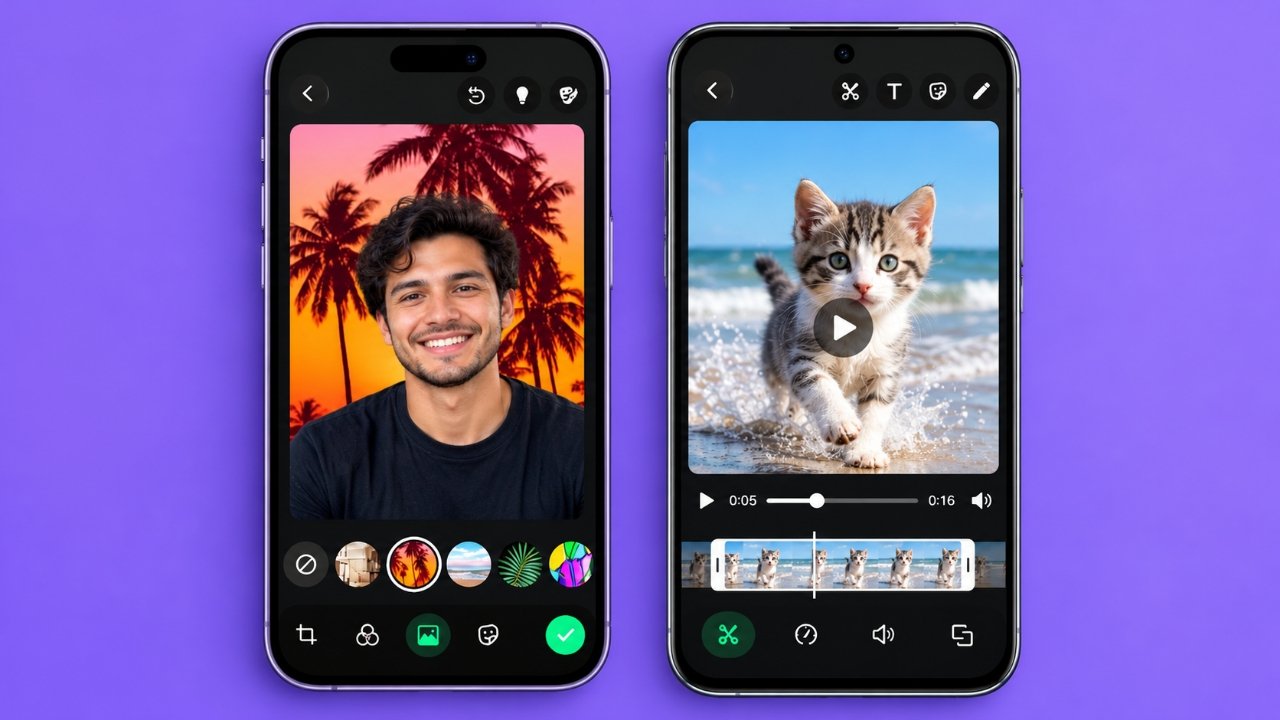
WhatsApp makes it easy to improve photos and videos before sharing them with friends, family, or colleagues. You do not need to download a separate editing application for basic changes because WhatsApp includes several useful editing tools directly in its chat interface.
You can crop an image, rotate it, trim a video, apply filters, add emojis, insert text, draw on media, and adjust the quality before sending. The editor also offers a blur feature for photos, which can help conceal certain private details.
Whether you want to make a picture look better or shorten a video before sharing it, this guide explains how to use WhatsApp’s built-in editing features on Android and iPhone.
Also Read: WhatsApp Tests Scheduled Messages and Reels Shortcut on Android
How to Open WhatsApp’s Media Editor
Before making any changes, open the photo or video you want to share through WhatsApp. The editing screen appears after you select your media.
Follow these steps:
- Open WhatsApp and enter the individual or group conversation where you want to share the media.
- To capture something new, tap the camera icon and take a photo or record a video.
- To choose an existing file on Android, tap the attachment icon and select Gallery. On an iPhone, tap the plus (+) icon and choose Photo & Video Library.
- Select the photo or video you want to send.
- Once the preview opens, use the editing options displayed on the screen to make your changes.
iPhone tip: If you want to edit a photo before sending it, select it from within the WhatsApp conversation instead of sharing it directly through the Photos app. The available editing options may vary depending on how you share the file.
WhatsApp Photo and Video Editing Features Explained
WhatsApp offers several tools for making quick adjustments. Here is how to use the most useful ones.
1. Adjust the Photo or Video Quality
If image clarity is important, check the quality setting before sending your media.
Tap the HD icon on the preview screen and choose between Standard quality and HD quality, if available.
- Standard quality: Uses less data and is generally suitable for everyday sharing.
- HD quality: Preserves more visual detail but usually requires more data and a larger file.
Choose the option that suits your internet connection and the purpose of your message. HD availability may differ depending on the type of media and where you share it.
2. Crop and Rotate Images
Sometimes a photo includes unnecessary background details or appears at the wrong angle. WhatsApp’s crop and rotate tools can help correct these problems.
To edit the image:
- Open the selected photo in the WhatsApp editor.
- Tap the crop or rotate icon.
- Move the corner handles to remove unwanted parts of the image.
- Use the rotation control to adjust its orientation.
- On supported iPhone versions, you may also find preset aspect ratios for different image dimensions.
- Tap Done to apply your changes.
If you make a mistake, use the available reset or cancel option to return to the original image or discard your adjustments.
3. Shorten a Video or Remove Its Audio
Long videos may contain unnecessary footage at the beginning or end. You can shorten a video directly in WhatsApp before sending it.
Select a video and look for the timeline slider at the top of the editing screen. Drag the handles to choose the section you want to keep, then preview the result using the play button.
If you prefer to share the footage without its original sound, tap the speaker or mute icon, when available.
This feature is useful when sharing a short clip, removing unwanted background noise, or sending a silent video to a group.
4. Make Media Look Different With Filters
Filters can change the appearance of a photo or video without requiring advanced editing skills.
To apply one, open the media preview and swipe upward or access the filter options shown on your screen. Browse the available styles and select the one you like.
Preview the result before continuing. A subtle filter often works well when you want to improve the overall appearance without making the image look unnatural.
The available filters and their presentation may vary between devices and WhatsApp versions.
5. Decorate Photos and Videos With Stickers or Emojis
Stickers and emojis are useful for adding personality to your media or drawing attention to a particular detail.
Here is how to add them:
- Tap the sticker icon in the editor.
- Choose a sticker or switch to the emoji section.
- Tap the item you want to insert.
- Drag it to the desired position.
- Pinch with two fingers to change its size or rotate it, if supported.
If you want to remove an item, select it and drag it toward the trash icon when that option is available.
Try to position stickers carefully so they do not cover important details in the photo or video.
6. Add Text to a Photo or Video
Text can make an image more informative, especially when you want to include a short message, label, or explanation.
Open the media editor and tap the text icon. Enter your message and confirm it using the on-screen option.
Depending on your device, you may be able to customize the text colour, change the font, resize the text, and rotate it. Drag the text box to position it where you want.
For better readability, select a colour that contrasts with the background. Keep your message short enough to remain easy to read on a mobile screen.
7. Draw or Highlight Specific Areas
WhatsApp also provides a drawing tool that lets you make freehand marks directly on photos and videos.
To use it, tap the pencil icon, choose a colour from the available palette, and draw with your finger.
You can use this feature to circle an object, underline a detail, or add a simple handwritten note. If you make an unwanted mark, use the undo control to remove the last stroke.
When you are satisfied with the result, tap Done or the equivalent confirmation option shown on your device.
8. Blur Sensitive Details in Photos
Before sharing screenshots or pictures, consider whether they contain information you do not want others to see. Depending on the available editor tools, WhatsApp lets you blur parts of a photo.
To try this feature:
- Open the photo you want to share.
- Tap the drawing or pencil icon.
- Select the blur tool, if available.
- Move your finger over the area you want to obscure.
- Review the result and use undo if necessary.
- Confirm your changes before sending.
This can be helpful for hiding a phone number, an address, or other identifying information.
Privacy reminder: Check the entire image carefully before sharing it. Do not assume that a small amount of blur will always make sensitive information unreadable. If the details are highly confidential, consider cropping them out completely or using a more reliable editing method.
Add a Caption and Send Your Edited Media
Once you have finished editing, you can include a caption to explain what you are sharing.
Look for the caption field near the bottom of the preview screen and type your message. You can leave it empty if the photo or video does not need an explanation.
Before sending, take a moment to check the following:
- The photo or video looks the way you intended.
- The correct quality setting is selected.
- Any unwanted sound has been removed, if necessary.
- Text and stickers are positioned correctly.
- Private information is not visible.
- The caption is accurate and appropriate for the recipient.
When everything is ready, tap the green Send button.
Remember that WhatsApp’s built-in editor is designed primarily for changes made before sending. If you need to make further adjustments afterward, edit the original file or create an updated copy and send it again.
WhatsApp Editing Tools at a Glance
The following table summarizes the main tools and their uses.
| Editing tool | Main purpose |
|---|---|
| Standard and HD quality | Adjust the quality of supported media |
| Crop and rotate | Remove unwanted edges and correct orientation |
| Trim video | Select the portion of a video to send |
| Mute video | Remove the video’s audio |
| Filters | Change the visual appearance |
| Stickers and emojis | Add decorative elements |
| Text | Include labels or short messages |
| Drawing | Mark or highlight areas |
| Blur | Obscure selected parts of supported photos |
| Caption | Add a message to accompany the media |
The exact options may differ depending on your device, operating system, and WhatsApp version.
Practical Tips for Better WhatsApp Edits
A few simple habits can help you get better results when editing media.
Choose the right quality setting. Standard quality is often sufficient for casual conversations, while HD may be preferable when small details matter.
Keep your edits simple. Too many stickers, colours, or text elements can make an image difficult to understand. Use only the elements that improve the message.
Protect other people’s privacy. Before posting group photos or forwarding screenshots, check whether you have permission to share the content and whether private details should be hidden.
Preview videos before sending. Check the beginning and end of the clip to make sure you have selected the correct section.
Keep WhatsApp updated. If an editing feature is missing, check for an available update in the Google Play Store or Apple App Store. Some features may not be available on every device or account.
Check special photo formats. On supported iPhones, Live Photos may offer additional sharing options. If you want to send a still image rather than its associated motion, check the available controls before sending.
Frequently Asked Questions
Can I edit a photo on WhatsApp after sending it?
WhatsApp’s media editor is primarily used before sending a photo or video. If you want to change the actual image after it has been sent, edit the original file or create a revised copy and send it again.
How can I blur part of a photo on WhatsApp?
Open the photo in the editor and look for the blur option within the drawing tools. If it is available, move your finger over the area you want to obscure and review the result before sending. The location and availability of this feature may vary by version.
Is it possible to trim a video before sending it?
Yes. Open the video in WhatsApp, adjust the timeline handles to select the section you want to keep, and preview the clip before sending it.
Why can’t I edit a photo directly from another app on my iPhone?
The editing options can differ depending on how the media is shared. If the editor does not appear when you use another app’s sharing menu, open the relevant WhatsApp chat and attach the photo from within WhatsApp instead.
Do I need another app to add text or stickers?
No. WhatsApp includes built-in tools for adding text, stickers, and emojis to supported photos and videos. A separate editor is only necessary if you need features that WhatsApp does not provide.
Does sending a photo in HD use more data?
Generally, yes. Higher-quality media usually has a larger file size than standard-quality media, so it may consume more mobile data and take longer to send or download.
Also Read: WhatsApp Introduces 2x Video Playback Speed for Status Updates on Android
Final Thoughts
Editing photos and videos in WhatsApp is a straightforward way to improve your media before sharing it. The built-in tools cover many everyday needs, including cropping images, shortening videos, applying filters, adding text, placing stickers, and concealing selected details.
For the best results, choose the appropriate quality setting, keep your edits clear and simple, and review the final preview before tapping Send. These small steps can help you share media that looks better while being more mindful of privacy.

Ankita Kumar, founder of sabhigyan.com, is passionate about technology, smartphones, apps, and digital tools. With 8+ years of experience in the digital and tech space, he focuses on creating easy-to-understand, practical, and helpful content that makes everyday technology simpler for readers.
Advertisements