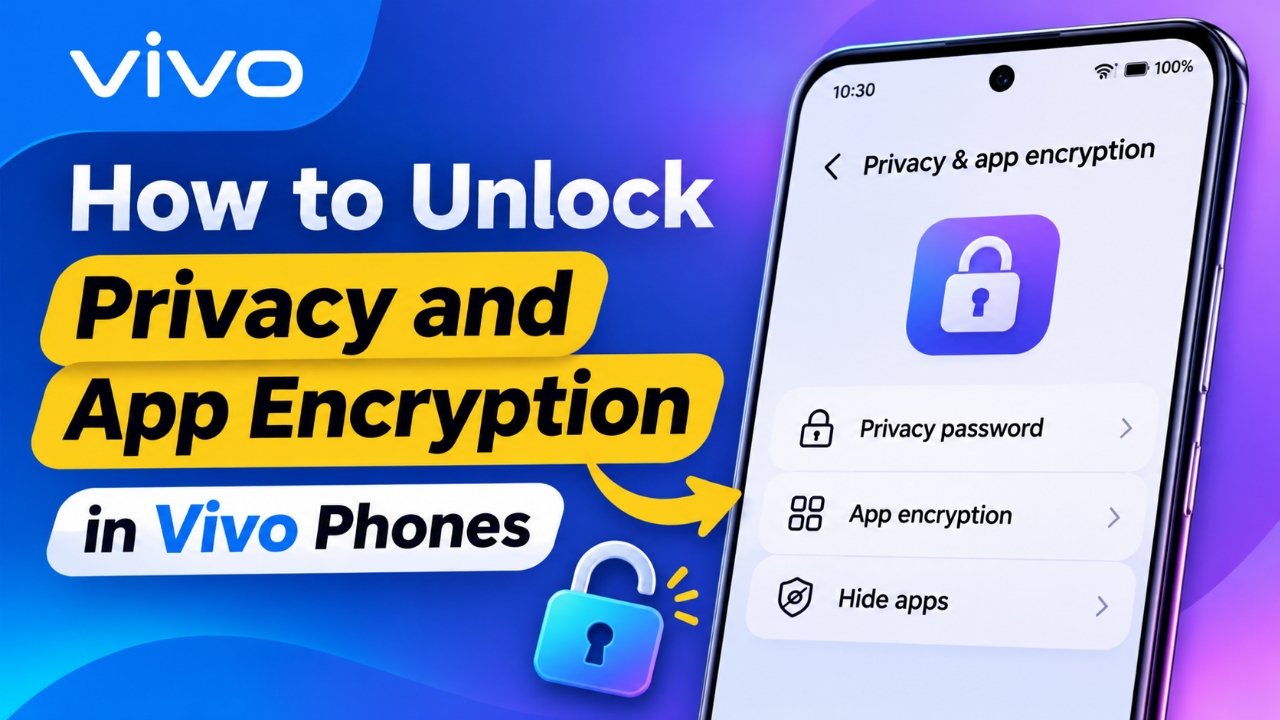
Vivo smartphones include several built-in privacy tools that help users protect personal information, secure applications, and hide selected content from others. Features such as Private Space, App Encryption, and App Hiding provide additional control over what other people can access on your device.
However, these features rely on a separate privacy password. Forgetting this password can prevent you from opening protected apps or accessing your private files.
The good news is that Vivo provides password recovery options through security questions and a registered email address. You can also change your existing password or use fingerprint and face authentication for easier access.
In this guide, we explain how to unlock Vivo privacy features, recover a forgotten privacy password, and manage app encryption settings.
Also Read: How to Stop Apps from Tracking You on iPhone
Understanding Vivo’s Privacy and Security Features
Before getting into the instructions, it is helpful to understand what each privacy option does. Although these features serve similar purposes, they work differently.
Vivo generally provides three important privacy tools:
1. Private Space
Private Space offers a separate protected area on your smartphone. You can use it to keep selected apps and personal information away from the phone’s regular environment. Access requires the privacy password or an available supported authentication method.
2. App Encryption
App Encryption allows you to lock individual applications with a privacy password or PIN. Whenever someone tries to open a protected application, the phone requests authentication before granting access.
3. App Hiding
This feature allows you to remove selected applications from the regular home screen and app view. Hidden applications can be accessed through the designated App Hiding settings or a supported home-screen shortcut.
These tools can be particularly useful when sharing your phone with friends or family members and you want to keep certain applications and personal information private.
Where to find these options: Open the Settings application and look for Security & Privacy. Depending on your Vivo model and software version, the menu names and locations may differ.
Steps to Unlock Privacy Features on Vivo Smartphones
All three features generally use the same privacy password created during the initial setup. Once you enter the correct credentials, you can access the corresponding protected area or application.
1. Accessing Private Space
There are different ways to open Private Space on a Vivo smartphone. The standard method involves using the Settings application.
Follow these instructions:
- Open Settings on your Vivo phone.
- Navigate to Security & Privacy.
- Find and select Private Space.
- Enter your existing privacy password when prompted.
- After successful verification, your Private Space will open.
Some Vivo models also provide a home-screen shortcut for accessing Private Space. On supported devices, swiping left across the bottom application area may reveal its shortcut temporarily.
Select the shortcut and enter your privacy password to continue.
Keep in mind that shortcut gestures can vary depending on your device model and software version.
2. Opening Apps Protected With App Encryption
If you have enabled App Encryption for specific applications, opening them requires additional authentication.
The process is straightforward:
- Return to your phone’s home screen.
- Find an application protected by App Encryption.
- Tap its icon.
- Enter your privacy password or PIN.
- Once verified, the application will open normally.
Vivo also allows users to adjust when encrypted applications should automatically lock again.
To manage this setting:
- Open Settings.
- Go to Security & Privacy.
- Select App Encryption.
- Look for the automatic locking options.
- Choose your preferred locking behaviour.
Depending on your device, the available options may include:
- Locking the application after the screen is locked.
- Locking it after the screen is locked or the application is closed.
You may also find App Encryption controls inside Vivo’s built-in iManager application. Open iManager, navigate to Utilities, and look for App Encryption.
3. Viewing Hidden Applications
If you previously hid applications using Vivo’s App Hiding feature, you can access them through the privacy settings.
Here’s what you need to do:
- Launch the Settings application.
- Open Security & Privacy.
- Select App Hiding.
- Enter your privacy password when requested.
- Choose View Hidden Apps to see your hidden applications.
On some Vivo smartphones, there is another way to access hidden apps. You may be able to swipe upward on the home screen using two fingers.
If this gesture is supported on your device, it will open the hidden-app interface.
Forgot Your Vivo Privacy Password? Here’s How to Recover It
Forgetting your privacy password can be frustrating, particularly when you have important applications protected by App Encryption.
Fortunately, Vivo provides recovery methods that can help you create a new password without remembering the old one.
The Private Space, App Encryption, and App Hiding features generally share the same privacy password. Therefore, resetting it should restore access to all three features.
You can recover your password using either of the following methods.
Method 1: Reset the Password Using Security Questions
During the initial privacy password setup, Vivo may ask you to configure security questions. These questions can help verify your identity if you forget your password later.
If you remember the answers, follow these steps:
- Open Settings on your Vivo smartphone.
- Navigate to Security & Privacy.
- Open Private Space, App Encryption, or App Hiding.
- When the password screen appears, select Forgot Password.
- Choose the security question verification option.
- Provide the correct answer to one of your previously configured questions.
- Tap OK to complete verification.
- Create a new privacy password.
- Enter the new password again to confirm it.
After completing these steps, your new password should replace the previous one.
You can then use it to access the privacy features available on your phone.
Method 2: Recover Your Password Through Your Registered Email
What if you cannot remember the answers to your security questions?
If you linked a security email address while setting up your privacy password, you may be able to use it for recovery.
Follow these instructions:
- Open the Settings application.
- Go to Security & Privacy.
- Select any available privacy feature, such as App Encryption or Private Space.
- At the password prompt, tap Forgot Password.
- Select Reset via Security Email Address.
- Tap Get Code to request a verification code.
- Open your registered email account.
- Find the verification message and copy the code.
- Return to your Vivo phone and enter the code.
- Tap OK to verify your request.
- Set a new privacy password and confirm it.
Once verification is successful, you should be able to use your newly created password to unlock the protected features.
Important: Email recovery is available only if you previously registered a security email address and your device supports this recovery option.
How to Change Your Existing Privacy Password on Vivo
You do not have to wait until you forget your password to change it. If your current PIN is difficult to remember or you want to improve your phone’s security, Vivo allows you to update your privacy password through Settings.
Here’s how:
- Open Settings.
- Navigate to Security & Privacy.
- Select Privacy Password.
- Enter your current privacy password.
- Choose Change Privacy Password.
- Enter your existing password if requested.
- Type your new password.
- Enter it again to confirm the change.
Your privacy password will be updated once the process is completed.
Choose a Different Password Format
Vivo does not necessarily restrict users to a six-digit PIN. Depending on the phone model and software version, you may be able to select different password formats.
Available options can include:
- Four-digit PIN
- Six-digit PIN
- Pattern lock
- Alphanumeric or mixed password
To select another format, look for Other Password Types while creating or changing your privacy password.
Choose the format you prefer, enter your new credentials, and complete the confirmation process.
For better security, avoid using easily guessed combinations such as your birth date, repeated numbers, or simple patterns.
Unlock Vivo Privacy Features With Fingerprint or Face Authentication
Entering a privacy password every time you access a protected application can become inconvenient.
To make the process easier, supported Vivo smartphones allow users to enable fingerprint or face authentication for privacy-related features.
This means you may be able to unlock protected applications and private areas without manually entering your PIN each time.
Follow these steps:
- Open Settings on your Vivo phone.
- Navigate to Security & Privacy.
- Select Privacy Password.
- Enter your existing privacy password.
- Find the biometric verification section.
- Enable Use Fingerprint for Privacy Password or Use Face for Privacy Password.
- Complete the authentication setup if your fingerprint or face has not already been registered.
After enabling the feature, you can use the supported biometric method to access protected content.
One thing to remember: Biometric authentication generally requires a screen-lock PIN, password, or pattern to be configured on your device. Some situations may also require you to enter your privacy password manually.
Frequently Asked Questions About Vivo Privacy Password and App Encryption
Below are answers to some common questions about managing privacy settings on Vivo smartphones.
1. How can I remove the privacy and App Encryption password on Vivo?
If you no longer want to use a separate privacy password, you may be able to disable it through your phone’s settings.
Follow these steps:
- Open Settings.
- Navigate to Security & Privacy.
- Select Privacy Password.
- Enter your current password.
- Look for Disable Privacy Password and select it.
- Follow the on-screen instructions to confirm.
Disabling the privacy password may also turn off associated privacy features, including App Encryption and App Hiding.
2. What does App Encryption do on Vivo phones?
App Encryption is a built-in security feature that protects selected applications with an additional password or PIN.
When someone attempts to open an encrypted application, the phone requests authentication first. This provides an extra layer of protection beyond the regular screen lock.
It is useful for applications containing personal conversations, private information, or other content you do not want others to access.
3. How do I reset the App Lock password on a Vivo phone?
The App Lock password generally uses the same privacy password as other Vivo privacy features.
To reset it:
- Open Settings.
- Go to Security & Privacy.
- Select App Encryption or another available privacy feature.
- Tap Forgot Password on the password screen.
- Verify your identity using a security question or registered email address.
- Create and confirm a new privacy password.
After successful verification, use the new password to unlock your protected applications.
4. Can I unlock Vivo App Encryption without knowing the password?
If you have forgotten your privacy password, use the official recovery options available on your device. These may include answering a previously configured security question or receiving a verification code through your registered security email.
If neither option is available, contact Vivo customer support for guidance. Avoid using unknown third-party unlocking applications, as they may compromise your personal information.
5. Why is the Forgot Password option not working on my Vivo phone?
There can be several reasons, including incorrect security question answers, an inaccessible registered email account, or differences in the recovery options available on your device.
Check that you are using the correct registered email address and that you can receive verification messages. If the problem continues, consult Vivo’s official support service.
Also Read: How to Change Default Apps on Android: A Complete Guide for 2026
Final Thoughts
Vivo’s privacy tools make it easier to protect personal applications, hide selected apps, and keep sensitive information separate from the regular phone environment.
Whether you want to access Private Space, unlock encrypted applications, or view hidden apps, the process generally requires your privacy password.
If you have forgotten your credentials, the security question and registered email recovery options can help you create a new password. You can also enable fingerprint or face authentication to make future access more convenient.
For the best experience, keep your recovery email accessible, choose a password you can remember, and make sure your phone’s security settings are properly configured.

Ankita Kumar, founder of sabhigyan.com, is passionate about technology, smartphones, apps, and digital tools. With 8+ years of experience in the digital and tech space, he focuses on creating easy-to-understand, practical, and helpful content that makes everyday technology simpler for readers.
Advertisements