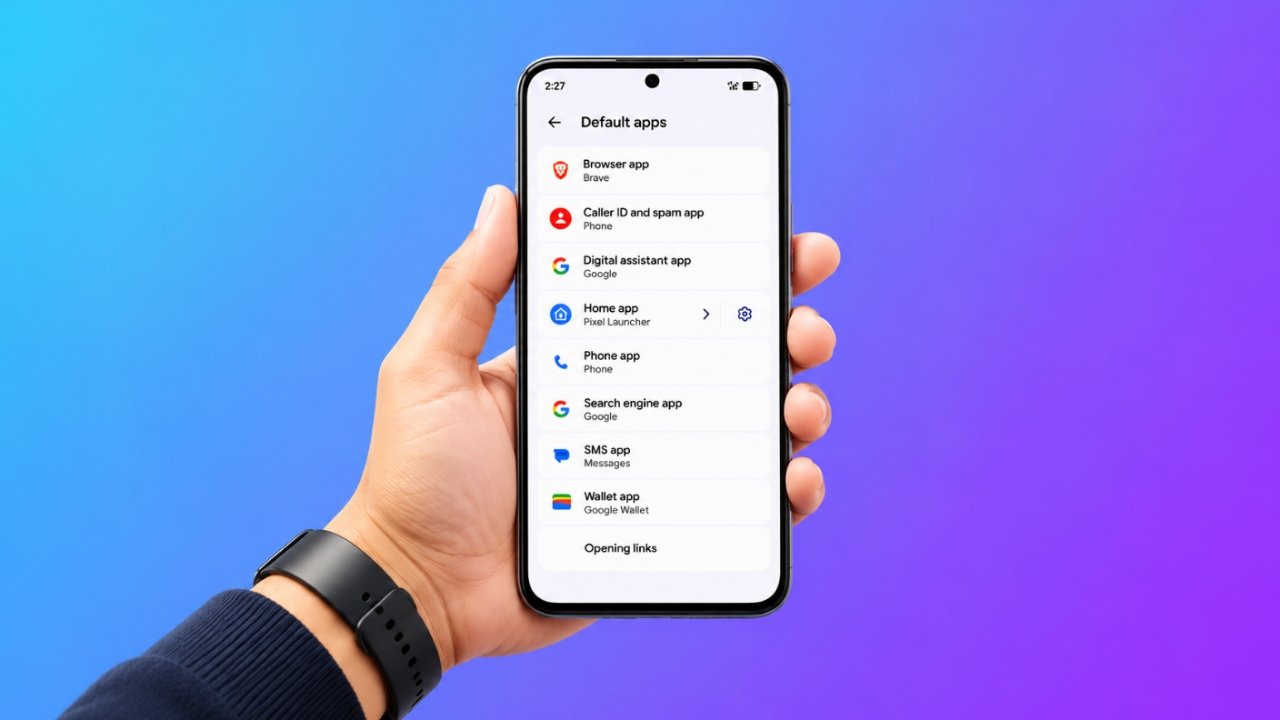
Android smartphones come with several pre-installed applications designed to handle everyday tasks, such as browsing the internet, making phone calls, sending text messages, and opening links. While these built-in apps work well for many people, they may not always match your personal preferences.
The good news is that Android allows users to choose which applications handle many common activities. Whether you prefer a different web browser, messaging service, phone dialer, or home screen launcher, you can customize these settings without making major changes to your device.
In this guide, we’ll explain how to change default apps on Android, manage link-opening preferences, adjust contact storage options, and remove unwanted default selections.
Also Read: How to Change the Default Search Engine in Safari on iPhone, iPad, and Mac
Understanding Default Apps on Android
A default app is the application Android automatically uses when you perform a particular action.
For example, when you tap a website link in a message, your phone opens it using the browser assigned as the default. Similarly, when someone sends you a text message, Android uses your selected messaging application to display it.
Phone manufacturers usually select these applications during the initial device setup. Samsung smartphones, for example, may use Samsung Internet and Samsung Phone, while other manufacturers may include their own browser and calling applications.
However, you are not necessarily required to continue using these pre-installed options. You can replace supported default applications with alternatives available on the Google Play Store.
This gives you greater control over how your smartphone handles everyday activities.
Which Default Apps Can You Customize?
Depending on your Android version, device manufacturer, and installed applications, you may find several categories under the Default apps menu.
Here are some common options:
| App Category | Purpose |
|---|---|
| Browser | Opens website links from other applications. |
| Phone | Handles incoming and outgoing calls. |
| SMS | Manages text messages and notifications. |
| Home app | Controls your home screen, app drawer, and launcher experience. |
| Digital assistant | Provides access to your preferred voice assistant. |
| Caller ID and spam | Identifies callers and helps detect unwanted calls. |
| Search engine | Handles supported search activities. |
| Wallet | Provides access to supported payment cards and digital passes. |
The available categories can vary between smartphone brands. Some options may also be missing if you haven’t installed an application that supports that particular function.
Steps to Change Default Apps on Android
Changing your preferred applications is relatively straightforward. Most Android smartphones offer a dedicated section for managing these settings.
Follow these instructions:
- Open the Settings application on your smartphone.
- Scroll down and select Apps.
- Find and tap Default apps.
- Browse the available categories.
- Select the category you want to customize.
- Choose your preferred application from the available list.
For instance, if you want to use a different browser, open the Browser app category and select the browser you prefer.
Android will then use your selected application for supported actions associated with that category.
Keep in mind that the exact menu names may differ slightly on Samsung, Xiaomi, OnePlus, Oppo, Motorola, and other Android devices.
Manage How Apps Open Website Links
One feature that many Android users overlook is the ability to control how individual applications handle website links.
Some applications open web pages directly inside their own built-in browser. This can happen even when you’ve already selected another browser as your default.
If you prefer opening external links in your chosen browser, you can adjust the relevant settings.
Here’s how:
- Open Settings on your Android phone.
- Navigate to Apps.
- Select Default apps.
- Tap Opening links.
- Choose the application whose link-opening behavior you want to change.
- Look for the available link-handling options.
- Select the browser option if your device provides it.
The available controls depend on your Android version and the application itself.
If you prefer a particular application to open its supported links internally, you can keep its in-app link-handling option enabled instead.
This setting is especially useful when you want more control over your browsing experience.
How to Change Contact Storage Preferences
Android devices can save contacts locally or synchronize them with an online account, depending on the available options and your contact application.
If you want to manage where newly created contacts are stored, check the settings in your Contacts application or the contact-storage section provided by your device manufacturer.
On supported devices, you may find options such as:
- Device storage: Saves contacts directly on your smartphone without automatically synchronizing them with a Google account.
- Google account: Stores and synchronizes contacts with the selected Google account.
- Add another account: Allows you to use another supported account for contact synchronization.
To change your preference, open the relevant Contacts settings and select the account or storage destination you want to use.
The available choices depend on your phone’s software and installed contact services.
Before changing contact-storage settings, make sure important contacts are backed up. Contacts saved only on your device may not automatically appear when you switch phones.
How to Remove an Existing Default App Selection
Sometimes, you may want Android to stop automatically using an application for a particular activity.
On supported devices, you can clear certain default selections through the Settings menu.
Follow these steps:
- Open the Settings app.
- Go to Apps.
- Select Default apps.
- Open a category that allows default selection removal.
- Choose the available None option, if displayed.
Not every category offers this option. Depending on your device, you may be able to clear selections for certain services, such as caller identification, digital assistants, or wallet applications.
Other categories, including browser, phone, home, and messaging apps, may require you to select another available application instead.
Once a default selection has been cleared, Android may ask which application you want to use the next time you perform the associated action.
Frequently Asked Questions (FAQs)
1. Why Does Android Keep Asking Which App I Want to Use?
Android may display an app-selection prompt when more than one installed application can perform the same action and no permanent default has been selected.
To avoid choosing an application every time, select your preferred app and choose the option to remember your selection, if available.
2. How Can I Change the Default Messaging App?
You can change your messaging application through Android settings.
Open Settings > Apps > Default apps > SMS app and select the messaging application you want to use.
Make sure your preferred messaging app is installed and supports SMS functionality.
3. How Do I Set a Different Browser as the Default?
To replace your existing browser, follow this path:
Settings > Apps > Default apps > Browser app
Choose your preferred browser from the available applications.
After changing the setting, supported external website links should open using your newly selected browser.
4. Why Are Some Website Links Still Opening Inside Other Apps?
Some applications have built-in browsers or support Android App Links, allowing them to open specific website addresses internally.
Changing your default browser does not necessarily disable this behavior.
Visit Settings > Apps > Default apps > Opening links and check the link-handling preferences for the application involved. If supported, select the option that directs links to your preferred browser.
5. Why Can’t I Find the Option to Change a Default App?
There are several possible reasons:
- Your smartphone manufacturer may not support changing that particular default.
- The alternative application may not be installed.
- The application may not support the required Android function.
- Your Android version may use a different settings layout.
- Certain options may be restricted by device management or manufacturer software.
Check whether the application is installed and updated. You can also use the search bar inside Settings to find the relevant option.
6. Will Changing Default Apps Delete My Existing Data?
Generally, changing a default application does not automatically delete information stored by your previous app.
However, data synchronization and storage arrangements can differ between applications. Before switching messaging, contacts, or other important services, check whether your information is backed up or accessible through the new application.
Also Read: How to Manage Safari Downloads on iPhone and iPad
Final Thoughts
Android makes smartphone customization easier by allowing users to select their preferred applications for many everyday tasks. You don’t have to stick with the browser, messaging service, phone dialer, or launcher that came pre-installed on your device.
By visiting the Default apps section in Settings, you can manage supported app categories and create an experience that better suits your needs.
Although the exact options may vary depending on your smartphone brand and Android version, the general process remains similar across most devices.
If you cannot find a particular setting, use the search feature in your phone’s Settings app or consult your manufacturer’s support documentation for device-specific instructions.

Ankita Kumar, founder of sabhigyan.com, is passionate about technology, smartphones, apps, and digital tools. With 8+ years of experience in the digital and tech space, he focuses on creating easy-to-understand, practical, and helpful content that makes everyday technology simpler for readers.
Advertisements