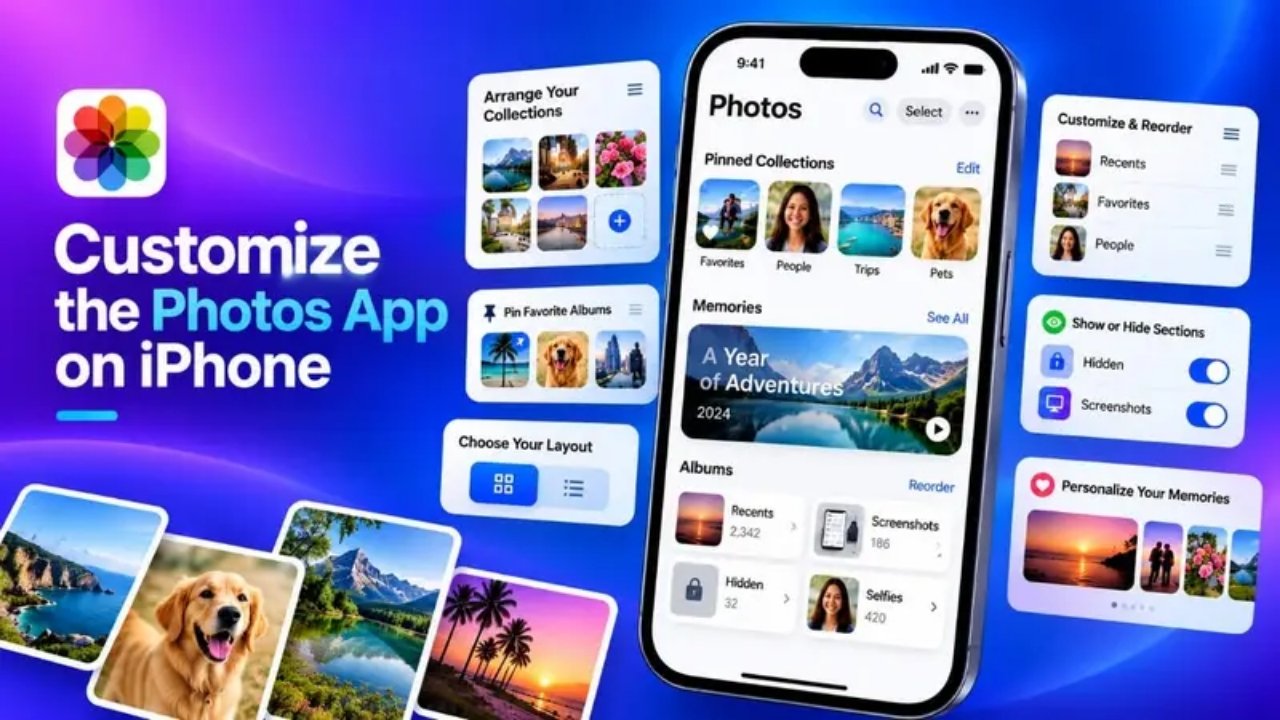
The Photos app is one of those iPhone apps you probably open every day, but you may not be using it in the way that works best for you. Since the redesign introduced with iOS 18, Apple has given users more ways to adjust how photos, albums, collections, and other sections are displayed.
You can change the order of collections, sort your photo library, use filters, pin frequently accessed sections, manage People & Pets, and even reduce some of the content that appears automatically.
If the default Photos layout feels cluttered or simply does not suit the way you use your iPhone, a few small changes can make it much easier to navigate.
Also Read: How to Turn Off Low Power Mode on iPhone, iPad, Apple Watch and Android
Change How Collections Look
The Collections area brings together albums, memories, people, pets, and other automatically organized sections. You do not necessarily have to keep Apple’s default arrangement.
To change the way Collections is displayed:
- Open the Photos app.
- Tap Collections.
- Tap the three-dot button near the top.
- Choose one of the available layout options, such as Large Grid, Small Grid, or Mixed Grid.
- You can also choose Collapse All if you want a less crowded view.
- To change the order of sections, select Reorder.
- Press and hold a collection, then drag it where you want it.
- Tap Done to save the arrangement.
If you use an iCloud Shared Photo Library, additional viewing choices may also be available for switching between your personal and shared library content.
Putting the sections you visit most often near the top can make the app feel considerably more convenient.
Sort Your Photo Library Your Way
Your main photo library does not always have to be viewed in the same order.
If you have recently imported older pictures, sorting by the date they were added can be more useful than sorting by when they were originally taken.
Here’s how to change the order:
- Open Photos.
- Go to Library.
- Tap the Sort and Filter button.
- Choose the available sorting option you prefer, such as Added or Captured.
Added organizes photos based on when they entered your library, while Captured uses the date on which the pictures were taken.
This can be particularly handy after transferring photos from another phone, computer, or storage location.
Use Filters Instead of Scrolling Through Everything
Finding one type of photo can be frustrating when your library contains thousands of images. Filters can narrow down what you see without requiring you to scroll endlessly.
From the Library, open Sort and Filter. Depending on your iPhone and iOS version, you may see options related to:
- Edited photos
- Favorites
- Shared with You
- Photos captured by you
- Media types
You can use these options to focus on particular content, such as videos, screenshots, or edited images.
When you want your complete library back, open the filtering controls and choose Remove Filters.
Hide Screenshots From the Main Library
Screenshots can quickly fill up a photo library, especially if you frequently capture information from websites, apps, or conversations.
Instead of deleting them, you can use Photos’ viewing controls to keep certain categories out of the main Library view.
Open Photos, go to Library, and select Sort and Filter. Then look under View Options for categories that can be excluded from the main Library.
Depending on your iOS version and settings, these may include:
- Screenshots
- From My Mac
- Shared with You
Hiding a category from the Library view does not mean the photos have been deleted. They can still be accessed through the appropriate sections of Photos.
Organize People and Pets
The Photos app can recognize people and pets in your pictures and group related photos together. This makes it easier to find pictures of family members, friends, or animals.
You can adjust these groups if the automatically generated arrangement is not useful to you.
Go to Collections, find People & Pets, and tap Edit. From there, you can manage which people or pets are shown and make other available adjustments.
Photos may also let you:
- Add a person or pet that has not been identified.
- Change the key photo used for a person.
- Combine groups that belong to the same person.
- Create groups involving multiple people.
The exact controls can vary depending on the iOS version installed on your iPhone.
Put Your Favorite Sections in Pinned Collections
Pinned Collections are useful when you frequently visit the same albums or sections. Rather than searching through the entire Collections page, you can keep important items easily accessible.
To customize them:
- Open Photos.
- Tap Collections.
- Find Pinned Collections.
- Tap Edit.
- Use the + button to add an item.
- Use the – button to remove one.
- Press and hold an item to change its position.
- Tap Done.
You may also find a Pin or Unpin option when pressing and holding certain albums or collections.
If there are two or three albums you open regularly, placing them near the beginning can save you a surprising amount of time.
Control Which Photos Appear in Featured Photos
Photos automatically creates curated areas where selected pictures may be highlighted. If you would rather not see a particular image there, you may be able to remove it from the featured area without deleting the original photo.
To manage Featured Photos:
- Open Photos.
- Go to Collections.
- Find Featured Photos.
- Tap Select.
- Choose the images you want to remove.
- Tap the three-dot menu.
- Select the available option for removing the selected pictures from Featured Photos.
The wording and location of this control can differ between iOS versions, so check the confirmation message before completing the action.
Create Albums for Different Types of Photos
Automatic organization is useful, but sometimes a manually created album is still the easiest solution.
For example, you could create separate albums for trips, family events, documents, screenshots you want to keep, or other groups of pictures.
To create one:
- Open Photos.
- Go to Collections.
- Open Albums.
- Tap the + button.
- Select New Album.
- Enter a name.
- Choose the photos you want to add.
- Save the album.
You can also arrange albums according to your preferred order where the available sorting options allow it. On supported versions, pressing and holding an album can let you move it to a different position.
Rearrange Media Types and Utilities
The Media Types and Utilities sections provide shortcuts to different kinds of photos and tools. If you regularly use certain options, moving them closer to the top can make them easier to reach.
Open Collections, scroll to the relevant section, and tap Edit if the option is available.
Then press and hold an item and drag it to the position you prefer. Tap Done when you are finished.
This is a small change, but it can make a difference if you frequently access specific media categories or utilities.
Reduce Recently Viewed and Shared Content
Some iOS versions provide controls for sections such as Recently Viewed and Recently Shared.
If these sections are not useful to you, check the Photos settings on your iPhone:
Settings → Apps → Photos
Look for the available settings related to recently viewed or shared content and turn off the relevant option if it is offered on your device.
You can also review the Photos settings for featured content and other automatically generated suggestions. Available controls depend on your iOS version.
Make the Photos App Match Your Habits
There is no single perfect Photos layout. Someone who mainly takes personal pictures may prefer a clean Library, while another person might rely heavily on albums, screenshots, or shared photos.
The useful thing is that you can adjust several parts of the app instead of simply accepting the default setup.
Consider moving your most-used collections higher, pinning important albums, hiding unnecessary categories from the main Library, and using filters whenever you need to find a specific type of photo.
After spending a few minutes adjusting these options, the Photos app can feel much more organized and easier to use.
Frequently Asked Questions
Can I change the order of Collections in the Photos app?
Yes. On supported iOS versions, you can use the Reorder option in Collections to move available sections into a different position.
Is it possible to hide screenshots without deleting them?
Yes. Where supported, the Photos app provides View Options that can keep screenshots out of the main Library view without deleting the files.
Can I pin an album in Photos?
Yes. Supported versions of the Photos app let you add compatible albums and sections to Pinned Collections for quicker access.
Does removing a picture from Featured Photos delete the original?
No. Removing a picture from a featured section is different from deleting the photo from your library. Always read the option shown before confirming an action.
Can I create my own photo albums?
Yes. You can create albums with custom names, add selected pictures, and organize your albums according to the options available on your iPhone.
Will all these options be available on every iPhone?
Not necessarily. Photos features and menu names can vary depending on your iPhone model, iOS version, and available Apple features. If you cannot find a particular setting, make sure your iPhone is running a supported version of iOS.
Also Read: How to Safely Delete an Old iPhone Backup From iCloud
Final Thoughts
The Photos app has become much more customizable than it was in earlier versions of iOS. You can change the layout of Collections, organize albums, filter your library, manage pinned sections, and control some of the content that appears automatically.
You do not need to change everything at once. Start with the sections you use most often and adjust the layout around your daily habits.
A few simple changes can make your photo library feel less cluttered and help you find the pictures, albums, and tools you use most without unnecessary scrolling.

Sourav Gorai, founder of sabhigyan.com, is passionate about technology, smartphones, apps, and digital tools. With 8+ years of experience in the digital and tech space, he focuses on creating easy-to-understand, practical, and helpful content that makes everyday technology simpler for readers.
Advertisements