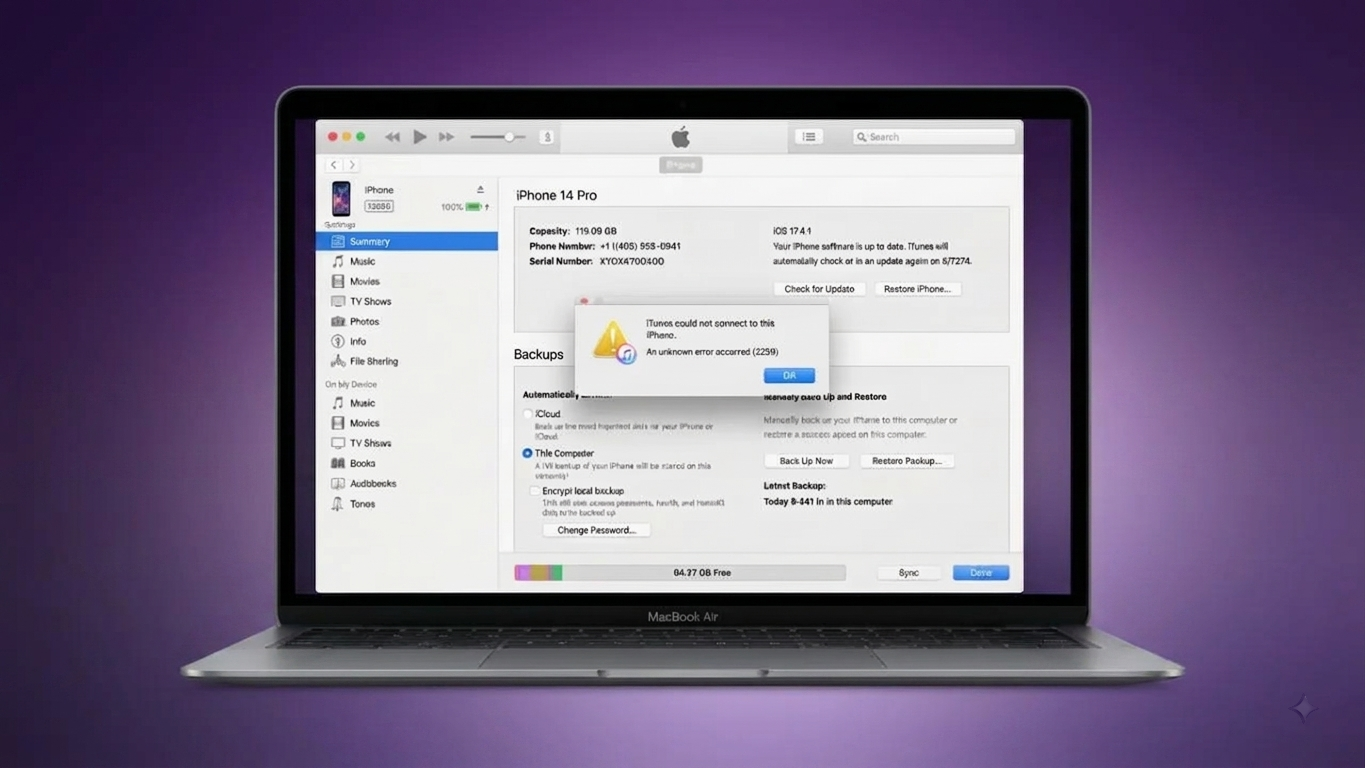
Seeing iTunes Error 3259 can be frustrating, especially when you are trying to sync an iPhone, download content, or complete an update. The error generally indicates that iTunes is having trouble communicating with Apple’s online services.
The cause is not always the same. A poor internet connection, outdated software, firewall restrictions, incorrect system settings, or problems with the iTunes installation can all contribute to connection issues.
The good news is that you can work through several straightforward troubleshooting methods before moving on to more advanced options.
Also Read: How to Uninstall Dropbox on Mac and Remove Its Leftover Files
What Can Cause iTunes Error 3259?
There isn’t one universal reason for this error. It can originate from your network, computer, security settings, or the iTunes installation itself.
Possible causes include:
- Unstable or interrupted internet access
- An outdated iTunes installation
- Pending Windows or macOS updates
- Firewall or antivirus restrictions
- Incorrect date, time, or time-zone settings
- Changes made to the system hosts file
- Corrupted or incomplete iTunes files
- Conflicts with other software
Because there are several possibilities, it is best to begin with the simplest checks and work your way toward more advanced troubleshooting.
1. Make Sure Your Internet Connection Is Working
Start by checking the network connection on your computer. Open several websites in a browser and see whether they load normally.
If the connection is slow or frequently disconnects, restart your router and reconnect your computer. You can also try another trusted network if one is available.
Testing iTunes on a different connection is particularly useful. If the error disappears, the problem may be associated with your original network or router configuration rather than iTunes itself.
2. Update iTunes and Your Computer
Older software can sometimes create compatibility or connection problems.
If you use iTunes on Windows, check for updates using the installation method associated with your copy of iTunes. For example, an installation obtained through the Microsoft Store can be updated through the Store.
On a Mac, the available software and device-management options depend on the macOS version you are using. Install any relevant system updates offered by macOS.
After completing updates, restart your computer and try the operation again.
Don’t Forget Windows or macOS Updates
Updating only iTunes may not be enough if the operating system itself is behind on updates. Check for pending Windows or macOS updates and install them when appropriate.
A restart after installing system updates can also ensure that the changes are properly applied.
3. Verify the Date, Time, and Time Zone
Your computer’s clock may seem unrelated to an internet connection, but incorrect date or time settings can interfere with connections to online services.
Open the system’s date and time settings and check:
- The current date
- The current time
- The selected time zone
- Automatic time synchronization, if available
Correct any inaccurate settings, restart iTunes, and check whether Error 3259 has been resolved.
4. Review Firewall and Antivirus Restrictions
Security software is designed to protect your computer, but its network rules can occasionally interfere with legitimate applications.
Check your computer’s firewall configuration and make sure iTunes is permitted to communicate through the network when required.
If you have installed third-party antivirus or internet-security software, look for features related to network protection, application control, or web filtering.
Important: Don’t leave your firewall or antivirus protection disabled just to make iTunes work. If you temporarily disable a security feature for testing, turn it back on afterward.
5. Check Whether the Hosts File Was Modified
The hosts file is an advanced system file that can affect how your computer connects to specific internet addresses. If it has been manually changed, it may interfere with access to Apple’s services.
This isn’t a step that most users need to perform immediately. If you are unfamiliar with the hosts file, avoid making random changes to it.
If you believe it has been modified:
- Make a backup of the existing file first.
- Review its contents carefully.
- Compare it with the normal configuration for your operating system.
- Only remove or change entries when you understand what they do.
If you suspect unwanted software changed your system configuration, running a reputable security scan is also a sensible precaution.
6. Reinstall iTunes if the Installation Is Damaged
If your internet connection, system settings, and security configuration appear normal, the iTunes installation itself could be the source of the problem.
Reinstalling the application can replace missing or damaged program files.
Before removing iTunes, take a moment to check where your existing media, device information, and backups are stored. If you have important backups, keeping an additional copy is a good precaution.
Once you have confirmed that important data is safe, reinstall iTunes using a trusted installation source. Restart the computer afterward and test the connection again.
7. Test iTunes on Another Trusted Network
A different network can help determine whether your current connection is responsible for the error.
For example, if iTunes fails on your home network but works normally on another trusted connection, the issue could involve your router, DNS configuration, firewall rules, or network restrictions.
This simple test can save time because it helps narrow down where the problem is occurring.
Should You Use Third-Party Repair Software?
You may find third-party utilities online that claim to repair iTunes or iPhone connection problems. These tools should be approached carefully.
Before installing one, research the developer and download the software only from a source you trust. Also check:
- What permissions the program requires
- What information it can access
- Whether it modifies system settings
- Whether it creates or preserves backups
- Whether the developer clearly explains its features
Be cautious with programs that advertise guaranteed repairs, instant fixes, or unrealistic results.
For unfamiliar or complicated problems, Apple’s official support resources are generally a safer place to look for assistance before installing an unknown repair utility.
When Apple Support Is the Better Option
If none of the troubleshooting methods resolve iTunes Error 3259, it may be worth contacting Apple Support.
Before asking for help, note down useful information such as:
- The exact error message
- Your Windows or macOS version
- Your iTunes version, if applicable
- What you were doing when the error appeared
- Whether the problem occurs on another network
- Whether the issue affects more than one device
Providing these details can make it easier to identify whether the problem is related to your computer, network, Apple software, or connected device.
Also Read: How to Remove Desktop Icons in Windows 10 & 11 (Delete, Hide, or Restore)
Final Thoughts
iTunes Error 3259 is usually worth troubleshooting as a connection or software-configuration issue first. Begin with the basics: test your internet connection, update your software, verify your computer’s date and time, and review firewall restrictions.
If the problem remains, you can move on to more advanced checks such as reviewing the hosts file or reinstalling iTunes. Third-party repair tools should only be considered after carefully checking their reliability and data-access requirements.
Most importantly, avoid making unfamiliar system changes and keep important backups before uninstalling software or performing advanced troubleshooting.

Sourav Gorai, founder of sabhigyan.com, is passionate about technology, smartphones, apps, and digital tools. With 8+ years of experience in the digital and tech space, he focuses on creating easy-to-understand, practical, and helpful content that makes everyday technology simpler for readers.