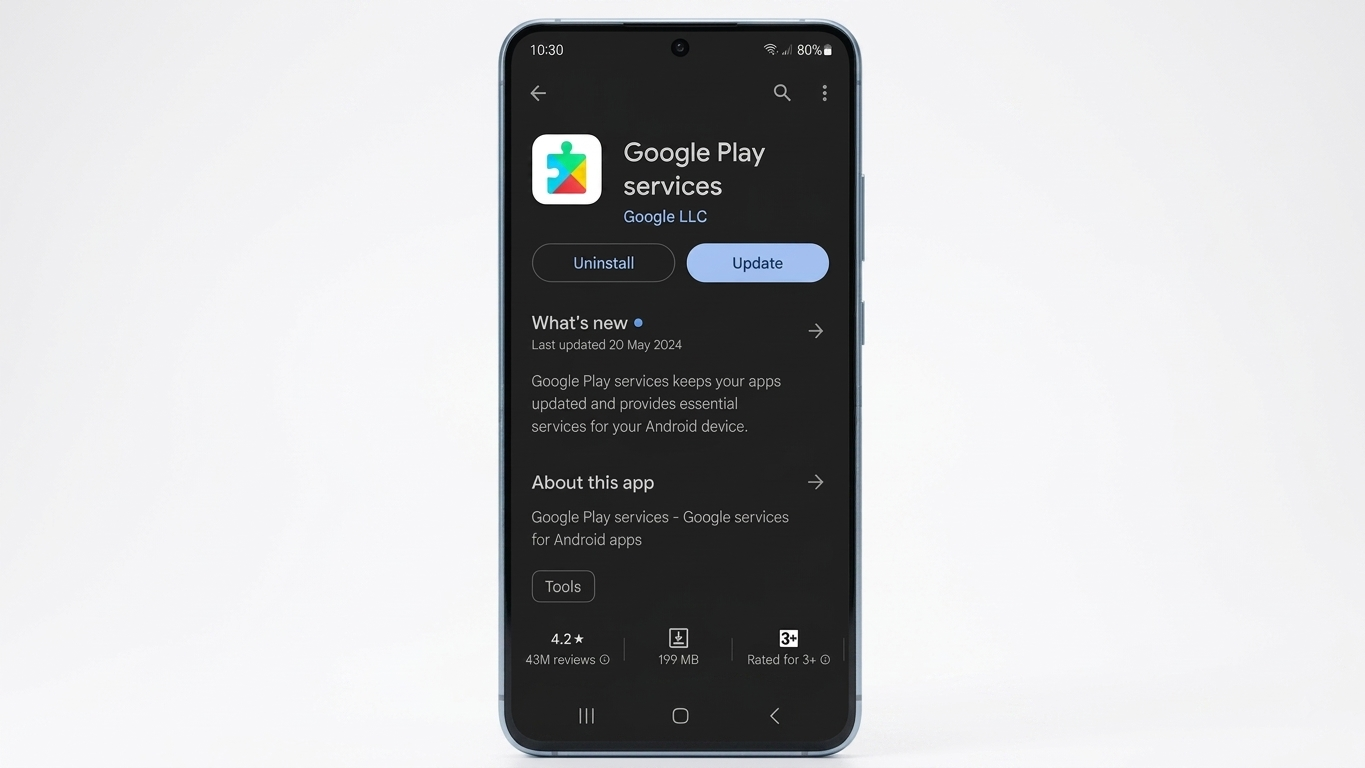
Google Play Services works quietly in the background of almost every Android smartphone. Although you may rarely open it yourself, many everyday features and applications depend on it to communicate with Google services and function correctly.
Services such as Google Maps, Gmail, Google Sign-In and several Android features rely on Google Play Services. It also plays an important role in delivering security-related updates and maintaining compatibility between apps and the Android system.
In most cases, Android handles Google Play Services updates automatically. However, if you’re experiencing frequent app crashes, unexpected errors or compatibility problems, checking for an available update can be a useful troubleshooting step.
Also Read: How to Delete Emails in Bulk in Gmail and Free Up Storage
What You Should Know Before Updating
- Google Play Services generally updates automatically.
- You can check for an update manually when problems occur.
- Installing an incorrect APK version can cause compatibility issues.
- The Google Play Store and Google Play Services are separate components.
- For most users, updating through Google’s official Play Store is the preferred option.
Option 1: Update Google Play Services From the Play Store
The simplest approach is to use the Google Play Store. Because Google Play Services is a system component, it may not appear like a normal app in your app drawer.
You can usually reach its Play Store listing through your Android phone’s settings.
Follow These Steps
- Open the Settings app on your Android phone.
- Go to Apps, App management, or Apps & notifications, depending on your device.
- Tap See all apps if your phone provides this option.
- Find and select Google Play Services.
- Open its app information page.
- Look for App details in store or a similar option.
- Your phone should take you to the Google Play Store listing.
- If an Update button is available, tap it.
- Allow the installation to finish.
If you don’t see an Update option, there may simply be no newer version currently available for your device.
Tip: Android settings can vary between manufacturers. The names of menus and options may be slightly different on Samsung, Xiaomi, OnePlus, Motorola, Vivo, Oppo and other devices.
Option 2: Manually Install a Compatible Version
If a particular Google Play Services update hasn’t appeared on your phone yet, some experienced Android users may choose to install the package manually from a reputable APK repository such as APKMirror.
However, this method requires more care because Google Play Services has different builds for different Android configurations and processor architectures.
First Check Your Installed Version
Before downloading anything, find out which version is currently installed.
- Open Settings.
- Tap Apps or App management.
- Select Google Play Services.
- Open App info.
- Check the displayed version number.
Having this information makes it easier to avoid installing an unsuitable package.
Steps for Manual Installation
If you decide to use a third-party APK repository:
- Open the website in your mobile browser.
- Search for Google Play Services.
- Prefer a stable release rather than an experimental or beta build.
- Check the available variants carefully.
- Select the package that is compatible with your Android version and device architecture.
- Download the appropriate file.
- Open the downloaded package and follow Android’s installation instructions.
- Restart your phone if necessary.
Do not install a random Google Play Services APK simply because it has a newer version number. An incompatible package may fail to install or cause unexpected problems.
For safety, verify the source and package details before installing any APK from outside the Play Store. If you’re unsure which variant your device needs, sticking with the Play Store update method is the better choice.
Why Keeping Google Play Services Updated Matters
Google Play Services connects many Android applications with Google’s underlying services. Keeping it reasonably up to date can therefore help maintain compatibility between your apps and the Android operating system.
Updates may include:
Improved App Compatibility
Some applications depend on newer Google Play Services components. An outdated version can occasionally result in compatibility problems.
Bug Fixes
Updates can address known bugs and improve the reliability of features that rely on Google services.
Better System Stability
Keeping important system components updated can help reduce unexpected errors and compatibility-related issues.
Security Improvements
Google regularly works on security and privacy improvements across Android’s ecosystem. Updating system components when updates are officially available is one part of maintaining a secure device.
Google Play Services vs Google Play Store
These two names are easy to confuse, but they perform different jobs.
Google Play Store is the app marketplace you use to search for and install Android applications, games and other digital content.
Google Play Services, on the other hand, works mostly in the background. It provides APIs and services that Android applications can use for features such as Google account integration, location-related functions and other Google-connected capabilities.
So, updating the Play Store does not mean that you have updated Google Play Services.
What If Google Play Services Is Causing Problems?
If your phone is experiencing issues after an update, don’t immediately assume that installing an even newer APK will fix everything. The problem could be related to another application, Android system software, storage, network connectivity or device-specific settings.
You can first try:
- Restarting the phone.
- Checking for Android system updates.
- Updating apps through the Play Store.
- Making sure your device has sufficient free storage.
- Checking whether the problem occurs with one particular app or multiple apps.
If problems continue, use your phone manufacturer’s official support resources rather than installing unknown system packages.
Frequently Asked Questions
Does Google Play Services update automatically?
Yes. On most supported Android devices, Google Play Services receives updates automatically in the background when appropriate.
Can I update Google Play Services from the Play Store?
Yes. You can generally access its Play Store listing through the Google Play Services app information page in Android Settings. If an update is available, the Play Store may display an Update button.
Is manually installing an APK necessary?
For most people, no. The Play Store is the preferred option. Manual installation is mainly useful for users who understand Android package variants and have a specific reason to install a compatible release.
Why can’t I find Google Play Services in the Play Store search?
Google Play Services is a system component rather than a regular app that you normally launch. Opening its store page through Android’s app settings is often easier.
Also Read: How to Zip and Unzip Files on a Mac: A Complete Guide
Final Thoughts
Google Play Services may work behind the scenes, but it supports many of the features Android users rely on every day. Fortunately, keeping it updated usually requires very little effort because updates are generally handled automatically.
If you suspect that an outdated version is causing an app or compatibility problem, check its Play Store page through Settings > Apps > Google Play Services and install an official update if one is available.
For advanced users, a compatible APK from a reputable source can be another option, but choosing the correct package is important. If you’re not familiar with Android APK variants, it’s safer to let Google handle the update through the Play Store.

Sourav Gorai, founder of sabhigyan.com, is passionate about technology, smartphones, apps, and digital tools. With 8+ years of experience in the digital and tech space, he focuses on creating easy-to-understand, practical, and helpful content that makes everyday technology simpler for readers.