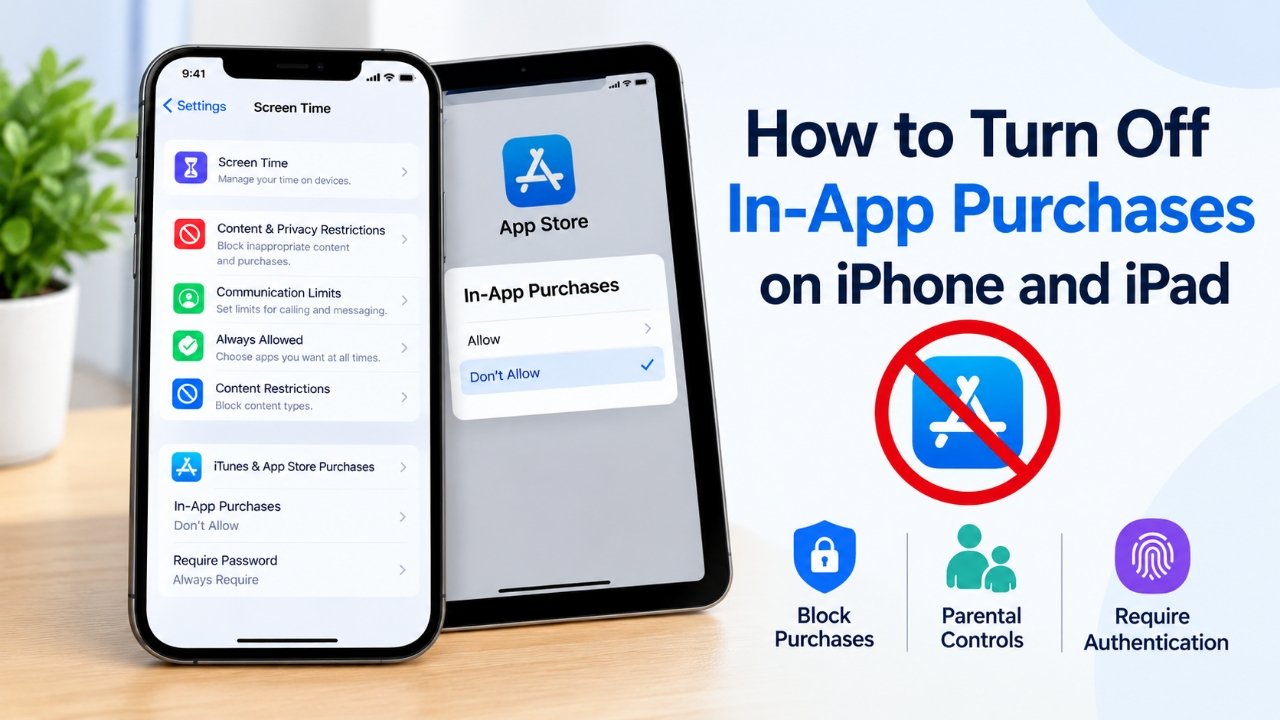
In-app purchases can sometimes lead to unexpected expenses, especially when children use an iPhone or iPad. A single tap inside a game or another application may result in a payment, subscription, or purchase of digital items. If you want to avoid these charges, Apple provides several settings that can help you manage purchases and control who can spend money through your device.
You do not always need to remove your payment method or stop using apps that offer paid features. You can restrict in-app purchases, require authentication before making payments, or use parental controls to review purchase requests from your child.
In this guide, you will learn how to turn off in-app purchases on an iPhone or iPad and explore other ways to prevent unwanted spending.
Also Read: How to Personalize the Photos App on Your iPhone
What Are In-App Purchases?
In-app purchases are payments made from within an application. Although you can often download an app for free, some features, content, or services may require additional payment.
For example, a mobile game might offer extra lives or virtual coins, while a photo-editing app may charge for advanced editing tools. Some applications also provide paid subscriptions for continued access to premium features.
In-app purchases generally fall into three categories.
- Consumable purchases: These are items you can use and buy again, such as virtual coins, extra lives, and power-ups in games.
- Non-consumable purchases: These are usually one-time payments that unlock features or content, such as an ad-free experience or additional editing tools.
- Subscriptions: These provide access to a service or premium content for a specific period. Many subscriptions renew automatically until you cancel them.
Understanding these categories can help you decide which purchase restrictions are suitable for your device.
How to Block In-App Purchases on an iPhone or iPad
Note: The exact menu names may vary depending on your iOS or iPadOS version. The following steps use Apple’s Screen Time settings available on supported devices.
The easiest way to prevent purchases within apps is to use Screen Time. This feature includes restrictions that can help prevent accidental payments and unauthorized spending.
Follow these steps:
- Open the Settings app on your iPhone or iPad.
- Tap Screen Time.
- Open Content & Privacy Restrictions and turn on the restrictions if they are disabled.
- Select iTunes & App Store Purchases or the corresponding app purchase settings available on your software version.
- Tap In-App Purchases.
- Select Don’t Allow or the equivalent blocking option shown on your device.
Once the restriction is enabled, apps should no longer be able to complete in-app purchases through the restricted purchasing system.
For additional protection, set a Screen Time passcode that other people using your device do not know. This helps prevent someone from changing the restrictions without your permission.
How to Prevent Children From Making Unwanted Purchases
If your child regularly uses your iPhone or iPad, purchase restrictions can be especially useful. However, if your child has their own Apple device, you may prefer to manage purchases through Apple’s Family Sharing features.
Family Sharing allows family members to access eligible shared services and provides parental purchase controls for supported accounts.
Use Ask to Buy for Purchase Approval
Apple’s Ask to Buy feature allows a child to request eligible purchases and downloads. A parent or guardian can review the request before deciding whether to approve it.
To set up Ask to Buy:
- Open Settings on your iPhone or iPad.
- Tap Family. On some versions, you may need to open your Apple Account settings first.
- Select your child’s name.
- Look for the Ask to Buy option in the available family settings.
- Enable the purchase approval feature if it is available for your family account.
Once configured, eligible purchase requests can be sent to the parent or guardian for approval. You can then decide whether the requested purchase should be allowed.
The available options may depend on the child’s age, account configuration, region, and software version. Check Apple’s current instructions if the menu names differ on your device.
Set a Screen Time Passcode
A Screen Time passcode provides another layer of protection for parental controls.
To configure it, open Settings, select Screen Time, and choose the option to set a Screen Time passcode. Follow the instructions displayed on your device.
Choose a passcode that is different from the device’s regular unlock code when possible, and avoid sharing it with children who should not change the restrictions.
Require Authentication Before Making Purchases
Completely blocking in-app purchases may not be convenient if you occasionally buy premium features yourself. In that situation, requiring authentication can provide a more flexible alternative.
Depending on your device and account settings, purchases may require Face ID, Touch ID, or your Apple Account password.
To review the available options:
- Open Settings.
- Go to Screen Time and review the purchase restrictions.
- Check the available password or authentication settings for purchases.
- If your device offers an option to require a password, select the setting that requires authentication every time, where available.
The exact options can vary by software version, account configuration, and purchase type. Requiring authentication is not necessarily a substitute for blocking in-app purchases, so use the restriction settings if you need to prevent them entirely.
Also, keep your Apple Account password and device authentication methods private.
Can You Stop In-App Purchases by Removing Your Payment Method?
Removing a payment method may reduce the ways your account can pay for purchases, but it is not a complete solution for blocking in-app purchases.
Apple may allow certain transactions through an available account balance or another eligible payment arrangement. Existing subscriptions and outstanding balances can also affect whether a payment method can be removed.
If you still want to check your payment settings, follow these steps:
- Open Settings on your iPhone or iPad.
- Tap your name at the top to open your Apple Account settings.
- Select Payment & Shipping.
- Authenticate if requested.
- Review the payment methods linked to your account.
- If a payment method is eligible for removal, select it and follow the on-screen instructions.
If you cannot remove a payment method, check whether an active subscription, unpaid balance, or Family Sharing requirement is preventing the change.
For reliable protection against accidental purchases, use Screen Time restrictions rather than relying only on payment method removal.
How to Check Your Apple Purchase History
If you have noticed an unexpected charge, reviewing your purchase history can help you identify the transaction.
On an iPhone or iPad, you can generally check purchases through your Apple Account settings or Apple’s official purchase history service.
Follow these steps:
- Open Settings and tap your name.
- Look for Media & Purchases.
- Select View Account if prompted.
- Open Purchase History.
- Review the listed transactions and look for unfamiliar purchases.
You can also visit Apple’s official purchase history page at reportaproblem.apple.com and sign in with the relevant Apple Account.
If you identify a purchase you did not intend to make, review Apple’s refund options. Refunds are not guaranteed and depend on Apple’s eligibility rules.
Frequently Asked Questions (FAQs)
1. How do I turn off in-app purchases on my iPhone?
Open Settings, go to Screen Time, and enable the relevant content and privacy restrictions. Find the in-app purchase setting and choose the option that blocks purchases. The precise menu names depend on your iOS version.
2. Can I block in-app purchases without deleting an app?
Yes. You can restrict in-app purchases through Screen Time without uninstalling the apps that offer paid content. The restrictions may affect purchasing functionality, but they do not necessarily remove existing paid features.
3. How can I stop my child from buying items in games?
You can block in-app purchases using Screen Time or use Family Sharing with Ask to Buy for eligible purchase requests. A Screen Time passcode can also help prevent unauthorized changes to the restrictions.
4. Does removing my payment method completely stop in-app purchases?
No. Removing a payment method alone does not guarantee that every purchase will be blocked. Other eligible payment options or an available account balance may still apply. Use Screen Time restrictions for more direct control.
5. How can I cancel an unwanted app subscription?
Open Settings, tap your name, and select Subscriptions. Choose the subscription you want to cancel and follow the instructions. Deleting the app does not automatically cancel its subscription.
6. Can I get a refund for an accidental in-app purchase?
You can submit a refund request through Apple’s official Report a Problem website. Approval depends on Apple’s refund policies and the circumstances of the purchase.
7. Will blocking in-app purchases cancel my existing subscriptions?
Blocking new in-app purchases does not necessarily cancel existing subscriptions. Review your subscriptions separately and cancel any service you no longer want to pay for.
Also Read: How to Turn Off Low Power Mode on iPhone, iPad, Apple Watch and Android
Final Thoughts
Turning off in-app purchases on an iPhone or iPad is a practical way to reduce accidental spending and protect your account from unwanted transactions. Apple’s Screen Time feature lets you restrict purchases, while Family Sharing and Ask to Buy provide additional options for managing eligible purchases made by children.
If you still want to make occasional purchases, consider requiring authentication and keeping your account credentials private. You should also review your purchase history and active subscriptions regularly to identify unexpected charges.
Choose the settings that best suit your needs, and remember that removing a payment method alone may not block every possible purchase.

Sourav Gorai, founder of sabhigyan.com, is passionate about technology, smartphones, apps, and digital tools. With 8+ years of experience in the digital and tech space, he focuses on creating easy-to-understand, practical, and helpful content that makes everyday technology simpler for readers.
Advertisements