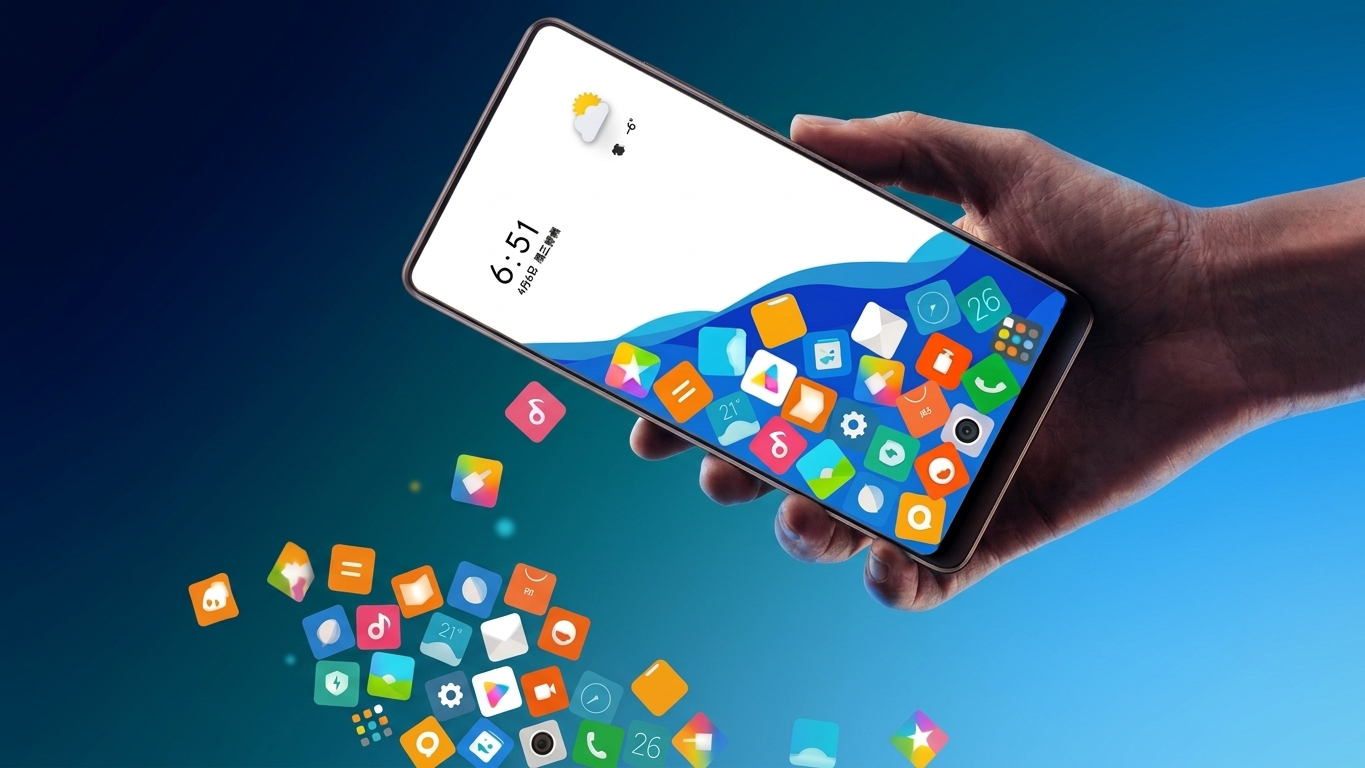
Personalizing an Android phone has become a favorite hobby for many users. Whether it’s changing wallpapers, applying icon packs, or installing a custom launcher, there are countless ways to create a home screen that feels unique. If you’re searching for a different kind of customization, a Rolling Icons App offers an entertaining animation that brings your app icons to life.
Instead of keeping icons fixed in one place, the app makes them move across the screen based on how you tilt or rotate your phone. This simple effect creates a more engaging and interactive home screen without permanently changing your apps.
Also Read: Shimeji App: Bring Cute Animated Companions to Your Android Screen
What Is a Rolling Icons App?
A Rolling Icons App is an Android customization tool that adds movement to your home screen icons. Using your phone’s motion sensors, the selected icons respond naturally whenever you move your device. As you tilt your smartphone, the icons appear to roll or slide across the display, creating a playful visual experience.
Some versions also let you include personal images and animated emojis, making the home screen even more personalized.
Why People Like Rolling Icons Apps
Unlike traditional launchers that completely redesign your interface, rolling icon apps focus on adding a fun animation effect. They are popular among users who enjoy experimenting with different home screen styles without making major changes to their device.
The animation can make your phone feel fresh while still keeping your regular apps easily accessible.
Key Features
Most Rolling Icons apps include features such as:
- Motion-responsive app icons
- Support for adding personal photos
- Animated emoji effects
- Quick and beginner-friendly setup
- Option to choose which apps appear in the animation
- Smooth and interactive visual experience
- Lightweight design with simple controls
The available features may vary depending on the app version you install.
How to Use a Rolling Icons App
Setting up the animation is usually simple. Follow these general steps:
1. Install the App
Download a Rolling Icons App from a trusted app store. Open the application after installation and complete the initial setup by accepting the required permissions and terms.
2. Select Your Favorite Apps
Navigate to the icon selection page where you’ll find the apps installed on your device.
Choose the icons you want to include in the rolling animation and save your selection.
3. Add Your Own Photos (Optional)
If your chosen app supports custom images, open the photo section and tap the + button.
Pick one or more pictures from your gallery and confirm your selection.
4. Include Animated Emojis (Optional)
Many rolling icon apps provide a collection of emojis.
Browse the available options and add the ones you like to make the animation more colorful and entertaining.
5. Enable the Motion Effect
Once you’ve finished customizing the screen, tap the Start or Enable button.
Now, when you tilt or rotate your Android device, the selected icons, photos, and emojis will move across the display according to your phone’s motion.
Tips for a Better Experience
To get smoother performance, keep these suggestions in mind:
- Avoid selecting too many icons at once.
- Use high-quality photos for better visuals.
- Close unnecessary background apps if you notice lag.
- Keep the app updated to receive new features and performance improvements.
Is It Safe to Use?
Rolling Icons apps are generally safe when downloaded from reputable app stores. Before installing any customization app, review its requested permissions and read recent user reviews. Only grant permissions that are necessary for the app’s functionality.

Also Read: GO Launcher S: An Easy Way to Personalize Your Android Home Screen
Final Thoughts
If you enjoy customizing your Android device, a Rolling Icons App is an easy way to make your home screen look more lively. The motion-based animation adds a playful touch without requiring complicated settings or advanced technical knowledge.
Whether you choose to animate app icons, personal photos, or emojis, the result is a home screen that feels more interactive and visually appealing. For the best experience, always download apps from trusted sources and check permissions before installation.

Ankita Kumar, founder of sabhigyan.com, is passionate about technology, smartphones, apps, and digital tools. With 8+ years of experience in the digital and tech space, he focuses on creating easy-to-understand, practical, and helpful content that makes everyday technology simpler for readers.
Advertisements