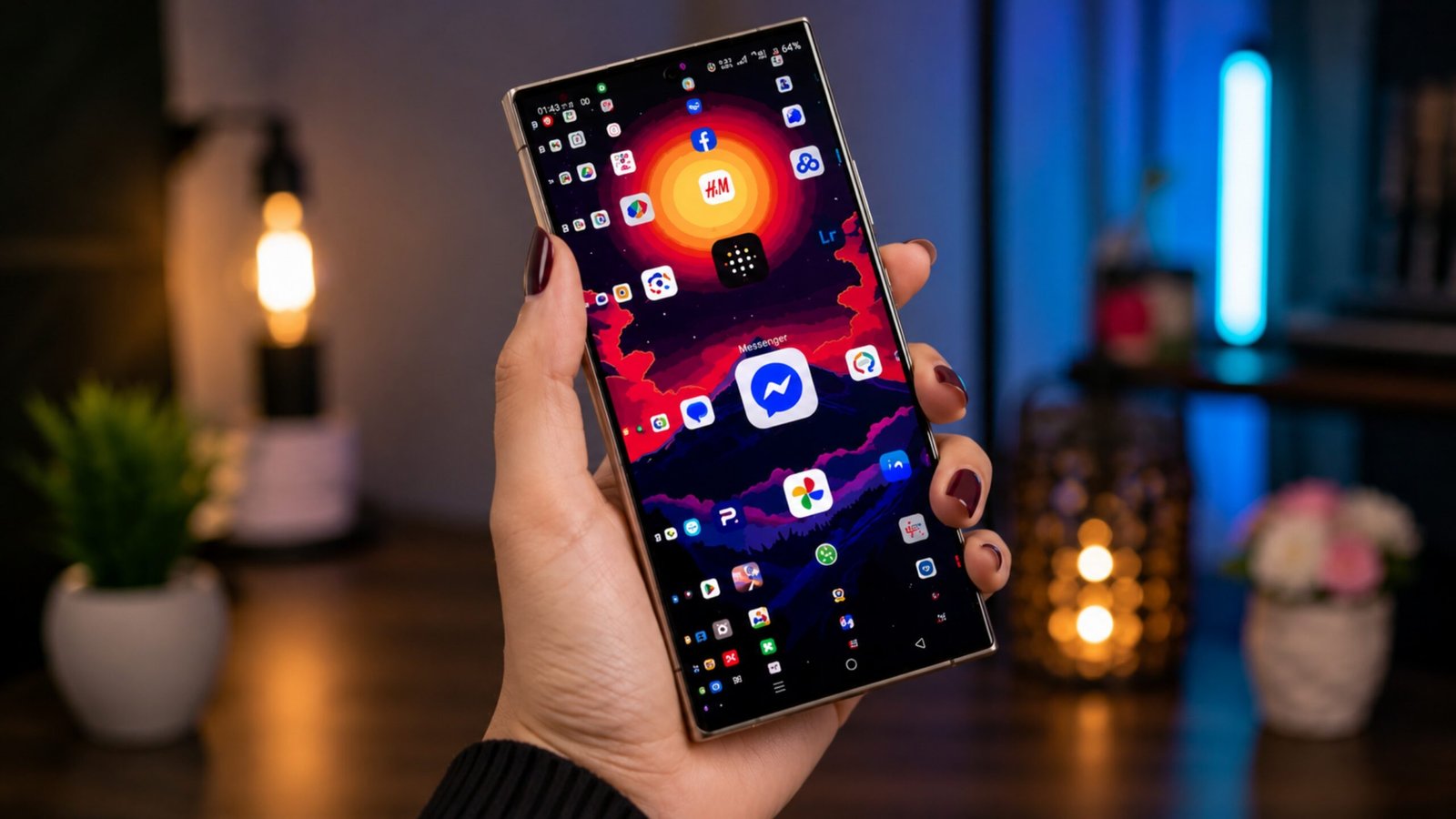
Managing a smartphone can become surprisingly difficult when you have a large collection of apps. After installing dozens of applications, the home screen can quickly fill up with icons, folders, and multiple pages. Although Android provides app search and organization tools, finding a particular app can still take a few extra steps.
Lens Launcher takes a different approach. Rather than spreading applications across several home-screen pages, it places them together on one screen and uses a dynamic zoom effect to make nearby icons easier to identify and select.
Also Read: Sequin Flip Live Wallpaper: Give Your Android Home Screen a Colorful Interactive Look
What Makes Lens Launcher Different?
Lens Launcher is an Android launcher built around a simple idea: keep your apps together in one place.
Instead of repeatedly swiping between pages or opening folders, you can see your installed applications within a compact grid. The launcher then uses a magnifying effect around your finger, temporarily enlarging nearby icons as you move across the screen.
This unusual interface gives Android users an alternative to conventional launchers while keeping the main focus on quick app access.
How the One-Screen Layout Works
Once Lens Launcher is configured as your phone’s default launcher, your applications are displayed together on a single screen.
Because the icons are arranged closely, the launcher uses its zooming effect to make individual apps easier to recognize. As your finger moves over the display, icons around the touch position become larger, allowing you to select the desired application without manually browsing through several home-screen pages.
The idea is particularly useful for people who have accumulated a large number of applications.
Main Features You Can Expect
1. All Apps in One View
Lens Launcher is designed to put your installed applications on one screen. This can reduce the need for multiple home-screen pages and folders.
2. Interactive Magnification
The standout feature is the lens-style zoom effect. Icons around your finger become larger, making them easier to see and tap despite the compact grid.
3. Adjustable Appearance
Depending on the available settings and version, users can customize aspects of the launcher, such as icon sizing, grid arrangement, spacing, and magnification behavior.
4. Minimal Home Screen
The interface is intentionally simple. Instead of filling the screen with widgets and shortcuts, Lens Launcher concentrates on providing access to applications.
5. Designed for Everyday Navigation
The launcher is built around quick interaction, which can make it an interesting choice for users who want an alternative to traditional Android navigation.
6. Haptic Feedback
On supported devices and configurations, haptic feedback can provide a small vibration response during certain interactions, adding another layer of responsiveness.
Why Might You Want to Try Lens Launcher?
The usefulness of a launcher often depends on how many apps you have and how you prefer to navigate your phone.
If your device contains a large number of applications, conventional folders and multiple pages may not always be the fastest way to find what you need. Lens Launcher takes those apps and presents them through a single, compact interface.
The magnification effect also gives the launcher a distinctive feel. Rather than simply making icons smaller to fit more applications, it allows them to enlarge around the area you’re touching.
For users who enjoy experimenting with different Android interfaces, this can be a refreshing alternative.
Who Could Benefit From It?
Lens Launcher may appeal to people who:
- Prefer a clean and minimal home screen
- Have a large collection of installed apps
- Want to experiment with a different Android launcher
- Don’t like managing several pages of app icons
- Prefer visual browsing over repeatedly opening folders
- Enjoy simple interfaces with unusual interaction methods
However, it may not suit everyone. Users who rely heavily on widgets, multiple shortcuts, or a highly customized traditional home screen may prefer a more conventional launcher.
How to Set Up Lens Launcher on Android
Getting started is relatively simple:
- Install Lens Launcher through a trusted Android app source such as the Google Play Store.
- Open the application after installation.
- Follow the on-screen instructions to configure it as your launcher.
- Adjust the available settings for the icon layout, spacing, and magnification effect.
- Return to the home screen and try navigating through your applications.
The exact setup process and available options can vary depending on your Android version and the current version of the launcher.
Is Lens Launcher Worth Trying?
Lens Launcher isn’t designed to be a traditional Android home screen replacement in terms of appearance and interaction. Its main attraction is the combination of a single-screen app layout and a magnification-based navigation system.
If you regularly find yourself searching through folders or several home-screen pages, its approach could make app browsing feel more straightforward. On the other hand, users who prefer conventional layouts may need some time to get comfortable with the unusual interface.
Ultimately, the best launcher comes down to personal preference. Lens Launcher is worth considering if you want to try something different while keeping your installed apps accessible from one place.

Also Read: Lens Launcher: A Smarter Way to Access All Your Apps
Final Verdict
Lens Launcher offers a unique way to organize and access Android apps. Its compact grid, interactive zoom effect, and minimal design set it apart from many conventional launcher interfaces.
It may not be the perfect choice for everyone, but for users looking for a fresh approach to app navigation, it provides an interesting alternative worth exploring.

Ankita Kumar, founder of sabhigyan.com, is passionate about technology, smartphones, apps, and digital tools. With 8+ years of experience in the digital and tech space, he focuses on creating easy-to-understand, practical, and helpful content that makes everyday technology simpler for readers.
Advertisements