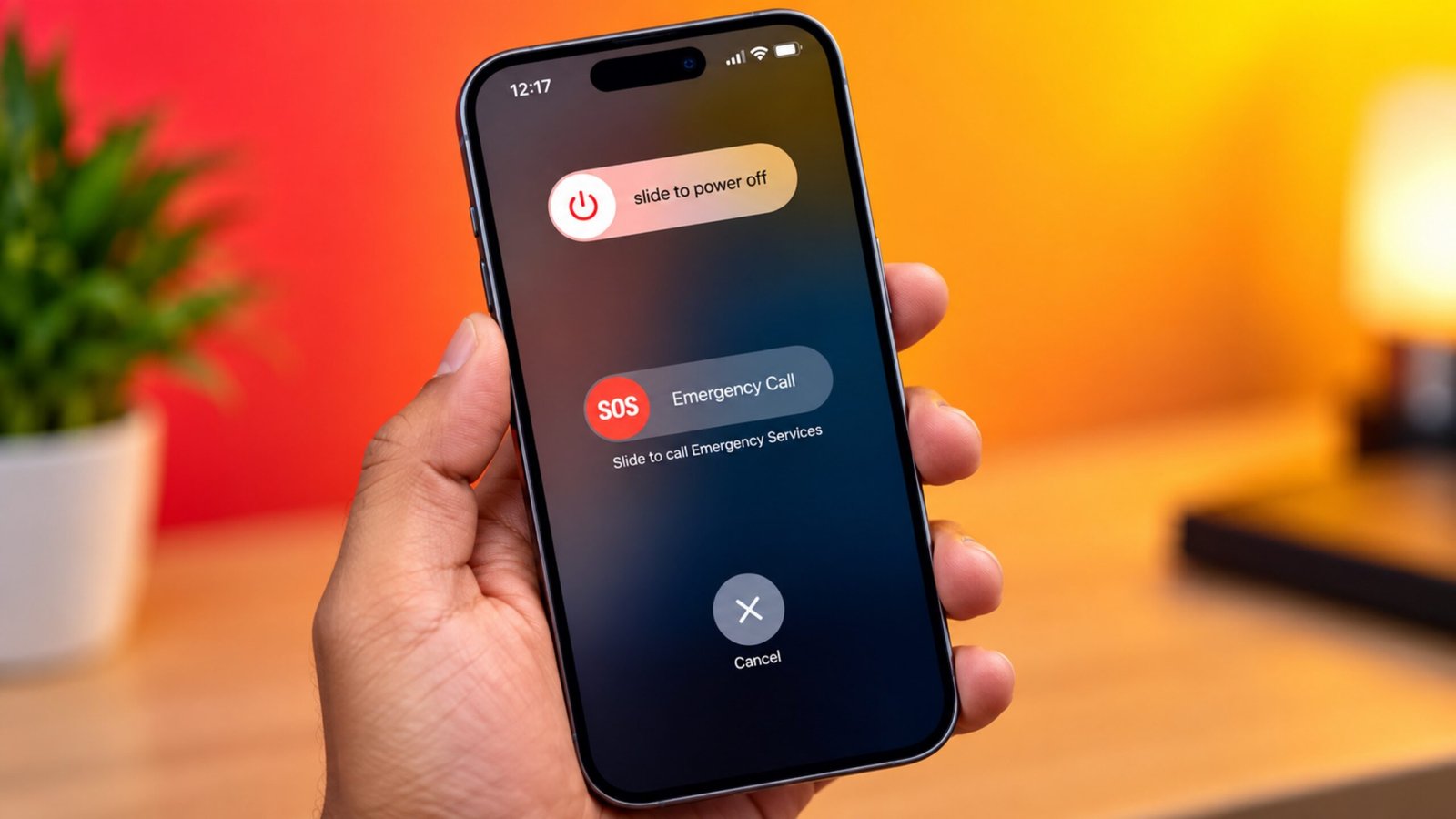
Restarting an iPhone or iPad is one of the first things you can try when the device starts acting strangely. It can be helpful if an app becomes unresponsive, the phone feels sluggish, or some features are not working as expected.
The restart process is slightly different between Apple devices. It mainly depends on whether your iPhone or iPad has a physical Home button.
Here’s a simple guide covering the common iPhone and iPad models.
Also Read: How to Make Your Android Phone Look Like a Windows 11 PC
Restart an iPhone Without a Home Button
Most newer iPhone models use Face ID and don’t have a physical Home button. The same basic method is used across these devices.
This includes the iPhone X series and later models, including newer generations.
Steps to restart:
- Press and hold the Side button and either Volume button together.
- Keep holding them until the power-off slider appears.
- Drag the slider to the right.
- Wait for about 30 seconds while the iPhone shuts down.
- After the screen goes completely dark, press and hold the Side button.
- Let go when the Apple logo appears.
Your iPhone will now boot up normally.
Turn Off an iPhone From Control Center
Depending on your iOS version, you may also be able to shut down the iPhone from Control Center without holding the physical buttons.
Open Control Center and press and hold the power icon. When the power-off slider appears, drag it across the screen.
Once the iPhone has turned off, hold the Side button until the Apple logo appears to switch it back on.
Restart an iPhone With a Home Button
iPhones with a physical Home button use a simpler button method. This applies to older models as well as the second- and third-generation iPhone SE.
Follow these steps:
- Press and hold the Side button.
- On some older iPhones, you may need to use the Top button instead.
- Continue holding the button until the power-off slider appears.
- Drag the slider from left to right.
- Wait roughly 30 seconds for the device to shut down.
- Press and hold the Side or Top button again.
- Release it when the Apple logo appears.
The iPhone should start normally after a few moments.
Restart an iPad With a Home Button
If your iPad has a physical Home button, restarting it is also straightforward.
Here’s what you need to do:
- Press and hold the Top button.
- Wait until the power-off slider appears.
- Drag the slider across the screen.
- Give the iPad around 30 seconds to turn off.
- Press and hold the Top button again.
- Release the button when you see the Apple logo.
Your iPad will then start up again.
Restart an iPad Without a Home Button
iPads without a physical Home button use the Top button and a Volume button to bring up the shutdown screen.
Steps:
- Press and hold the Top button and either Volume button at the same time.
- Continue holding both buttons until the power-off slider appears.
- Drag the slider to turn off the iPad.
- Wait around 30 seconds.
- Press and hold the Top button.
- Release it once the Apple logo appears.
The iPad should now restart.
What to Do If Your iPhone or iPad Is Frozen
A normal restart may not work if the screen is completely frozen or the device isn’t responding to touches or buttons as expected. In such cases, a force restart may be needed.
The force-restart procedure is not the same for every iPhone or iPad. It depends on the specific model, so it’s important to follow the button combination designed for your device.
A force restart can be useful when the regular power-off slider cannot be accessed because the device has stopped responding.
Does Restarting Delete Anything?
A normal restart does not erase your photos, apps, messages, or other personal data. It simply powers the device off and starts it again.
However, if you are following troubleshooting instructions that involve erasing or resetting the device, that’s a different process and can remove data depending on the option selected.
Also Read: How to Disable Double Tap on Apple Watch
Final Thoughts
Restarting an iPhone or iPad is a quick troubleshooting step worth trying when the device isn’t behaving normally. The main difference between the methods is whether your device has a physical Home button.
For newer iPhones without a Home button, the Side button and a Volume button are generally used to access the power-off screen. iPads without a Home button use the Top button with a Volume button, while older devices generally rely on the Side or Top button.
If a normal restart doesn’t fix the issue, you can move on to other troubleshooting methods based on the specific problem you’re experiencing.

Ankita Kumar, founder of sabhigyan.com, is passionate about technology, smartphones, apps, and digital tools. With 8+ years of experience in the digital and tech space, he focuses on creating easy-to-understand, practical, and helpful content that makes everyday technology simpler for readers.
Advertisements