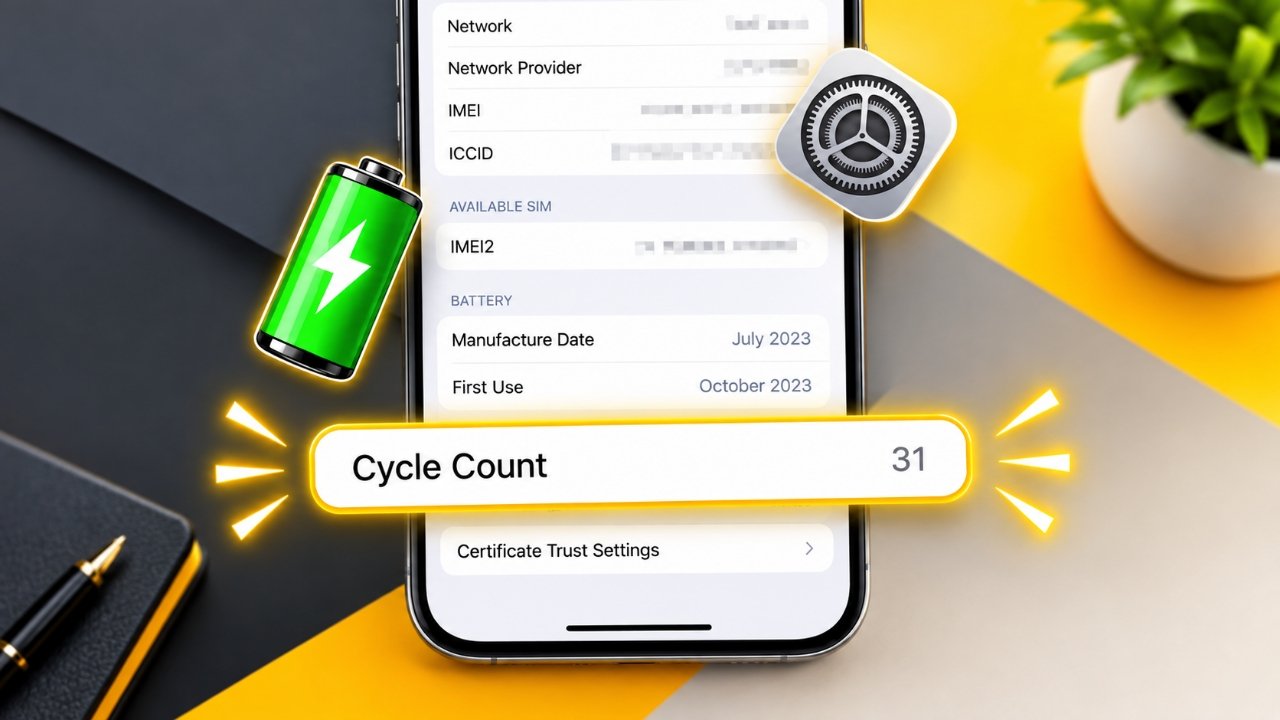
If your iPhone’s battery is no longer lasting as long as it did when the device was new, checking its battery cycle count can help you understand how much the battery has been used.
A battery cycle does not mean charging the iPhone from 0% to 100% once. Instead, one cycle represents total battery usage equal to 100% of the battery’s capacity, which can happen over several charging sessions.
In this guide, we’ll explain what the cycle count means, how to find it on supported iPhone models, what options are available on older devices, and when battery replacement may actually be worth considering.
Also Read: App Store Missing on iPhone? Easy Ways to Find and Restore It
What Does Battery Cycle Count Mean on an iPhone?
A battery cycle measures the equivalent of using 100% of the battery’s capacity.
For example, imagine you use 40% of your iPhone’s battery during the day and recharge it. Later, you use another 60%. The combined usage adds up to roughly one complete battery cycle.
So, if you charge your iPhone several times throughout the day, that does not mean the cycle count increases by one after every charging session.
As lithium-ion batteries age, their ability to hold the same amount of charge can gradually decrease. This is why the cycle count can be helpful when evaluating the overall age and usage of an iPhone battery.
Why Should You Check the Battery Cycle Count?
The cycle count is not a complete measure of battery health, but it can give you useful background information.
It can be particularly helpful if you want to:
- Understand how heavily the battery has been used
- Check the condition of a second-hand iPhone
- Investigate declining battery life
- Monitor battery usage over time
- Decide whether it may be worth having the battery checked
Apple states that batteries in iPhone 14 models and earlier are designed to retain up to 80% of their original capacity after 500 complete charge cycles under ideal conditions. For iPhone 15 models and later, Apple states a design target of up to 80% capacity after 1,000 complete cycles under ideal conditions.
These are design expectations rather than guarantees. Actual battery performance can vary depending on factors such as temperature, usage and charging habits.
How to Find Battery Cycle Count on iPhone 15 and Newer Models
Newer supported iPhone models provide battery cycle information directly through the Settings app.
To check it:
- Open Settings on your iPhone.
- Tap Battery.
- Open the available Battery Health or Battery Health & Charging section.
- Look for Cycle Count.
If the feature is supported, your iPhone will show the number of completed battery cycles recorded by the device.
If you cannot find this option, your particular iPhone or iOS version may not support displaying the information in that location. Apple can also change menu names and settings through software updates.
What If Your Older iPhone Doesn’t Show Cycle Count?
On some older iPhone models, the cycle count may not appear as a regular setting even though the device records battery-related information.
There are a few ways you can try to find it.
Check iPhone Analytics Data
You can look through the analytics information stored on the device.
Try these steps:
- Go to Settings.
- Tap Privacy & Security.
- Select Analytics & Improvements.
- Open Analytics Data.
- Look for a recent analytics file.
- Copy the available information and paste it into the Notes app.
- Use the Notes search function to look for a term such as CycleCount.
The exact files and information available can differ depending on the iPhone and iOS version. Therefore, this method may not work on every device.
Consider a Trusted Shortcut
Some iPhone shortcuts are designed to read analytics information and present battery-related details in a more understandable format.
If you choose this approach, be careful about which shortcut you install. Use a source you trust and check what information or permissions the shortcut requires.
You should also avoid shortcuts that make unrealistic promises, such as claiming they can increase battery capacity or unlock unsupported iPhone features.
Can Third-Party Software Check iPhone Cycle Count?
Yes, some computer-based utilities can provide additional battery information when you connect an iPhone to a computer.
Tools such as coconutBattery on Mac and iMazing on Windows or Mac may show battery-related information for compatible devices.
However, third-party software does not necessarily have access to every battery statistic. iOS limits the information that applications can access.
If you use a third-party tool, keep these precautions in mind:
- Download software from the developer’s official website or a trusted source.
- Review the permissions it requests.
- Avoid sharing unnecessary personal information.
- Do not install unknown configuration profiles simply to check battery statistics.
- Prefer Apple’s built-in battery information whenever it provides what you need.
When Should You Replace an iPhone Battery?
A high cycle count by itself does not mean that the battery must be replaced.
Instead, look at the complete picture, including battery capacity and how the iPhone behaves during normal use.
Battery Life Has Become Much Shorter
If you are charging your iPhone considerably more often than before despite using it in a similar way, the battery may have lost some of its original capacity.
iPhone Shows a Battery Service Message
Open the battery health section in Settings and check whether your iPhone displays a service-related recommendation.
A significantly reduced maximum capacity can also indicate that the battery has aged considerably.
Unexpected Shutdowns
An aging battery can sometimes have difficulty supplying enough power during demanding situations. However, unexpected shutdowns can also be caused by software or other hardware problems, so they should not automatically be attributed to the battery.
Performance Has Changed
Battery condition can sometimes affect device performance, but a slow iPhone does not necessarily have a battery problem.
Software issues, insufficient storage, outdated applications and other factors can also make an iPhone feel slower.
Does 80% Battery Health Mean You Need a New Battery?
Not automatically.
An iPhone can continue to work even when its maximum battery capacity falls below 80%. The percentage is an indication of battery aging, rather than an automatic replacement requirement.
The more important question is how the phone performs in your everyday use.
If the battery is draining quickly, the device is shutting down unexpectedly, or iOS recommends service, having the battery inspected by Apple or an authorized service provider can help you determine whether replacement is appropriate.
Battery Cycle Count and Battery Health Are Different
It is easy to confuse these two measurements, but they tell you different things.
Cycle Count indicates how many equivalent full battery cycles the iPhone has completed.
Maximum Capacity estimates how much charge the battery can currently hold compared with its capacity when it was new.
For instance, two iPhones could have a similar cycle count but different maximum-capacity percentages. Battery aging is influenced by several factors, including temperature, usage patterns and charging habits.
Therefore, it is better to consider both measurements instead of judging the battery solely by its cycle count.
Simple Ways to Take Better Care of Your iPhone Battery
Battery aging is unavoidable, but sensible usage can help reduce unnecessary stress on the battery.
Keep the iPhone Away From Excessive Heat
High temperatures can negatively affect lithium-ion batteries. Avoid leaving your iPhone in very hot places or in direct sunlight for extended periods.
Use Apple’s Battery Charging Features
Depending on your iPhone model and iOS version, charging features such as Optimized Battery Charging can help reduce the amount of time the battery remains fully charged.
You can check the available options in the iPhone’s battery settings.
Choose Reliable Charging Accessories
Use Apple charging accessories or reputable, properly certified alternatives. Poor-quality cables and chargers can create charging or safety problems.
Keep iOS Updated
Software updates can include bug fixes and improvements to battery management. Keeping your iPhone updated can therefore be useful for general device maintenance.
Also Read: How to Use Your iPhone or Android Phone as a Mobile Hotspot
Final Thoughts
Checking the iPhone battery cycle count is a simple way to learn more about how much a battery has been used. On supported newer iPhones, the information can be available directly in the Battery settings.
Older iPhones may require you to look through analytics data or use a trusted computer-based utility.
However, don’t judge the battery entirely by its cycle count. Maximum capacity, battery life, unexpected shutdowns and the phone’s overall behavior are also important when deciding whether a battery needs attention.
Because iOS features and settings can change with software updates, the exact steps may vary between iPhone models and iOS versions. If an option is missing from your device, checking Apple’s latest support information for your particular model is the safest approach.

Sourav Gorai, founder of sabhigyan.com, is passionate about technology, smartphones, apps, and digital tools. With 8+ years of experience in the digital and tech space, he focuses on creating easy-to-understand, practical, and helpful content that makes everyday technology simpler for readers.