Running low on storage on your iPhone 16 can be frustrating, especially when you want to install a new app, download photos, or update iOS. Before deleting anything, it is useful to find out exactly what is consuming your device’s storage.
The good news is that you do not need a third-party app to check this. Your iPhone has a built-in storage management section that provides a detailed breakdown of your available space.
In this guide, you will learn how to check iPhone 16 storage, identify apps and files taking up the most space, and use the available options to manage storage.
Also Read: Micro Gesture: Shake Your Android Phone to Open Apps and Perform Quick Actions
How to See iPhone 16 Storage Usage
The quickest way to view your storage information is through the Settings app.
- Open Settings on your iPhone 16.
- Tap General.
- Select iPhone Storage.
- Give your iPhone a few moments to calculate the storage information.
- Review the storage bar and the list of apps and data shown below it.
Once the calculation is complete, you can see how much space is being used and which categories or apps are responsible for most of the usage.
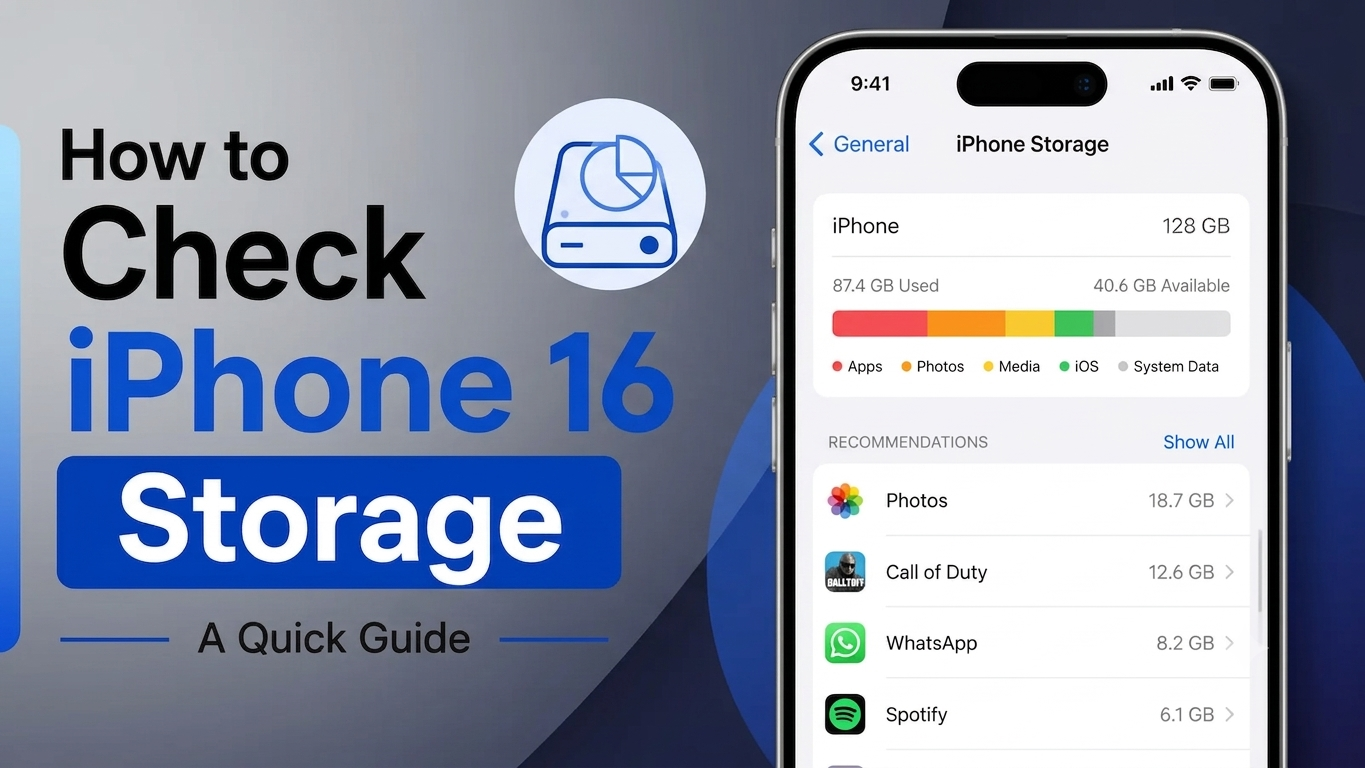
What You Can See on the iPhone Storage Screen
The iPhone Storage page gives you a more detailed picture of your device’s storage situation. Depending on your iOS version and device usage, you may see information such as:
- Total device storage capacity
- Storage currently being used
- Remaining available space
- A graphical representation of storage usage
- Apps arranged according to their storage consumption
- Data associated with individual apps
The visual storage bar makes it easier to understand how much of your iPhone’s capacity is occupied.
How to Check Which Apps Are Taking the Most Space
If your iPhone is nearly full, look through the app list shown on the iPhone Storage screen.
Tap an app to see information about the space it occupies. Depending on the app, iOS may provide options such as Offload App or Delete App.
Offload App
Offloading removes the app itself while keeping its associated documents and data on the device. You can reinstall the app later if you need it again, provided the app remains available.
Delete App
Deleting an app removes the application and its associated data from your iPhone. Before using this option, make sure you do not need any important information stored only inside the app.
The exact options and information available can vary between apps.
Another Way to Check Your iPhone’s Storage Capacity
If you only want to know your iPhone’s overall storage capacity rather than a complete breakdown, there is another option.
Go to:
Settings → General → About
Look for the storage information displayed on the About page. This section is useful for checking basic device details, although it does not provide the same detailed breakdown as the dedicated iPhone Storage screen.
iPhone Storage vs. iCloud Storage
It is important not to confuse your iPhone’s internal storage with iCloud storage.
iPhone storage refers to the physical storage built into your device. It is used for apps, photos, videos, messages, downloaded files, system data, and other content stored locally.
iCloud storage is cloud-based storage associated with your Apple Account. It can be used for things such as backups, photos, documents, and synchronized information.
You can check your iCloud usage by opening:
Settings → [Your Name] → iCloud
This allows you to see how much of your iCloud storage is being used.
Why Does iPhone Storage Take Time to Calculate?
When you open the iPhone Storage section, your device may need some time to organize and calculate the information.
The process can take longer when your iPhone contains a large amount of content, such as:
- A large photo and video library
- Numerous installed applications
- Downloaded movies, music, or other media
- Large files and documents
- Significant amounts of app data
If the storage screen does not appear immediately, wait for the calculation to finish instead of repeatedly opening and closing the page.
What to Do When Your iPhone Storage Is Nearly Full
Once you know what is using your storage, you can decide what should be removed.
Start by reviewing large items such as:
- Videos you no longer need
- Apps that you rarely use
- Old downloaded files
- Unwanted photos
- Large message attachments
- Offline content stored by apps
You can also open individual apps from the storage list and check whether they offer their own options for removing downloaded or offline content.
For apps you may want to use again later, Offload App can be worth considering when that option is available.
Tips for Managing iPhone 16 Storage
You do not have to wait until your iPhone completely runs out of space before managing storage. A quick review every now and then can help you identify unnecessary files.
Here are some useful habits:
- Remove apps that you no longer use.
- Review large videos and downloaded media.
- Delete unnecessary files and attachments.
- Check apps that have accumulated a significant amount of data.
- Keep an eye on your available storage before installing major updates.
- Use app-specific cleanup options where available.
- Consider offloading unused apps when you want to keep their data.
What If the iPhone Storage Page Is Not Loading?
Sometimes the storage information may take longer than expected to appear.
If the page remains blank or continues loading, try these basic steps:
- Wait a little longer for the calculation to complete.
- Restart your iPhone.
- Check whether an iOS update is available.
- Open Settings → General → iPhone Storage again after restarting.
If the problem continues, checking Apple’s current support documentation or contacting Apple Support may be appropriate.
What If the Storage Numbers Look Wrong?
Storage figures can change while iOS is calculating or reorganizing information. If the numbers do not seem correct, first allow the storage page to finish loading completely.
If the information still appears unusual afterward, restart the iPhone and check the storage screen again.
Also remember that the amount of space shown as available can change as apps, photos, downloads, system data, and other content are added or removed.
Checking iPhone Storage Through a Computer
You can also connect your iPhone to a computer if you prefer to manage or inspect the device from there.
On a Mac, the iPhone can be accessed through Finder. On Windows, Apple’s current device-management software can be used depending on the Windows setup.
However, for a quick storage check, the built-in Settings → General → iPhone Storage option is generally the simplest place to start.
Frequently Asked Questions
How do I check storage on an iPhone 16?
Open Settings → General → iPhone Storage. After the device finishes calculating the information, you can see the storage breakdown and the apps using space.
How can I find out which app is using the most storage?
Open Settings → General → iPhone Storage and review the apps listed there. The storage page provides information about the amount of space associated with each app.
Is iPhone storage the same as iCloud storage?
No. iPhone storage is the physical storage available on your device, while iCloud provides online storage for supported services such as backups, photos, documents, and synchronization.
What should I delete when my iPhone storage is full?
Start by reviewing large videos, unused apps, old downloads, unnecessary photos, and large attachments. Check each item before deleting it to avoid removing something you may need.
Does Offload App delete my app data?
Offloading is designed to remove the app while retaining its documents and data, allowing you to reinstall the app later. The exact behavior can depend on the app and its data.
Why is my iPhone storage taking so long to load?
Your iPhone may need additional time to calculate storage usage when there is a large amount of content or many apps and files to process. Give the page some time to finish calculating.
Also Read: How to Factory Reset iPhone 16 Safely: Step-by-Step Guide
Final Thoughts
Checking storage on the iPhone 16 takes only a few steps. Simply open Settings, go to General, and select iPhone Storage.
From there, you can see how your available space is being used and review individual apps and other storage categories. If your device is getting close to its capacity, this screen is a useful starting point for deciding what can safely be removed or offloaded.
Regularly reviewing storage can also make it easier to avoid unexpected storage warnings when you need space for new apps, photos, videos, or iOS updates.

Sourav Gorai, founder of sabhigyan.com, is passionate about technology, smartphones, apps, and digital tools. With 8+ years of experience in the digital and tech space, he focuses on creating easy-to-understand, practical, and helpful content that makes everyday technology simpler for readers.
Advertisements