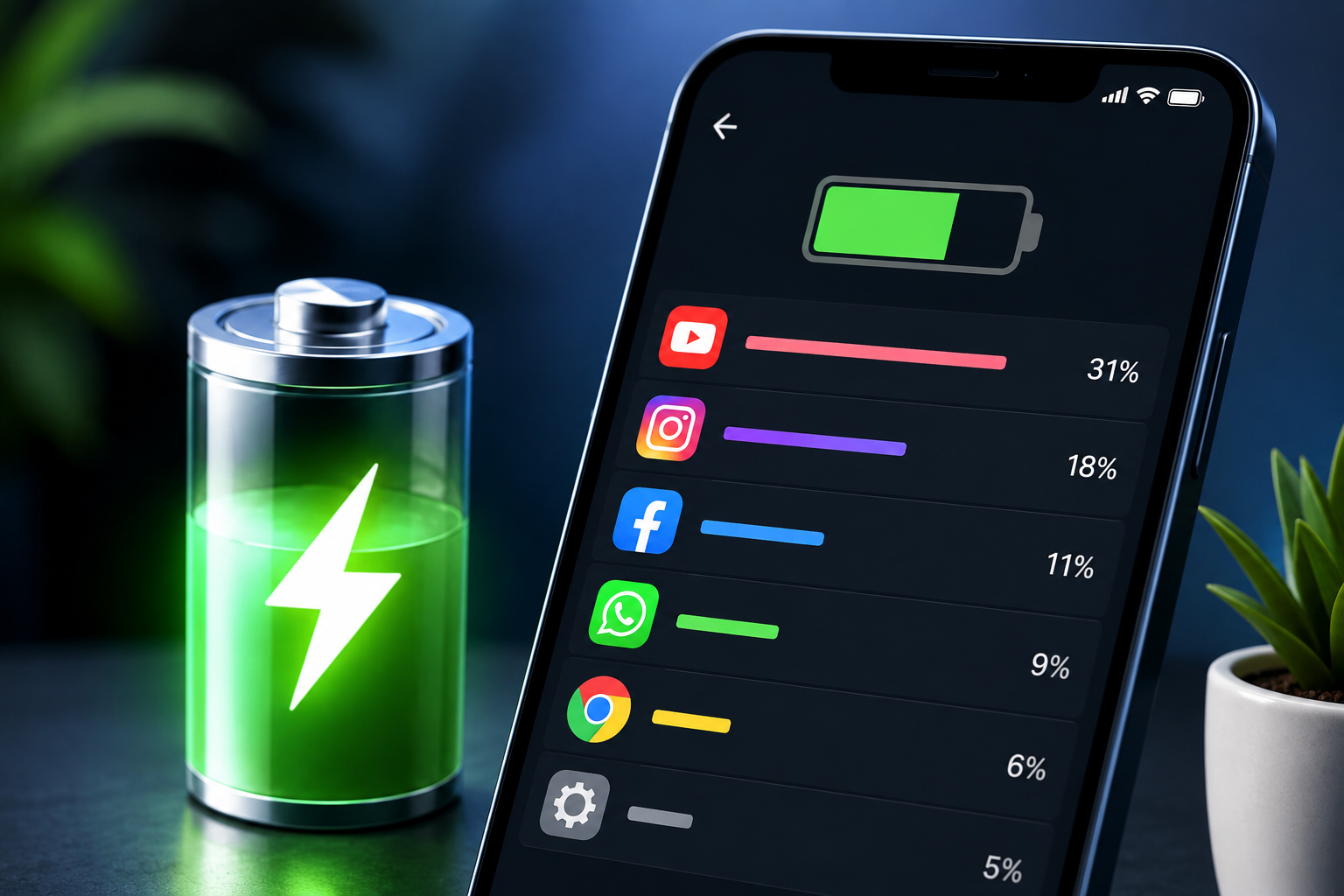
If your phone battery seems to be disappearing faster than it normally does, an app running in the background could be one of the reasons. You don’t have to guess which application is responsible—both Android phones and iPhones include built-in tools that let you see battery consumption by app.
By checking this information regularly, you can spot apps that are using more power than expected and make simple changes to improve battery life.
Also Read: How to Uninstall Dropbox on Mac and Remove Its Leftover Files
Check Battery Consumption on Android
Android provides a battery usage section where you can see which apps have consumed the most power. The names and location of these options can differ between manufacturers, so your phone may use slightly different wording.
Try the following:
- Open Settings on your Android phone.
- Find and select Battery.
- Tap Battery usage, Battery usage by app, or a similar option.
- Review the apps displayed in the battery usage list.
- Check the percentage or amount of battery attributed to each application.
Usually, the apps are arranged according to their battery consumption. This makes it easier to identify applications that have used a noticeable amount of power during the selected period.
Look at Background Battery Activity
An application doesn’t necessarily need to be open on your screen to use battery. Some apps perform tasks in the background, such as syncing information, checking for new content or sending notifications.
If an app you rarely use is consuming a surprising amount of power, open its battery settings and check whether your phone provides controls for background activity.
Depending on your Android device, you may be able to choose between different background battery options. Be aware that limiting background activity can sometimes delay notifications or affect automatic syncing.
Find Battery-Heavy Apps on an iPhone
You can check iPhone battery usage directly from the Settings app, without installing another battery-monitoring application.
Here’s where to look:
- Open Settings.
- Tap Battery.
- Scroll through the battery activity information.
- Review the apps shown in the usage section.
- Compare their battery consumption over the available time periods.
The iPhone battery screen can provide a useful overview of which applications have been using your device’s power. Looking at different periods can also help you determine whether an app is consistently consuming a lot of battery or was simply active for a short time.
Does High Battery Usage Always Indicate a Problem?
Not necessarily.
An app appearing near the top of your battery list isn’t automatically a sign that something is wrong. The amount of battery an application uses often depends on how you use it.
For instance, watching videos for a long time can naturally increase battery consumption because the display remains active and the phone continuously processes video and audio. Similarly, navigation apps may use GPS, mobile data, the screen and other hardware simultaneously.
Instead of focusing only on the app with the highest percentage, look for unexpected or unusual usage.
If an application that you hardly ever use repeatedly consumes a substantial amount of battery, that’s a better reason to investigate further.
Simple Ways to Lower App Battery Consumption
Once you’ve identified an app that appears to be using more power than expected, there are several practical steps you can take.
1. Limit Background Usage
Some Android devices allow you to control how much battery an app can use while running in the background.
If an application doesn’t need to constantly operate in the background, restricting its activity may reduce unnecessary battery consumption.
However, this can affect features such as instant notifications, background syncing or other automatic functions.
2. Review Location Permissions
Apps that frequently access your location can contribute to battery consumption.
Go through your phone’s app permissions and check which applications have access to location services. If an app doesn’t need your location, consider changing its permission according to the options available on your device.
3. Install Available App Updates
Developers regularly release updates that can include bug fixes, performance improvements and compatibility changes.
Open the Google Play Store on Android or the App Store on iPhone and check whether updates are available for apps that appear to be using unusually high battery power.
4. Remove Apps You No Longer Need
Unused applications can sometimes perform background tasks, depending on their settings and permissions. If you haven’t used an app for a long time, uninstalling it can also free up storage.
Before removing an application, make sure you don’t need any locally stored information or data associated with it.
Do You Need a Battery Saver App?
Usually, you don’t need a separate app just to find out which applications are consuming your phone’s battery.
Android and iOS already have battery-monitoring features built into their operating systems. These tools can show battery activity without requiring you to install an additional application.
If your goal is simply to identify battery-hungry apps, checking the phone’s own Settings menu is a good place to start.
When Is Fast Battery Drain Worth Investigating?
Battery life can change from one day to another for perfectly normal reasons. Gaming, high screen brightness, video streaming, GPS navigation, mobile data usage and weak network signals can all affect how quickly a phone loses power.
Therefore, one unusually short battery day doesn’t necessarily indicate a problem.
It’s more useful to pay attention to a sudden and repeated change. For example, if your phone previously lasted most of the day but recently started losing power much faster, check the battery usage list and look for an app that has consistently increased its consumption.
If the problem continues even after updating or adjusting the app, you can consider reinstalling it or checking the manufacturer’s support options.
Also Read: How to Connect Amazon Echo to Wi-Fi: Complete Setup Guide for Beginners
Final Thoughts
Checking your phone’s battery statistics is a simple way to understand where your power is going. Both Android and iPhone provide built-in options for reviewing battery consumption, so you can identify apps that are using more power than expected.
Before installing a third-party battery optimizer, take a look at the battery settings already available on your phone. In many cases, you’ll be able to identify the cause of unusual battery drain and make a few straightforward adjustments.
Note: Battery settings and available options can vary depending on your phone model, operating system version and manufacturer.

Sourav Gorai, founder of sabhigyan.com, is passionate about technology, smartphones, apps, and digital tools. With 8+ years of experience in the digital and tech space, he focuses on creating easy-to-understand, practical, and helpful content that makes everyday technology simpler for readers.