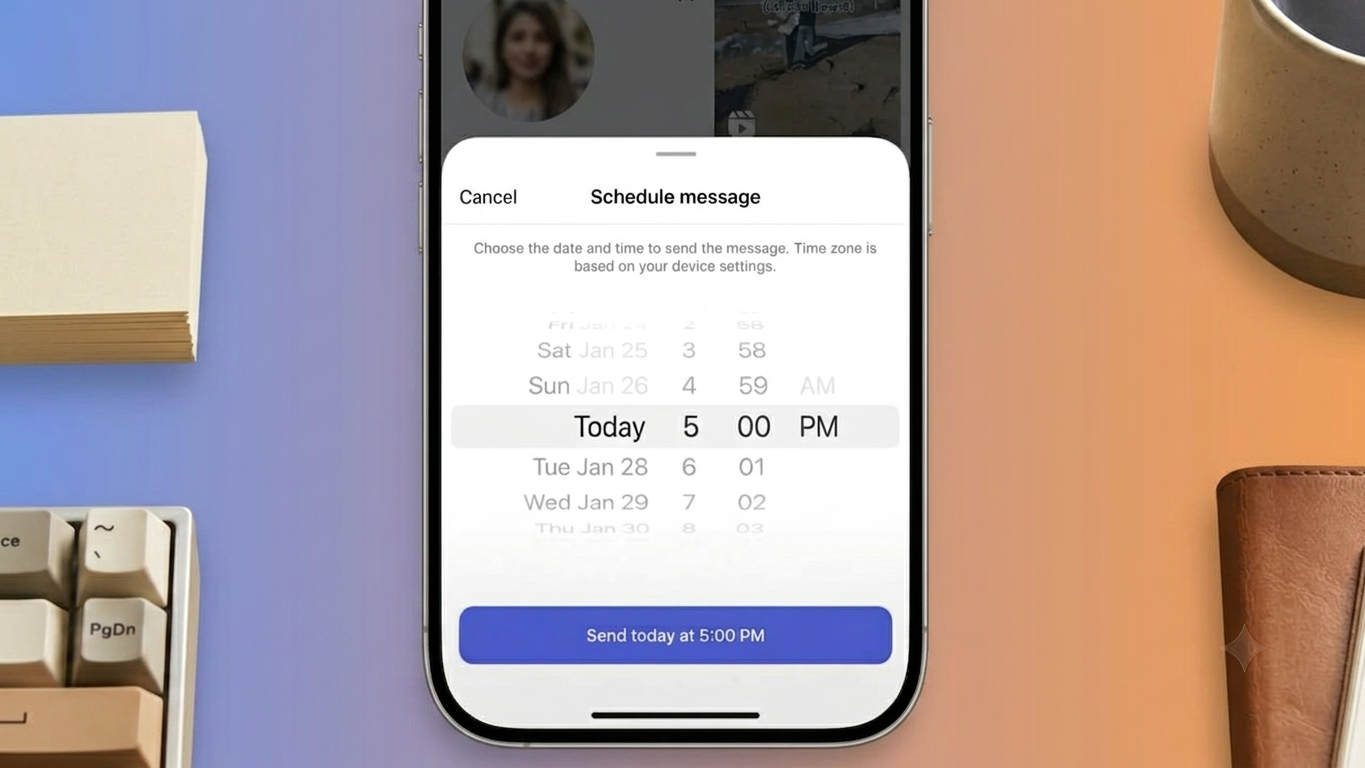
Sometimes you know exactly what you want to say on Instagram, but you don’t want to send it immediately. Instagram’s DM scheduling feature lets you prepare certain messages in advance and choose when they should be delivered.
This can be handy for birthday wishes, reminders, planned conversations, or regular communication with followers. Instead of setting a reminder and coming back later, you can schedule the message directly from the Instagram chat.
Below is a simple guide explaining how to schedule, view, send, and remove scheduled Instagram messages.
Also Read: How to Tag Someone on Instagram Posts (Complete Beginner-Friendly Guide)
What You Need Before Scheduling an Instagram DM
Before trying the feature, make sure your Instagram app is updated to the latest available version. Instagram can change the layout and available options through app updates, so the exact wording or location of a button may differ slightly on your device.
The feature is accessed from Instagram Direct Messages and works with supported text messages.
How to Schedule a Message on Instagram
You can schedule a DM directly from an Instagram conversation. Here are the steps:
- Open the Instagram app on your phone.
- Tap the Messages icon to open your DMs.
- Select the conversation where you want to send the message, or create a new chat.
- Write the message you want to send later.
- Instead of tapping Send normally, press and hold the Send button.
- If scheduling is available for that message, Instagram will display the scheduling option.
- Select your preferred date and time.
- Confirm the selected schedule.
After completing these steps, Instagram should show an indication in the conversation that a message has been scheduled.
Important Note
If you don’t see the scheduling option, check whether your Instagram app is updated. Feature availability can also vary depending on the account, app version, device, or Instagram’s current feature rollout.
How to Find Your Scheduled Instagram Messages
After scheduling a DM, you can check it before the delivery time. This is useful if you want to make sure the message and timing are correct.
To check your scheduled messages:
- Open Instagram.
- Go to Messages.
- Open the conversation where you scheduled the DM.
- Find the notification or section indicating that a message is scheduled.
- Tap it to view the scheduled messages.
You should be able to see the messages that are waiting to be delivered along with their scheduled times.
Want to Send the Message Right Away?
You don’t always have to wait for the scheduled time. If your plans change, you may be able to send the message immediately.
Open the scheduled-message section in the conversation and press and hold the scheduled message. If the option is available, select Send Now.
The message will then be sent immediately rather than at the previously selected time.
How to Delete a Scheduled Instagram Message
Changed your mind or spotted an error? You can remove a scheduled message before it is sent.
Follow these steps:
- Open the relevant Instagram DM.
- Open the section containing your scheduled messages.
- Press and hold the message you want to remove.
- Select Delete from the available options.
- Confirm the action if Instagram asks you to do so.
If your version of Instagram doesn’t offer an editing option, deleting the scheduled message and creating a corrected one is a practical alternative.
When Is Instagram Message Scheduling Useful?
Scheduling isn’t limited to businesses or influencers. Regular Instagram users can also find it useful in everyday situations.
Birthday Wishes
You can prepare a birthday message ahead of time and schedule it for the desired date and time, reducing the chance of forgetting.
Reminders
If you need to remind someone about something later, you can write the message in advance rather than relying entirely on your memory.
Planned Communication
People who regularly communicate with followers, friends, or other contacts can use scheduled messages to organize their conversations.
Save a Little Time
When you already know what you want to say, preparing the message beforehand means you don’t have to stop what you’re doing later just to remember and send it.
Check Everything Before Scheduling
Before confirming a scheduled DM, take a few seconds to read it again. Small mistakes can be easy to overlook when you’re in a hurry.
Pay particular attention to:
- The recipient’s name
- Dates and times
- Spelling
- Important numbers or details
- The scheduled delivery time
For an important message, you can also write the draft in your phone’s notes app first. Read it once, make any changes, and then paste it into Instagram when you’re ready to schedule it.
Frequently Asked Questions
Can I schedule messages on Instagram?
Yes, Instagram provides a message-scheduling option for supported DMs. You can write a message and choose a future delivery time when the feature is available on your account.
Can I change a scheduled Instagram message?
The available options can vary by Instagram app version. If direct editing isn’t available, you can delete the scheduled message and create a new one with the correct text.
Can I cancel a scheduled DM?
Yes. Open the scheduled-message section, select the message, and use the available delete option before it is delivered.
Can I send a scheduled message before its scheduled time?
If Instagram shows the Send Now option for the scheduled message, you can send it immediately instead of waiting for the scheduled time.
Why can’t I see the schedule option?
First, update Instagram to the latest version available for your device. If the option still doesn’t appear, it may not currently be available for your account, device, or particular message type.
Also Read: How to Add a Clickable Link to Your Instagram Story (Easy Guide)
Final Thoughts
Scheduling Instagram DMs can make it easier to plan messages without having to remember the exact time to send them. Whether you’re preparing a birthday wish, setting up a reminder, or organizing communication with followers, the feature can save a few unnecessary steps.
Before scheduling, always double-check the message and delivery time. If your plans change, you can check the scheduled-message section and use the available options to send or delete the message before it is delivered.

Sourav Gorai, founder of sabhigyan.com, is passionate about technology, smartphones, apps, and digital tools. With 8+ years of experience in the digital and tech space, he focuses on creating easy-to-understand, practical, and helpful content that makes everyday technology simpler for readers.