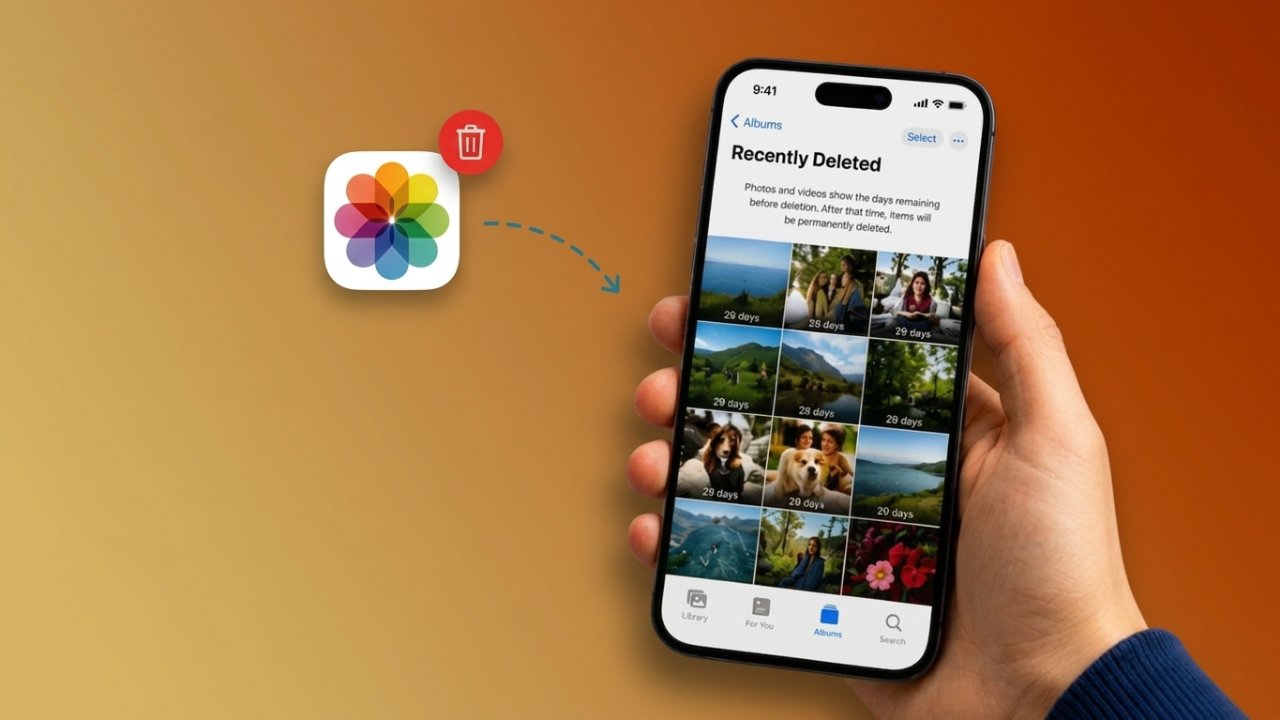
Accidentally deleting an important photo can be frustrating, especially when it is a memory you cannot easily recreate. Fortunately, a deleted picture is not always gone immediately. Depending on how your iPhone or iPad is configured, the photo may still be available in Recently Deleted, iCloud, a device backup, a messaging app, or another cloud storage service.
Before trying complicated recovery software, it is worth checking these straightforward options first.
Also Read: How to Stop Pop-Up Ads on Android: Simple Ways to Block Unwanted Ads
How Deleted Photos Work on iPhone and iPad
When you delete a photo from the Apple Photos app, it normally moves to the Recently Deleted album instead of being permanently removed straight away. Apple keeps items there for a limited period, giving you an opportunity to restore them.
However, the situation can be different when iCloud Photos is enabled. Your photo library is synchronized between devices using the same Apple Account, so deleting a picture on one device can also remove it from the synced library.
It is also important to distinguish between iCloud Photos and iCloud Backup:
- iCloud Photos: Keeps your photo library synchronized across supported Apple devices.
- iCloud Backup: Stores a backup of certain device data that can be used to restore the device.
With that distinction in mind, try the following recovery methods in order.
1. Restore the Picture From Recently Deleted
The first place to look is the Recently Deleted album. This is usually the quickest and safest recovery option.
Steps to follow:
- Open the Photos app.
- Tap Albums or navigate to the appropriate Photos section depending on your iOS/iPadOS version.
- Find Recently Deleted under Utilities.
- Authenticate with Face ID, Touch ID, or your device passcode if requested.
- Select the photo you want to restore.
- Tap the More button and choose Recover.
- Confirm the recovery.
If the picture is still available there, it should return to your photo library without requiring a backup restore.
Tip: Don’t empty the Recently Deleted album until you are certain you no longer need the photos stored there.
2. Check iCloud and Other Apple Devices
If you cannot find the image where you expected, check your iCloud Photos library and other Apple devices connected to the same Apple Account.
You can sign in to iCloud.com from a browser and open Photos to look for the missing image. Also check the Recently Deleted area there if available.
Another useful step is to inspect an older iPhone, iPad, or Mac that may have been using the same Apple Account. However, this method should not be treated as a guaranteed recovery technique. If iCloud Photos was enabled and the device has already synchronized the deletion, the photo may be missing there as well.
Be careful with synchronization
If your devices use iCloud Photos, reconnecting an offline device to the internet can cause it to synchronize with the current library. Therefore, don’t assume that an older offline device definitely contains a recoverable copy.
If you find the photo on another device, save or export a copy before making further changes.
3. Look for an Older iCloud Backup
For photos that disappeared some time ago, an older iCloud Backup may be worth investigating.
There is an important limitation: restoring a backup is not the same as restoring a single photo. A device backup restoration can replace the current contents and settings with information from the selected backup.
Before considering this option, make sure important current data is safely backed up elsewhere.
Check whether an older backup exists
On your iPhone or iPad, open:
Settings → [Your Name] → iCloud → iCloud Backup
Look at the available backup dates and determine whether one was created before the photo disappeared.
If an appropriate backup exists, Apple provides a restore process through the device setup screen. In general, this involves:
- Creating a separate backup of your current important information.
- Erasing the device if required for the restore process.
- Starting the setup process again.
- Selecting Restore from iCloud Backup when the Apps & Data screen appears.
- Signing in to your Apple Account.
- Choosing the relevant older backup.
- Waiting for the restoration and synchronization to complete.
One important limitation
If iCloud Photos was turned on, your photos are synchronized separately from the normal iCloud device backup. As a result, an old iCloud Backup should not be assumed to contain a separate copy of every photo that was previously in iCloud Photos.
4. Check for a Backup Stored on a Mac or Windows PC
Have you ever connected your iPhone or iPad to a computer to create a backup? If so, there may be an older local backup worth checking.
On a Mac, you can generally use Finder to manage backups for modern versions of macOS.
On a Mac:
- Connect your iPhone or iPad to the Mac.
- Open Finder.
- Select your device from the sidebar.
- Check the available backup information.
- Look for a backup created before the photo was deleted.
If you decide to restore an older backup, remember that doing so can replace current device data with information from that backup. Make sure you understand what will be replaced before proceeding.
On Windows, the exact process depends on the software and Windows setup you use. Apple’s current device-management software can be used for supported configurations, while older setups may use iTunes.
5. Search Messages, Email, and Messaging Apps
Sometimes the original photo is gone from the Photos library but a copy still exists elsewhere.
Think about where you may have shared it. Check:
- Apple Messages
- Telegram
- Facebook Messenger
- Signal
- Email conversations
- Group chats
- Shared albums
- Social or file-sharing apps you regularly use
For example, if you previously sent the picture to a family member, friend, or colleague, open that conversation and look through the shared media.
You may be able to save the image back to your device.
Keep in mind that an image received through a messaging service may have been compressed, so it might not have the same resolution or quality as the original.
6. Check Other Cloud Backup Services
Your missing photo may also have been automatically uploaded to another cloud service.
If you have ever used automatic photo backup, check services such as:
- Google Photos
- Microsoft OneDrive
- Dropbox
- Amazon Photos
- Other cloud storage apps you previously installed
Don’t only check the main photo library. Look at Trash, Recently Deleted, Archive, and camera-upload folders as well.
Searching by approximate date can make the process much faster. If you find the picture, save another copy to your device or computer.
What If None of These Methods Work?
If the photo is missing from Recently Deleted, iCloud, backups, other devices, messaging apps, and cloud services, recovering it may no longer be possible.
Modern iPhones and iPads use strong security and encryption, so recovering permanently deleted data directly from the device is considerably more difficult than recovering files from some older storage systems.
At this stage, avoid making the situation worse by:
- Repeatedly erasing and restoring the device.
- Installing numerous unknown recovery applications.
- Giving your Apple Account password to third-party software.
- Paying for a service that guarantees recovery without explaining what it can actually access.
Should You Use iPhone Photo Recovery Software?
There are third-party applications that advertise iPhone and iPad data recovery. Some can be useful in specific situations, particularly when they can access an existing backup or another available copy of the data.
However, be skeptical of software promising to recover every permanently deleted photo.
Before paying for a recovery program, consider these questions:
- Does it scan the actual device or only existing backups?
- Is your particular iOS or iPadOS version supported?
- Can you preview the files before purchasing?
- Is the company reputable and easy to verify?
- What permissions does the application require?
- Does it clearly explain its limitations?
Products such as D-Back, PhoneRescue, and EaseUS are examples of third-party recovery tools commonly discussed for iPhone data recovery. Their features, compatibility, pricing, and effectiveness can change, so check the developer’s current information before purchasing.
Important: Never share your Apple Account credentials with an untrusted recovery service.
How to Protect Your Photos in the Future
The easiest photo recovery is the one you never need.
A few simple habits can reduce the risk of permanently losing important pictures:
Keep more than one copy
For particularly valuable photos, consider keeping copies in more than one location, such as your device, a computer, and a trusted cloud service.
Back up before cleaning your library
Before deleting hundreds of screenshots, duplicate images, or old pictures, create a backup. This gives you another safety net if you accidentally select the wrong files.
Don’t immediately empty Recently Deleted
If you regularly clean up your Photos library, check Recently Deleted before permanently removing everything.
Make sure your photo-sync settings are understood
Go to Settings → [Your Name] → iCloud → Photos and review your current synchronization settings. Understanding whether iCloud Photos is enabled can prevent confusion about where your photos are stored.
Use the two-copy rule for important memories
If losing a particular picture would be genuinely upsetting, don’t keep the only copy in one place. Having at least two independent copies is a much safer approach.
Frequently Asked Questions
Can I recover a photo after deleting it from my iPhone?
Possibly. Start by checking Recently Deleted. If it is not there, look at iCloud, other Apple devices, existing backups, messaging conversations, and cloud storage services.
Can I recover permanently deleted photos without a backup?
There is no guaranteed method. Once a photo has been permanently removed and no other copy exists, recovery may not be possible.
Does restoring an iCloud backup recover only one photo?
No. A backup restoration is generally a broader device restoration process rather than a simple single-photo recovery.
What happens if I delete a photo while using iCloud Photos?
With iCloud Photos enabled, your photo library is synchronized across supported devices. A deletion can therefore be reflected across devices using the same Apple Account.
Are third-party recovery apps guaranteed to work?
No. Be particularly cautious about services making guaranteed-recovery claims. Their capabilities depend on factors such as available backups, device configuration, operating-system version, and whether another copy of the photo exists.
Also Read: How to Use Claude with Gmail to Draft and Send Email Replies
Final Thoughts
A deleted photo isn’t necessarily lost forever. Recently Deleted should be your first stop, followed by iCloud, other Apple devices, backups, conversations, and third-party cloud storage.
If none of those locations contain the picture, be cautious about recovery software that promises guaranteed results. In many cases, the safest solution is to focus on reliable backups going forward.
For photos that really matter, keeping at least two separate copies can save you from a lot of stress the next time an important picture is accidentally deleted.

Ankita Kumar, founder of sabhigyan.com, is passionate about technology, smartphones, apps, and digital tools. With 8+ years of experience in the digital and tech space, he focuses on creating easy-to-understand, practical, and helpful content that makes everyday technology simpler for readers.
Advertisements