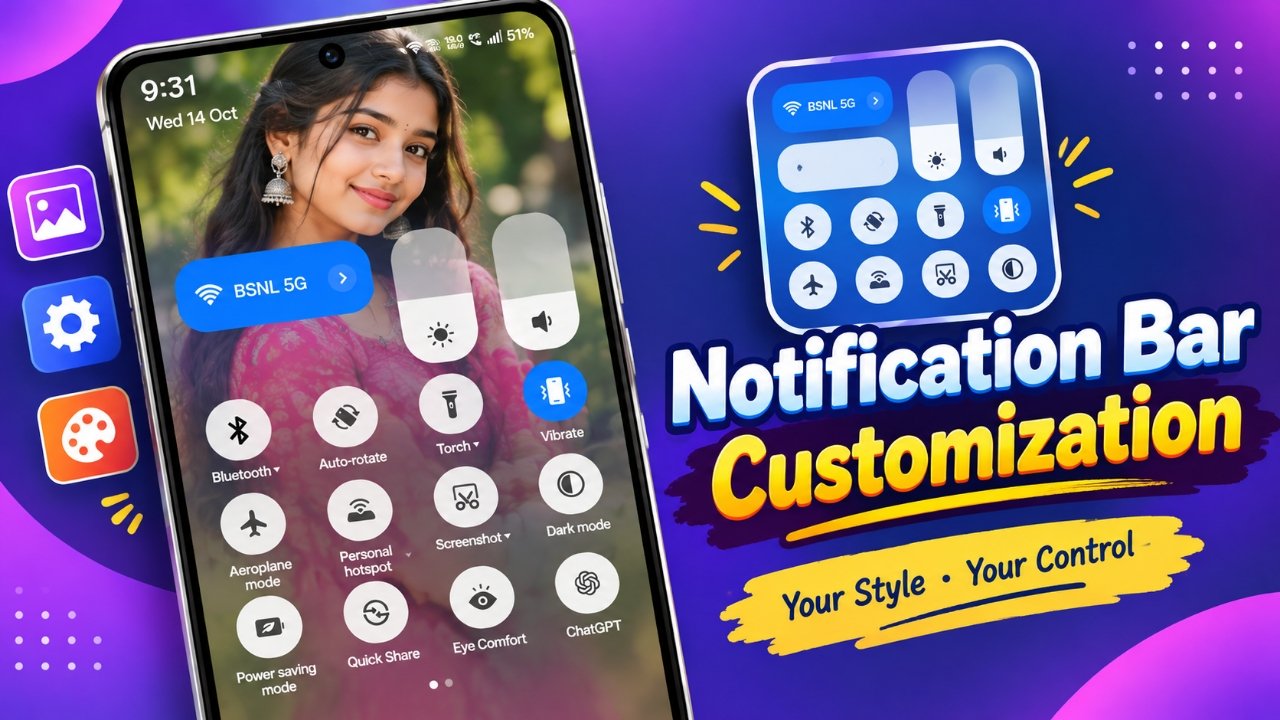
Android offers plenty of ways to make a smartphone feel more personal. You can change the wallpaper, install new icon packs, customize widgets, and experiment with different themes. But there is another part of the interface that deserves attention: the status bar and notification panel.
Notification Bar Customization is an Android personalization app designed to give users more control over the appearance of these areas. Its listed features include status bar color adjustments, custom notification backgrounds, text styling, notification themes, and shortcuts to frequently used phone settings.
For anyone who enjoys exploring Android customization options, the app may provide an additional way to create a smartphone interface that reflects their personal style.
Also Read: How to Use Dynamic Notch Notification Bar on Android
What Makes Notification Bar Customization Worth Exploring?
The notification panel is one of the most frequently accessed parts of an Android phone. It displays alerts, provides access to quick settings, and helps users check important information without opening individual apps.
Notification Bar Customization aims to expand the options available for this part of the interface. Rather than relying entirely on the phone’s default design, users may be able to adjust colors, choose different backgrounds, and modify the appearance of text.
The exact options depend on the app version, Android operating system, and device manufacturer. Therefore, it is worth checking the app’s current feature list before expecting a particular customization to work.
Personalize Your Status Bar With Different Styles
Status bar customization options may vary across Android devices.
The status bar typically displays essential details such as the current time, battery level, and network signal. Although its appearance is often determined by the phone’s system settings, customization apps may offer additional styling options.
Depending on compatibility, Notification Bar Customization lists features such as:
- Status bar colors: Adjust the color scheme to complement your wallpaper or overall theme.
- Battery percentage: Configure the battery percentage display where supported.
- Time formatting: Explore available options for displaying the time.
- Text styling: Change text colors, sizes, or fonts using the settings provided.
- Carrier information: Customize the appearance of the mobile network name if the feature is available.
- Signal indicators: Adjust supported network indicator settings.
These options can help create a more consistent appearance across different parts of your phone’s interface.
However, Android places restrictions on how third-party applications can modify system elements. Some settings may be unavailable on certain devices or may already be controlled through the phone’s built-in settings menu.
Give Your Notification Panel a Personal Touch With Photos
Choose backgrounds that complement your notification text.
One of the more interesting features associated with Notification Bar Customization is the option to personalize the notification panel with an image.
Depending on the available functionality, users may be able to select a picture from their phone’s gallery or choose a background supplied by the app.
There are several ways to approach this feature:
- Use a nature photograph for a calm, simple appearance.
- Choose a favorite travel picture to make the interface more personal.
- Select a minimal design that matches your home screen.
- Experiment with colors and images that complement your existing wallpaper.
When choosing a background, readability should remain a priority. Notifications often contain important information, so avoid images with busy patterns or colors that make text difficult to distinguish.
A well-chosen background can make the notification area look more appealing without sacrificing everyday usability.
Quick Settings for Everyday Convenience
Apart from visual customization, the app lists shortcuts for several common phone functions. These controls are intended to make frequently used settings easier to access from the notification area.
Available shortcuts may include:
| Setting or feature | Typical purpose |
|---|---|
| Wi-Fi and mobile data | Manage internet connectivity |
| Bluetooth | Connect compatible wireless devices |
| Flashlight | Turn the phone’s light on or off |
| Silent mode and vibration | Adjust sound and alert behavior |
| Screen rotation | Control automatic screen orientation |
| Night Mode | Access a supported night-related display setting |
| Location | Manage location-related settings |
| Mobile hotspot | Share the phone’s internet connection |
| Do Not Disturb | Limit interruptions from alerts |
| Airplane Mode | Manage wireless connectivity |
| Screenshot | Capture the current screen |
| Calendar | Access calendar-related information |
The availability of these controls depends on the app’s implementation and the phone’s software.
For example, some Android versions restrict third-party applications from changing particular system settings directly. Other functions may require special permissions or may only work through supported system interfaces.
Before relying on a shortcut, test it on your device and confirm that it behaves as expected.
Explore Themes to Match Your Android Interface
Changing individual colors or backgrounds is only one way to personalize a notification panel. Notification Bar Customization also lists theme-related options that may help users create a more coordinated appearance.
You could experiment with a dark color scheme, a lighter design, or a background that complements your existing home screen. Adjusting text appearance alongside the theme may help the notification area feel more consistent with the rest of your interface.
The goal is not simply to make the panel look different. A useful design should also make notifications easy to read and settings easy to recognize.
If you regularly receive messages, reminders, or other alerts, choose a theme that keeps the text clear in different lighting conditions.
Is Notification Bar Customization Suitable for You?
The app may appeal to Android users who want to explore customization beyond the usual wallpaper and icon changes.
It may be worth considering if you:
- Enjoy experimenting with different smartphone themes.
- Want more control over the appearance of your notification panel.
- Prefer using personal photos or custom backgrounds.
- Like adjusting colors and text styles.
- Frequently use quick settings and want additional shortcut options.
On the other hand, users who prefer a simple interface or are already satisfied with their phone’s built-in customization features may not need an additional app.
The best choice depends on the features you want, your device’s compatibility, and how much control your existing Android settings already provide.
Also Read: How to Block Websites in Google Chrome
Important Things to Know Before Installing
Third-party customization apps do not necessarily have the same access to system functions on every Android phone. A feature that works on one device may be limited or unavailable on another.
Before installing or configuring Notification Bar Customization, keep the following considerations in mind.
1. Verify device compatibility
Check the app’s current listing for supported Android versions and any manufacturer-specific limitations.
2. Review requested permissions
Read the permissions carefully and grant only those necessary for the features you intend to use. If a permission is unclear, review the app’s explanation before proceeding.
3. Protect notification privacy
Notification panels can display private information, including message previews and personal alerts. Be mindful of any app permissions or display options that could affect the privacy of your notifications.
4. Prioritize readability
Choose backgrounds, colors, and fonts that make text easy to read. Avoid designs that obscure important alerts or system indicators.
5. Test features individually
Try each customization and shortcut separately. This makes it easier to identify limitations and determine which settings work properly on your device.
6. Check the latest app information
Features, permissions, and compatibility can change between releases. Consult the current app listing and developer information rather than relying solely on older descriptions.
Taking these precautions can help you decide whether the app is appropriate for your needs.
Official Play Store App Link
Final Thoughts
Notification Bar Customization offers a range of personalization possibilities for Android users who want to change the look of their status bar and notification panel. Its listed options include color adjustments, text styling, image backgrounds, themes, and shortcuts for everyday phone functions.
The ability to personalize notification backgrounds may be particularly appealing to users who enjoy creating a distinctive smartphone interface. Quick-access controls and additional styling options may also provide value, depending on the features supported by the device.
However, the app’s usefulness ultimately depends on compatibility, available permissions, and the customization options included in its current version.
If you want to explore more ways to personalize your Android phone, Notification Bar Customization may be worth investigating. Check its latest details, review its permissions, and confirm that the features you need are supported before making it part of your everyday setup.
Frequently Asked Questions (FAQs)
1. What is Notification Bar Customization?
Notification Bar Customization is an Android personalization app intended to change the appearance of the status bar and notification panel. Its listed features include custom backgrounds, text styling, themes, and shortcuts to common settings.
2. Can I set my own picture as the notification background?
The app’s described features include the option to use an image from your phone’s gallery or select an available background. Actual functionality may depend on the app version and your device’s compatibility.
3. Can I change the color of my Android status bar?
The app lists status bar color customization as one of its features. Options for text color and other visual settings may also be available, depending on your phone and Android version.
4. Does the app support battery percentage customization?
Battery percentage display settings are among the listed features. However, whether the app can change this indicator depends on device compatibility and the restrictions imposed by Android.
5. Will Notification Bar Customization work on all Android devices?
No universal compatibility can be guaranteed. Android versions, manufacturer-specific software, permission requirements, and system restrictions can affect individual features. Check the current app listing before installing it.
6. Can I access Wi-Fi, Bluetooth, and other settings through the app?
The listed shortcuts include Wi-Fi, Bluetooth, flashlight, screen rotation, and Do Not Disturb, among other functions. Their availability and behavior may differ across devices.
7. Is it safe to use a notification customization app?
Safety depends on the particular app, its developer, its permissions, and how it handles information. Review the app’s source, privacy policy, requested permissions, and available user feedback before installing it. Avoid granting unnecessary access to personal information.
8. Do I need to replace my phone’s default launcher?
A notification customization app does not necessarily require a replacement launcher. Its requirements depend on how the app implements its features. Check the app’s current documentation for any additional setup requirements.

Sourav Gorai, founder of sabhigyan.com, is passionate about technology, smartphones, apps, and digital tools. With 8+ years of experience in the digital and tech space, he focuses on creating easy-to-understand, practical, and helpful content that makes everyday technology simpler for readers.
Advertisements
1 thought on “Notification Bar Customization: How to Personalize Your Android Status Bar and Notifications”