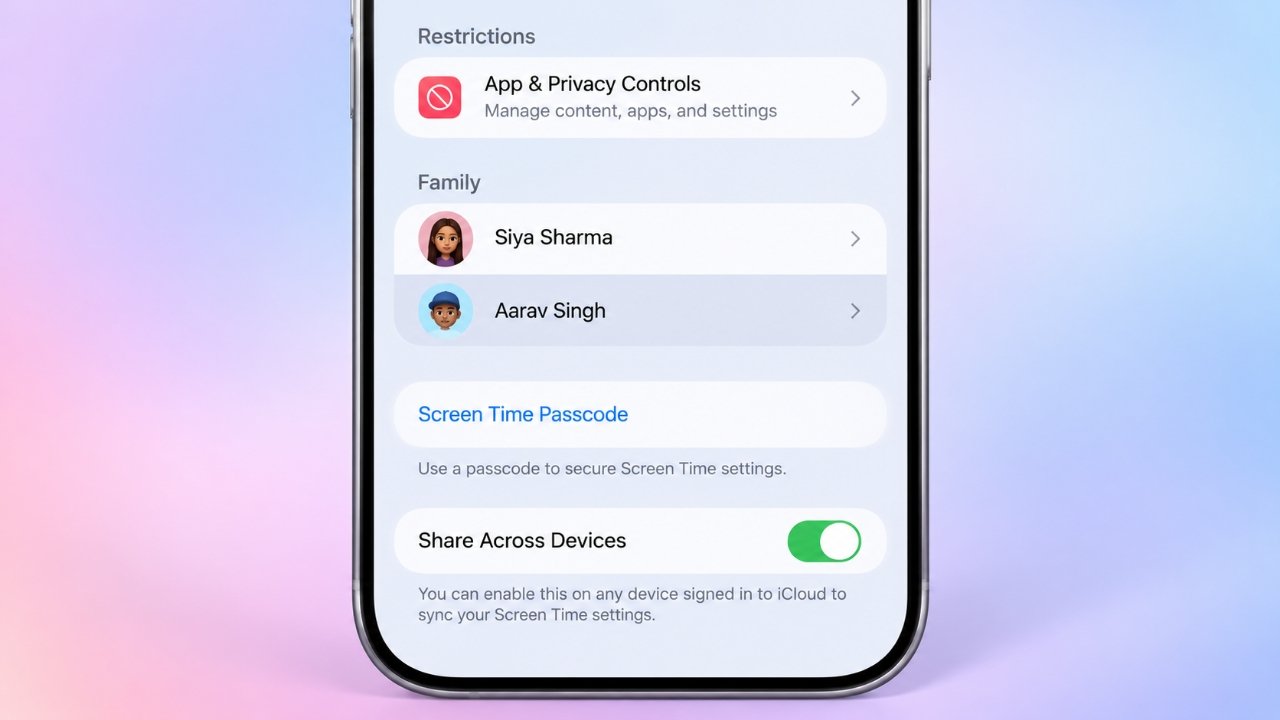
Apple’s parental controls help families manage screen time, restrict certain content, limit app usage, and control purchases on an iPhone. These features are primarily managed through Screen Time, which allows users to adjust individual restrictions or disable them when they are no longer necessary.
If you want to turn off parental controls on an iPhone, the process depends on which settings are enabled and whether the device belongs to you or is managed by a parent or guardian through Family Sharing.
In this guide, you will learn how to disable iPhone parental controls, remove individual restrictions, reset a forgotten Screen Time passcode, and troubleshoot settings that remain active.
Also Read: WhatsApp Starts Rolling Out Parental Controls for Teen Accounts
Understanding iPhone Parental Controls Before Making Changes
Apple provides several tools for managing device usage and online content. Although these options are grouped under Screen Time, each serves a different purpose.
For example, App Limits restrict how long selected apps or categories can be used, while Downtime establishes periods when certain apps are unavailable. Content & Privacy Restrictions control access to specific features, purchases, websites, and types of media.
A Screen Time passcode may be required to change protected settings. This code is different from the passcode used to unlock the iPhone.
Before proceeding, consider the following:
- Personal iPhone: You can usually manage your Screen Time settings directly from the Settings app.
- Child’s iPhone: If the device is managed through Family Sharing, a parent, guardian, or family organizer may need to make the changes.
- Individual restrictions: You can remove a particular limit without disabling every parental control.
- Complete deactivation: Turning off Screen Time activity can also disable related features, including App Limits and Downtime.
Choosing the appropriate option helps you avoid removing protections that you still want to keep.
How to Disable All Screen Time Restrictions
If you no longer need Screen Time monitoring or its associated restrictions, you can turn off App & Website Activity through your iPhone settings.
Follow these steps:
- Open the Settings app on your iPhone.
- Select Screen Time.
- Look for Turn Off App & Website Activity. Depending on your iOS version, you may first need to open Manage Screen Time.
- Enter your Screen Time passcode if requested.
- Confirm your selection.
Once disabled, Screen Time will stop collecting new app and website activity reports, and related features such as Downtime and App Limits will no longer operate as before.
Keep in mind that this is a broader change than removing one restriction. If you only need to allow access to a particular app or website, changing the relevant setting individually may be a better choice.
How to Remove Specific Parental Controls
You do not always need to switch off every Screen Time feature. Apple allows you to manage different restrictions separately.
1. Stop a Scheduled Downtime Period
Downtime can limit access to selected apps during specific hours, such as bedtime or study time. If these restrictions are no longer needed, you can disable the schedule.
To do so:
- Go to Settings > Screen Time.
- Tap Downtime.
- Turn off the Scheduled option.
This disables the scheduled Downtime period without automatically removing other Screen Time restrictions.
If an app remains unavailable, check whether an App Limit or another restriction is responsible. Depending on your settings, blocking may also be enforced during active Downtime periods.
2. Delete an App Limit
App Limits let you control the amount of time spent using selected applications or categories. You can remove an individual limit without affecting unrelated apps.
Here is how:
- Open Settings.
- Select Screen Time > App Limits.
- Choose the app, category, or limit you want to change.
- Tap Delete Limit.
- Confirm the action if prompted.
The selected limit will be removed, while other configured limits should remain in place.
This method is useful when you want to make an app available for longer without changing your other screen-time settings.
3. Turn Off Content & Privacy Restrictions
Content & Privacy Restrictions can limit purchases, downloads, certain built-in features, website access, explicit content, and changes to privacy or account settings.
To disable this category of controls:
- Open Settings > Screen Time.
- Select Content & Privacy Restrictions.
- Enter the Screen Time passcode if required.
- Switch off Content & Privacy Restrictions.
Afterward, the restrictions controlled by this setting will no longer be enforced through that category.
Before disabling it, review which protections are active. For a child’s device, leaving appropriate content filters and purchase controls enabled may help maintain a safer digital environment.
How to Allow Access to One App or Website
Sometimes, the goal is not to remove parental controls entirely but to make a specific app or website accessible. In that situation, a targeted adjustment can be more practical.
Allow an App During Downtime
Open Settings > Screen Time > Always Allowed and add the app you want to remain accessible, if the relevant option is available under your current settings.
Restore Access to a Built-In Feature
Go to Settings > Screen Time > Content & Privacy Restrictions > Allowed Apps & Features. Enable the specific app or feature you want to make available.
Adjust Website Access
Open Content & Privacy Restrictions and find the web-content settings. Choose the appropriate access level for your needs, keeping any necessary family safety filters in place.
The names and locations of certain options can vary by iOS version. If you cannot find a setting, check the Screen Time menus available on your device.
How to Turn Off the Screen Time Passcode
Removing the Screen Time passcode allows the authorized device user to change protected Screen Time settings more easily. However, removing the code does not necessarily mean that every existing restriction has been disabled.
To remove the passcode on your own iPhone:
- Open Settings > Screen Time.
- Tap Change Screen Time Passcode.
- Select Turn Off Screen Time Passcode.
- Enter the current Screen Time passcode when prompted.
If the iPhone belongs to a child whose settings are managed through Family Sharing, the parent or guardian should manage the change from their own device. Depending on the iOS version, they may need to select the child’s name under Screen Time before accessing the relevant options.
What If You Have Forgotten the Screen Time Passcode?
Forgetting a Screen Time passcode does not necessarily mean you have to erase your iPhone. Apple provides a recovery process for eligible devices, provided that passcode recovery was configured appropriately.
Try the following steps:
- Open Settings > Screen Time.
- Select Change Screen Time Passcode.
- Choose Change Screen Time Passcode again when prompted.
- If the recovery option appears, enter the Apple Account credentials associated with the original passcode recovery setup.
- Follow the instructions to create and confirm a new passcode.
The recovery process may differ depending on your device, iOS version, and how Screen Time was originally configured.
For a child’s device managed through Family Sharing, the family organizer or authorized parent or guardian should reset the child’s Screen Time passcode from their own device.
Avoid relying on unofficial passcode-bypass tools. They may expose personal information, compromise device security, or fail to work as advertised. Apple’s official recovery options are the safer starting point.
Why Are Parental Controls Still Active After You Turn Them Off?
If restrictions continue after you change your Screen Time settings, another setting or management system may be responsible.
Consider these common explanations:
- Family Sharing management: A parent or family organizer may continue to manage the child’s Screen Time settings remotely.
- Shared settings across devices: If Share Across Devices is enabled, Screen Time settings may be synchronized between compatible devices using the same Apple Account.
- A different restriction remains enabled: Downtime, App Limits, and Content & Privacy Restrictions operate independently. Turning off one does not automatically disable the others.
- Third-party parental-control software: Separate apps may apply their own restrictions outside Apple’s Screen Time system.
- School or workplace management: A supervised iPhone or a device with a management profile may have additional restrictions controlled by an organization.
- A temporary software issue: An outdated iOS version or a temporary glitch may prevent settings from behaving as expected.
To troubleshoot the issue, review the relevant Screen Time menus, check whether the device is managed by an organization, restart the iPhone, and install an available iOS update if appropriate.
If the device is managed by a parent, school, or employer, contact the person or organization responsible for those settings.
Frequently Asked Questions
Can a child turn off iPhone parental controls without the passcode?
When Screen Time settings are protected by a passcode, changing them generally requires the code or an authorized recovery method. If a parent or guardian manages the device through Family Sharing, the child should ask them to review the restriction.
Will turning off parental controls delete my apps or personal data?
No. Disabling Screen Time features changes activity reporting and applicable restrictions. It does not normally uninstall apps, delete photos, or erase personal files.
Will deleted App Limits come back automatically?
A deleted App Limit generally remains removed unless it is configured again. However, a parent or guardian managing the device may reapply restrictions, and synchronized settings or other management tools may affect the device’s behavior.
Can I turn off only one parental control?
Yes. You can usually disable a specific Downtime schedule, delete an individual App Limit, adjust website access, or change a permitted app setting without switching off every Screen Time feature.
What should I do if I cannot find the Screen Time option?
Check that you are using the correct Settings menu and that your iPhone has an up-to-date version of iOS. Menu names may differ across software releases. If the device is managed through Family Sharing or an organization, some changes may need to be made by the person responsible for its management.
Also Read: How to Cancel Your Midjourney Subscription and Request a Refund
Final Thoughts
Turning off parental controls on an iPhone is usually straightforward when you know which Screen Time setting is responsible for the restriction. You can disable App & Website Activity, remove a particular App Limit, stop a Downtime schedule, or change Content & Privacy Restrictions according to your needs.
For the most practical result, change only the setting that is causing the problem rather than disabling every protection at once. If you have forgotten the Screen Time passcode, use Apple’s supported recovery process. For a child’s iPhone managed through Family Sharing, involve the parent or guardian responsible for the device.

Sourav Gorai, founder of sabhigyan.com, is passionate about technology, smartphones, apps, and digital tools. With 8+ years of experience in the digital and tech space, he focuses on creating easy-to-understand, practical, and helpful content that makes everyday technology simpler for readers.
Advertisements