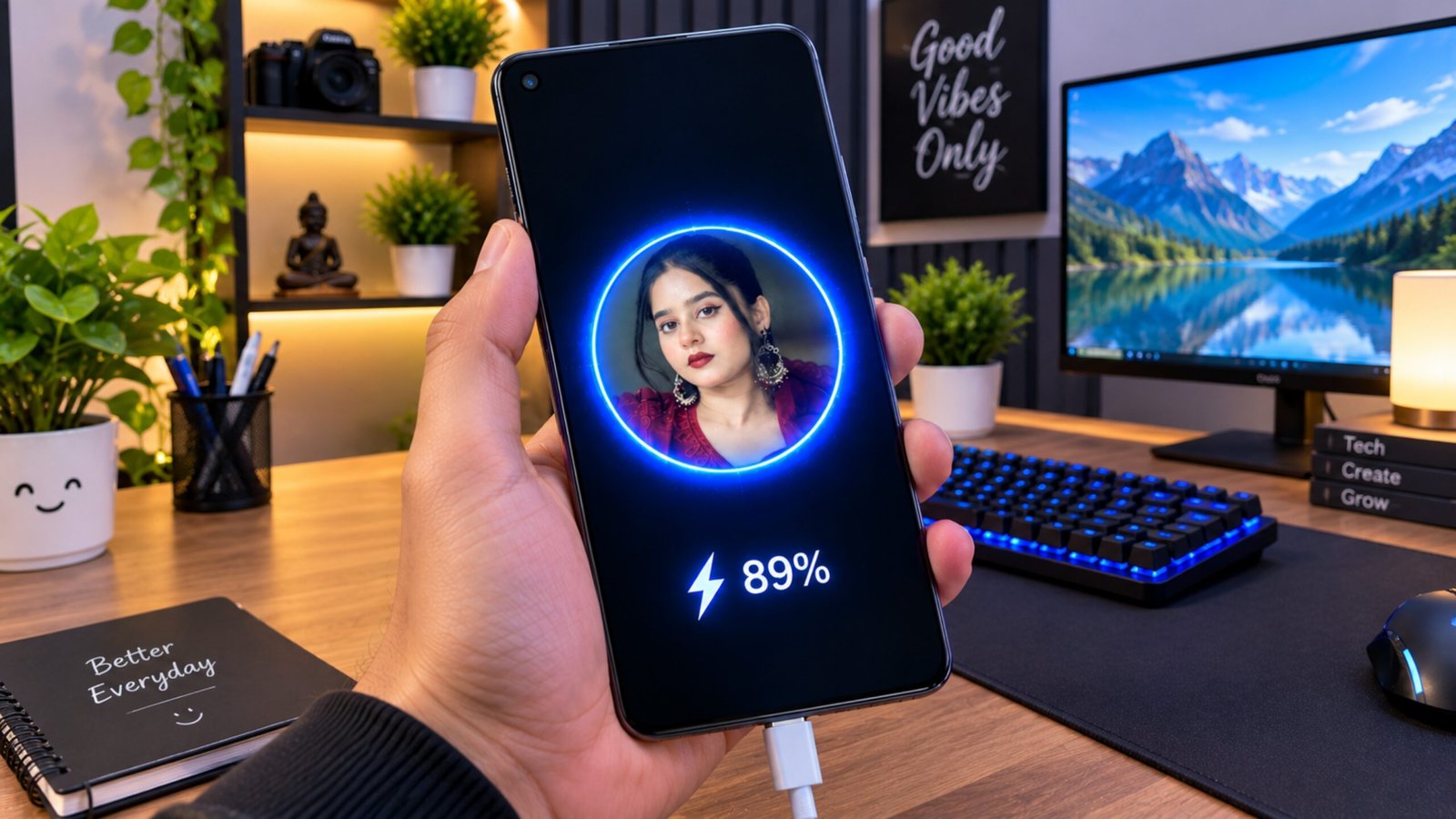
Charging your smartphone is part of everyday life, but that does not mean the charging screen has to look boring. Most Android phones display a simple charging indicator or animation when the charger is connected. For users who enjoy customizing their devices, changing this screen can be a fun way to give the phone a more personal appearance.
Pika – Battery Charging Animation Show is an Android customization app that offers different charging animations and options for personalizing the charging screen. Depending on the features available in the installed version, users can choose an animation, display battery information, and add a personal image as a charging wallpaper.
In this guide, we will look at what the Pika app does, its main features, how to use it, and how you can try adding your own picture to the charging screen.
Also Read: Fluid Simulation App: A Simple Way to Enjoy Calming Visuals on Android
What Is Pika Charging Animation Show?
Pika – Battery Charging Animation Show is an Android customization application focused on the phone’s charging experience. Instead of relying only on the default charging visual provided by the device, the app gives users additional animation and wallpaper options.
The app includes a collection of charging effects and may also allow users to select an image from their gallery for use as a charging wallpaper. Once configured, the selected visual can appear when the device is connected to a charger, depending on the phone’s Android version and the permissions available to the app.
It is mainly designed for people who enjoy changing the appearance of their smartphones without making complicated system-level modifications.
What Can You Customize With Pika?
A custom charging screen does not improve charging speed or increase battery capacity. Its purpose is purely visual.
With the available options in Pika, users may be able to:
- Choose from a variety of charging animations
- Add a personal image from the phone gallery
- Display the current battery percentage
- Customize how long the charging animation remains visible
- Choose how the animation can be dismissed
- Use different charging wallpapers
- View certain charging-related information
- Personalize the charging experience without rooting the phone
The exact features can vary depending on the app version and the Android device being used.
Main Features to Know
Here are some of the notable customization options offered by the app:
1. Multiple Charging Animations
Pika provides a collection of animated charging effects, giving users alternatives to the standard charging display on their phone.
2. Personal Photo Support
One of the more interesting options is the ability to use an image from your gallery. This can be useful if you want a favorite photograph or another personal image to appear while the phone is charging.
3. Battery Percentage
Charging-related information such as the battery percentage can be displayed alongside the visual effect, depending on the selected animation.
4. Animation Duration
Some versions of the app provide controls for deciding how long the charging animation stays on the screen.
5. Simple Controls
The interface is designed around straightforward options, so users can select an animation and customize it without needing technical knowledge or root access.
How to Install Pika Safely
For Android apps, downloading from a trusted source is important. If Pika is available for your device through the Google Play Store, that should be your first choice.
Follow these general steps:
- Open the Google Play Store.
- Search for Pika – Battery Charging Animation Show.
- Check the app’s publisher, description, ratings, and requested permissions.
- Make sure you have selected the correct application.
- Tap Install.
- Wait for the installation to finish before opening the app.
Avoid installing APK files from unfamiliar websites simply because they offer an older or modified version of the application.
How to Set a Charging Animation
After installing the application, you can try setting up a charging effect.
Step 1: Launch Pika
Open the app from your Android app drawer. Depending on your device and the version of Pika installed, you may be asked to provide certain permissions.
Only grant permissions that you are comfortable with and that are relevant to the app’s functionality.
Step 2: Open the Charging Animation Section
Look for the Charging Animation option on the main screen. This section should contain the available charging effects.
Step 3: Pick an Animation
Browse through the available designs and select the one you prefer. Some content may be available only after completing an in-app action, such as viewing an advertisement.
Step 4: Adjust the Settings
If customization options are available, you may be able to change settings such as:
- Play Duration: Controls how long the animation remains visible.
- Closing Method: Lets you choose how the animation can be dismissed, where supported.
The names and available settings may differ between app versions.
Step 5: Apply the Selection
After making your choices, tap Set Now or the equivalent button shown by the application.
Connect your charger afterward to check whether the selected charging animation appears.
Note: Android manufacturers handle charging screens differently. As a result, the animation may not behave exactly the same way on every smartphone.
How to Put Your Own Photo on the Charging Screen
Want to use your own picture instead of a ready-made charging wallpaper? If the feature is available in your version of Pika, you can try the following process:
- Open Pika Charging Animation Show.
- Tap the Plus (+) button.
- Select Charging Wallpaper.
- Choose an image from your phone’s gallery.
- Adjust the image and crop it if necessary.
- Tap Complete.
- Confirm your selection using the Tick (✔) icon.
- Tap Set Now.
Once the wallpaper has been applied, connect your charger and check the result.
For the best appearance, choose a high-quality image that fits your phone’s screen orientation. Keep in mind that the exact buttons or steps may change after an app update.
Does Pika Require Root Access?
The app is intended to provide charging-screen customization without requiring users to root their Android phones. However, compatibility depends on the device, Android version, manufacturer-specific software, and permissions granted to the application.
Some phones may restrict applications from displaying content over the charging screen or lock screen. If a feature does not work as expected, it may be due to these system restrictions rather than an issue with your selected animation.
Is Pika Safe?
No third-party application should automatically be described as completely safe simply because it is available online. The safer approach is to install Pika from an official app store when available and review its current permissions and developer information before installation.
Also keep these points in mind:
- Download the app from a trusted source.
- Review the permissions requested by the app.
- Keep Android and your apps updated.
- Avoid modified or cracked versions.
- Uninstall the application if it behaves unexpectedly.
The availability of an app on a store does not mean every version or every third-party download is risk-free, so basic security precautions are still recommended.
Advantages and Limitations
Advantages
- Easy charging-screen customization
- Several animation options
- Personal photo support where available
- No complicated technical setup
- Useful for Android users who enjoy personalization
Limitations
- Some features may include advertisements or unlock requirements
- Compatibility can differ between Android phones
- Certain animations may not work because of manufacturer restrictions
- It changes the visual experience, not charging performance
- Features may change with future app updates
Who May Like Pika?
Pika can be useful for Android users who:
- Enjoy customizing their smartphone
- Want something different from the default charging screen
- Like animated visual effects
- Want to use a personal photograph as a charging wallpaper
- Prefer simple customization tools instead of complicated modifications
If you are happy with your phone’s standard charging animation, there is no technical need to install an additional application.

Also Read: Nocebo Launcher: A Fresh and Customizable Way to Use Your Android Home Screen
Final Thoughts
The charging screen may seem like a small part of the smartphone experience, but it can still be customized to match your personal style. Pika – Battery Charging Animation Show offers a convenient way to experiment with different charging animations and, where supported, use your own picture as a charging wallpaper.
Just remember that these features are primarily cosmetic. They do not increase charging speed, improve battery health, or change the actual charging performance of your Android phone. Before installing any customization app, check its permissions, compatibility, and source.

Ankita Kumar, founder of sabhigyan.com, is passionate about technology, smartphones, apps, and digital tools. With 8+ years of experience in the digital and tech space, he focuses on creating easy-to-understand, practical, and helpful content that makes everyday technology simpler for readers.
Advertisements