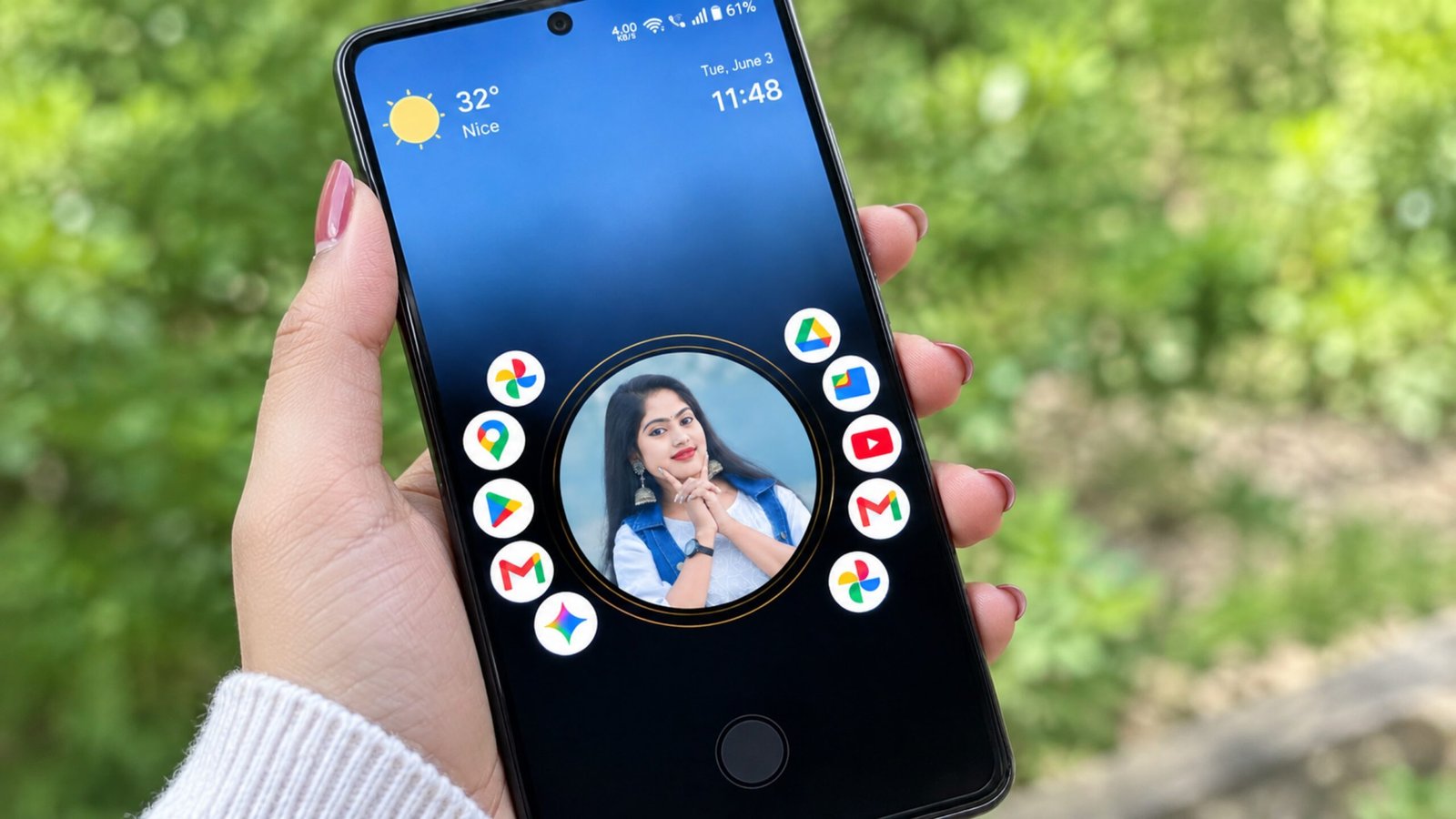
The Android home screen is something we interact with throughout the day, yet the standard launcher on most smartphones can start to feel repetitive. The familiar rows of icons, app drawer, widgets, and fixed layouts work well, but they may not appeal to users who want something more distinctive.
That is where Nocebo Launcher offers an interesting alternative. Instead of relying on the conventional grid-style home screen, it focuses on a more dynamic interface with spinning elements and changing visual arrangements. Along with its unusual design, the launcher provides customization options that let users create a home screen that feels more personal.
Also Read: DNA Launcher Review (2026): Turn Your Android Home Screen Into a Unique DNA-Inspired Design
What Is Nocebo Launcher?
Nocebo Launcher is an Android launcher designed to provide an alternative to the standard home-screen experience. Once used as the phone’s launcher, it changes the way applications and other elements are presented and accessed.
Unlike traditional launchers, where apps are generally placed in fixed rows and columns, Nocebo Launcher uses a more dynamic concept. Its spinning and shapeshifting-style interface gives the home screen a different appearance and navigation experience.
It may be worth exploring if you enjoy experimenting with Android customization or simply want a break from the usual smartphone interface.
What Makes Nocebo Launcher Interesting?
1. A Different Approach to App Navigation
The most noticeable part of Nocebo Launcher is its unconventional layout. Instead of presenting applications through a familiar static grid, it introduces movement and changing arrangements into the interface.
This can make navigating between apps feel visually different from what you normally experience with a standard Android launcher.
For users who enjoy trying experimental interfaces, this approach may be one of the launcher’s biggest attractions.
2. Plenty of Room for Personalization
Customization is an important reason many Android users install third-party launchers. Everyone uses their smartphone differently, so being able to adjust the interface can make everyday navigation more comfortable.
Nocebo Launcher is built around this idea. Depending on the available settings, users can personalize different aspects of the home-screen experience rather than simply changing the wallpaper.
Someone who prefers a clean and simple appearance can aim for a minimal setup, while users who enjoy unusual or futuristic designs can experiment with a more distinctive arrangement.
3. A More Dynamic Home Screen
Traditional launchers generally keep the same basic structure even when you change wallpapers, icons, or widgets. Nocebo Launcher takes a different direction by making the arrangement itself part of the visual experience.
Its shapeshifting concept is intended to make the interface feel less static. This can be appealing to Android enthusiasts who see customization as more than just changing colors and wallpapers.
4. A Break From the Standard Android Interface
After using the same smartphone for months or years, even a familiar interface can become monotonous. Installing a different launcher can be one way to give the device a new feel without replacing the phone.
Nocebo Launcher approaches this by changing not only the appearance but also the way users interact with the home screen.
Who Might Enjoy Nocebo Launcher?
This type of launcher is unlikely to be necessary for someone who is already happy with their phone’s default interface. However, it could be interesting for people who enjoy experimenting with smartphone customization.
It may appeal to:
- Android users who enjoy customizing their phones
- People looking for an alternative to conventional launchers
- Users who dislike standard grid-based layouts
- Smartphone enthusiasts who like unusual interfaces
- People interested in minimalist or futuristic designs
- Users who want to experiment with a different navigation style
Ultimately, whether it is useful depends on your personal preferences and how comfortable you find its interface.
Why Use a Custom Android Launcher?
A third-party launcher can give you greater control over how your smartphone’s home screen looks and works. Depending on the launcher, you may be able to reorganize applications, change the appearance of the interface, adjust navigation, and create a layout that better matches your daily routine.
For example, you can keep frequently used applications easily accessible instead of relying entirely on the default arrangement provided by your phone manufacturer.
However, appearance should not be the only consideration. Performance, battery usage, privacy, permissions, and software compatibility are also important when choosing a launcher.
Check Performance on Your Phone
A launcher that looks impressive may not provide a good experience if it does not run smoothly on your particular device.
After installing Nocebo Launcher, spend some time using it normally. Pay attention to:
- Home-screen navigation
- App-opening speed
- Animation smoothness
- Response to touch
- Overall system responsiveness
Older or less powerful smartphones may handle complex animations differently from newer devices. If you notice lag or unusual battery drain, switching back to your previous launcher may be a better option.
Privacy and App Permissions Matter
Before installing any third-party Android application, take a moment to review its available information, permissions, and developer details.
A launcher may need access to certain functions related to the home screen and installed applications. However, users should still understand what permissions an app requests before granting them.
If an application requests access that appears unrelated to its primary purpose, consider whether that permission is genuinely necessary.
It is also sensible to obtain apps through reputable sources and check developer information, update history, reviews, and other available details before installation.
Should You Make Nocebo Launcher Your Default Launcher?
There is no single answer because it depends on how you use your phone.
If you enjoy unusual designs and want something beyond the standard Android grid, Nocebo Launcher could be worth trying. Its distinctive interface may make your phone feel considerably different.
On the other hand, users who prefer simple and familiar navigation might need some time to become comfortable with its unconventional layout.
Rather than deciding based only on screenshots or descriptions, the best approach is to try the launcher on your own device and see whether it fits your daily usage.
Things to Check Before Installing
Before replacing your existing launcher, consider these points:
Android compatibility: Make sure the launcher supports the Android version installed on your smartphone.
Customization: Check which elements of the interface you can actually modify.
Performance: Make sure animations and navigation remain responsive on your device.
Battery usage: Monitor battery behavior during normal daily use, especially if the launcher relies heavily on animations.
Privacy: Review the application’s permissions and privacy information before giving access.
Updates: Look at whether the developer continues to maintain and update the application.
Taking a few minutes to check these areas can help you avoid an unpleasant experience later.
What Sets Nocebo Launcher Apart?
Nocebo Launcher’s appeal is not simply about adding another collection of wallpapers or changing icon styles. Its main idea is to rethink how the Android home screen can be arranged and navigated.
The spinning and shapeshifting approach creates a contrast with the familiar rows-and-columns design found on many smartphones. For people interested in experimental user interfaces, that difference can be more meaningful than ordinary visual customization.
In other words, the launcher focuses on how the home screen behaves, not just how it looks.
Official Play Store Link
Also Read: Lens Launcher: A Simple Android Launcher for Faster App Access
Final Thoughts
Nocebo Launcher takes a different approach to Android customization by moving away from the conventional static home-screen layout. Its dynamic spinning concept, changing visual arrangement, and customization-focused design can make it appealing to users who enjoy trying new interfaces.
That does not necessarily mean it will be the right launcher for everyone. People who prefer a straightforward and familiar Android experience may find the unconventional navigation less comfortable at first.
If you are curious about alternative Android interfaces, Nocebo Launcher can be considered as a customization option. Before making it your permanent launcher, however, check compatibility, performance, battery behavior, permissions, privacy information, and available updates.
In the end, the best launcher is simply the one that makes your smartphone comfortable and convenient to use every day.
Related words: Nocedo, Nocebe, Nacebo, Necebo, Nocobo

Ankita Kumar, founder of sabhigyan.com, is passionate about technology, smartphones, apps, and digital tools. With 8+ years of experience in the digital and tech space, he focuses on creating easy-to-understand, practical, and helpful content that makes everyday technology simpler for readers.
Advertisements