Battery-saving modes are useful when your phone or smartwatch is running low on power, especially when you are away from a charger. But they can also limit background activity, reduce some display features and change the way certain apps work.
If your device has enough battery and you want everything to work normally again, turning off Low Power Mode or Battery Saver is usually straightforward. The exact steps depend on the device you are using.
Also Read: How to Safely Delete an Old iPhone Backup From iCloud
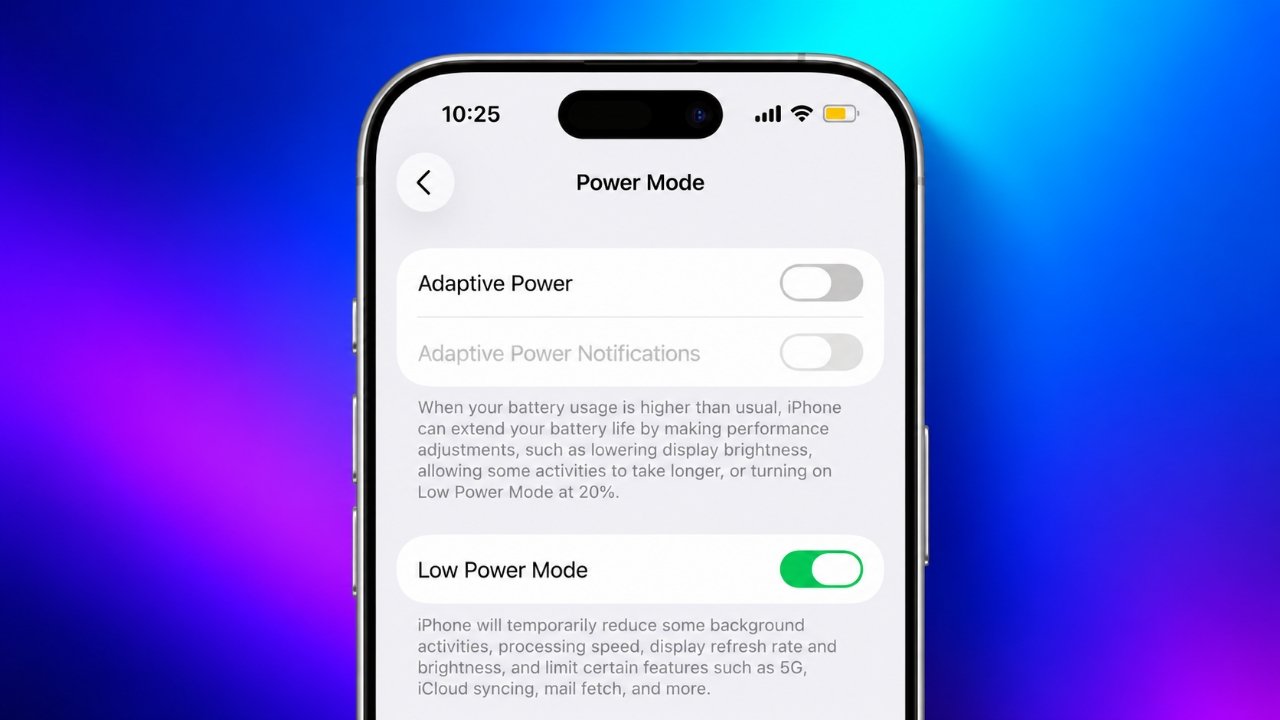
Turn Off Low Power Mode on iPhone
Apple’s Low Power Mode is designed to reduce power consumption. While it is active, some background processes and features may work differently to help the battery last longer.
If you no longer need it, you can disable it from Settings, Control Center or with Siri.
Method 1: Turn It Off From Settings
The easiest method is through the Battery section.
- Open Settings on your iPhone.
- Tap Battery.
- Look for Low Power Mode or the relevant Power Mode section, depending on your iOS version.
- Turn Low Power Mode off.
The yellow battery indicator should disappear when the mode is no longer active.
After that, your iPhone can return to its regular battery and performance behavior.
Method 2: Use Control Center
If you want to change the setting quickly, Control Center can be more convenient.
On newer iPhones:
- Swipe down from the top-right corner of the screen.
- Find the Low Power Mode control if it has been added.
- Tap it to turn the feature off.
On iPhones with a Home button, swipe upward from the bottom of the display to open Control Center.
If the control isn’t available, you may need to add it through the Control Center customization options.
Method 3: Ask Siri
You can also use Siri instead of navigating through menus.
Activate Siri and say:
“Turn off Low Power Mode.”
If Siri supports the command on your device and the feature is active, it can switch the setting off for you.
How to Disable Low Power Mode on iPad
Supported iPad models also include Low Power Mode.
To turn it off:
- Open Settings.
- Tap Battery.
- Find Low Power Mode.
- Switch it off.
You may also be able to access the setting through Control Center if the appropriate control has been added.
Keep in mind that the exact menu appearance can vary depending on the iPad model and iPadOS version.
Turn Off Low Power Mode on Apple Watch
Apple Watch has its own power-saving option that can help extend battery life when the charge is running low.
If you want to return to regular operation, you can turn it off from the watch.
Steps to Disable It
- Open Control Center on your Apple Watch.
- Tap the battery percentage button.
- Find Low Power Mode.
- Turn the feature off.
Once disabled, features that were limited by the power-saving mode can return to their normal behavior.
How to Turn Off Battery Saver on Android
Android phones generally use a feature called Battery Saver, although the name and location can differ between manufacturers.
Depending on your phone, you might see names such as:
- Battery Saver
- Power Saving Mode
- Extreme Battery Saver
- Battery and Device Care
- Battery and Performance
Because Android manufacturers use different interfaces, the steps on a Samsung phone may not look exactly the same as those on a Xiaomi, OnePlus, Motorola or Google Pixel device.
Disable Battery Saver From Settings
The Settings app is the most reliable place to find the feature.
- Open Settings.
- Go to Battery or the battery-related section.
- Find Battery Saver or Power Saving Mode.
- Turn the feature off.
On some phones, you may need to open another menu such as Battery and Device Care or Battery and Performance before finding the option.
Once disabled, your phone can resume its usual background activity and other functions.
Turn Off Battery Saver From Quick Settings
There is an even faster way on many Android phones.
- Swipe down from the top of the screen.
- Look for Battery Saver or Power Saving.
- Tap the button to turn it off.
If you don’t see the option, swipe down again to expand the Quick Settings panel.
Some phones allow you to edit this panel and add the Battery Saver button if it isn’t already visible.
How to Disable Extreme Battery Saver
Certain Android phones include an Extreme Battery Saver option that applies stronger restrictions than the standard Battery Saver.
If this feature is active:
- Open Settings.
- Go to Battery.
- Find Extreme Battery Saver or a similarly named option.
- Turn it off.
The exact location and name can vary considerably between Android brands.
Stop Battery Saver From Turning On Automatically
Sometimes Battery Saver isn’t being switched on manually. Your phone may be configured to activate it automatically when the battery reaches a particular percentage.
For example, a device might be configured to enable Battery Saver when the battery becomes low.
If you prefer to control it yourself, check the automatic settings.
On Android
Open:
Settings → Battery → Battery Saver
Look for options related to:
- Schedule
- Automatic activation
- Turn on at a specific battery level
- Battery percentage
- Scheduled Battery Saver
If your phone offers a scheduling option, you can adjust it or disable the schedule.
The wording will depend on your Android version and phone manufacturer.
What If Low Power Mode Keeps Coming Back on iPhone?
If Low Power Mode repeatedly becomes active even after you turn it off, check whether an automation is responsible.
The Shortcuts app can contain automations that change settings based on certain conditions, including battery level.
Open Shortcuts and review your personal automations. If you find an automation that enables Low Power Mode automatically, you can disable or remove it if you no longer want it.
What Changes When Battery Saver Is Enabled?
Power-saving modes aren’t simply battery indicators. They can change how your device operates.
Depending on the device, you may notice:
- Less background activity
- Less frequent app refreshing
- Reduced visual effects
- Changes to display refresh rate
- Delayed or less frequent background synchronization
- Restrictions on some automatic downloads
- Reduced performance in certain situations
- Changes to network or background functions
Not every device applies the same restrictions. Apple and different Android manufacturers use their own approaches to power management.
So if an app or feature behaves differently while Battery Saver is active, disabling the mode can help determine whether power-saving restrictions are responsible.
When Does It Make Sense to Turn Off Battery Saver?
There is no need to keep Low Power Mode or Battery Saver enabled all the time if you don’t need the extra battery life.
For example, you might turn it off when:
- Your phone has plenty of charge.
- You have access to a charger.
- You need normal background synchronization.
- You want the regular display experience.
- An app isn’t refreshing as expected.
- You are downloading or syncing content.
On the other hand, keeping the feature enabled can be useful when your battery is low and you still need your device to remain available for longer.
Ways to Save Battery Without Battery Saver
You don’t always have to rely on a system-wide power-saving mode. A few everyday changes can also reduce battery consumption.
Reduce Screen Brightness
The display can use a significant amount of power. Keeping brightness at a comfortable level instead of maximum brightness can help reduce battery usage.
Check Which Apps Use the Most Battery
Open your phone’s battery settings and review battery usage. If one app is consuming an unusually large amount of power, you can investigate its background activity or settings.
Use Adaptive Battery Features on Android
Some Android phones include adaptive battery management. These features can help manage power consumption based on how you use the device.
Consider a Lower Refresh Rate
A higher display refresh rate can require more power. On supported devices, using a lower refresh rate can help extend battery life.
Avoid Excessive Heat
High temperatures can affect battery performance and may cause faster battery drain. Avoid leaving your phone in very hot places or in direct sunlight for extended periods.
Limit Unnecessary Background Activity
Apps that don’t need constant background access may consume additional power. Review app permissions and background activity and restrict unnecessary usage where your device allows it.
Also Read: How to Check iPhone Battery Cycle Count and Understand Battery Health
Final Thoughts
Low Power Mode and Battery Saver are useful tools when you need to stretch your remaining battery. However, they can also change background activity, display behavior and other device functions.
If your battery level is comfortable and you want your device to operate without those power-saving restrictions, you can turn the feature off from Settings, Control Center or Quick Settings, depending on the device.
If Battery Saver keeps activating automatically, check your scheduled battery settings on Android or your Shortcuts automations on iPhone. Also remember that menu names can change between operating systems, device models and software versions.

Sourav Gorai, founder of sabhigyan.com, is passionate about technology, smartphones, apps, and digital tools. With 8+ years of experience in the digital and tech space, he focuses on creating easy-to-understand, practical, and helpful content that makes everyday technology simpler for readers.