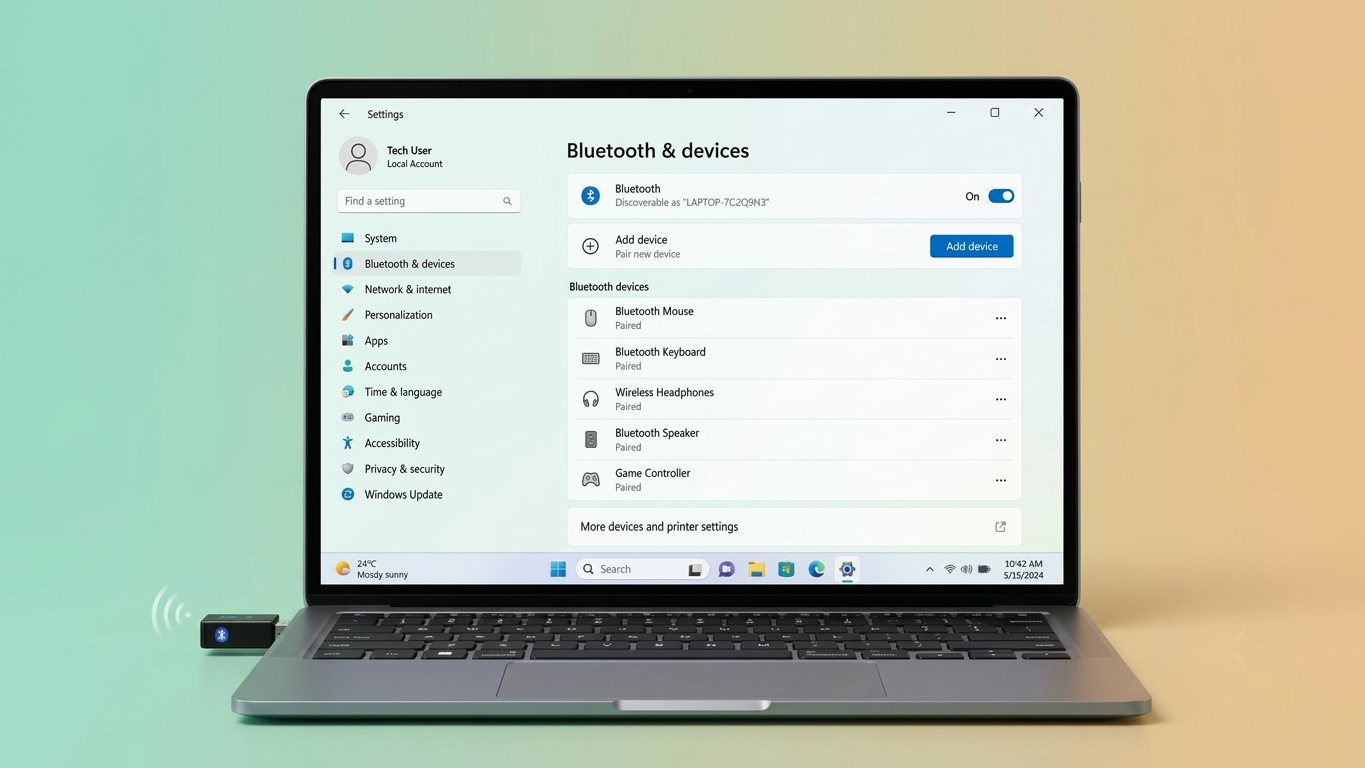
Bluetooth is one of those features you may not think about until you need to connect a wireless device. From headphones and speakers to keyboards, mice, and other compatible accessories, Bluetooth can make everyday computer use much easier by reducing the need for cables.
Most newer laptops and many desktops come with Bluetooth built in. However, if your computer doesn’t have it, you don’t necessarily need to replace the system or install complicated internal hardware. A small USB Bluetooth adapter can add Bluetooth connectivity in just a few steps.
Also Read: How to Fix Bluetooth Not Working on Android: Easy Solutions That Work
First, Check If Bluetooth Is Already Available
Before purchasing an adapter, it’s worth checking whether Bluetooth is already supported by your computer. Sometimes the hardware is present but Bluetooth is disabled or experiencing a software problem.
On Windows 11
- Open Start and select Settings.
- Choose Bluetooth & devices.
- Look for the Bluetooth settings.
- If the Bluetooth option is available, your computer already has Bluetooth support.
On Windows 10
- Open Start and go to Settings.
- Select Devices.
- Click Bluetooth & other devices.
- Check whether Bluetooth settings are displayed.
If Bluetooth is listed but you’re unable to use it, try fixing the existing connection before buying an external adapter.
Bluetooth Not Working? Try These Fixes First
Buying new hardware isn’t always necessary. If your computer already supports Bluetooth, a few basic troubleshooting steps may solve the problem.
Try the following:
- Restart the computer.
- Switch Bluetooth off and turn it back on.
- Make sure the wireless accessory has enough battery.
- Put the accessory into pairing mode.
- Keep the accessory close to the computer.
- Check for available Windows or driver updates.
- Use the Bluetooth troubleshooting options provided by Windows.
- Check your computer manufacturer’s support page for device-specific instructions.
If Bluetooth still doesn’t appear or the computer doesn’t have Bluetooth hardware, a USB adapter is a practical alternative.
Use a USB Bluetooth Adapter
A Bluetooth USB dongle is a small device that adds Bluetooth functionality through a USB port. It is particularly useful for desktop computers or older laptops that don’t have built-in Bluetooth.
The setup is generally simple:
- Choose a compatible Bluetooth USB adapter.
- Insert it into an available USB port.
- Allow Windows to detect the adapter.
- Install the required driver if Windows doesn’t install it automatically.
- Open Bluetooth settings and start connecting your devices.
You don’t normally need to open the computer or modify its internal components.
How to Choose a Bluetooth USB Adapter
Not every computer has the same type of USB port, so check your available ports before purchasing an adapter.
You may encounter:
- USB 2.0: Often identified by a black-colored port.
- USB 3.x: Commonly identified by a blue-colored port.
- SuperSpeed USB: Some ports are marked with an SS symbol.
A Bluetooth adapter designed for USB can generally be used with a compatible USB port, but you should always check the manufacturer’s specifications before buying.
It’s also important to confirm that the adapter supports your operating system. If you’re using an older version of Windows, compatibility information becomes especially important.
Installing a Bluetooth USB Dongle on Windows
Once you’ve selected a suitable adapter, installation is usually straightforward.
Step 1: Insert the Adapter
Connect the Bluetooth USB adapter to an available USB port on your computer.
Step 2: Let Windows Detect It
Give Windows a moment to recognize the new hardware. On supported adapters, Windows may automatically install the necessary driver.
Step 3: Install the Driver if Needed
If the adapter isn’t recognized correctly, check the manufacturer’s official website for the appropriate driver.
Download the driver that matches your adapter and Windows version, then follow the installation instructions supplied by the manufacturer.
Tip: Avoid downloading Bluetooth drivers from unfamiliar third-party websites. Using the manufacturer’s official support page is generally the safer option.
Step 4: Check Bluetooth Settings
After installation, open Settings > Bluetooth & devices on Windows 11 or the corresponding Bluetooth settings on Windows 10.
If the adapter has been installed correctly, Bluetooth should now be available.
How to Pair Bluetooth Accessories With Windows
With Bluetooth working, you can start connecting compatible wireless devices.
Windows 11
- Open Settings.
- Select Bluetooth & devices.
- Click Add device.
- Choose Bluetooth.
- Put your accessory into pairing mode.
- Select the device when it appears.
- Follow the instructions shown on the screen.
Once the process finishes, Windows should show the device as connected or paired.
Windows 10
- Go to Settings.
- Select Devices.
- Open Bluetooth & other devices.
- Select Add Bluetooth or other device.
- Choose Bluetooth.
- Select the accessory you want to connect.
- Complete the instructions displayed by Windows.
Windows 8
On Windows 8, turn on the Bluetooth accessory and place it into pairing mode. Search for Bluetooth using Windows Search, open the Bluetooth settings, and select the available device to begin pairing.
Windows 7
For Windows 7:
- Open Control Panel.
- Select Hardware and Sound.
- Choose Devices and Printers.
- Click Add a device.
- Select your Bluetooth accessory.
- Follow the pairing instructions.
The exact options can vary depending on the Bluetooth adapter and the device you’re connecting.
Connecting Bluetooth Devices to a Mac
Most Mac computers include Bluetooth hardware, so an external adapter is usually unnecessary.
To connect a Bluetooth accessory:
- Open the Apple menu.
- Go to System Settings or System Preferences, depending on your macOS version.
- Open Bluetooth.
- Turn Bluetooth on if necessary.
- Put your accessory into pairing mode.
- Find the device in the Bluetooth list.
- Select it and choose Connect.
Some Bluetooth accessories may ask you to confirm a code or enter a pairing code. In that situation, follow the instructions supplied with the device.
What Happens After You Pair a Device?
After a successful pairing, many Bluetooth accessories can reconnect automatically when they’re available.
Automatic reconnection generally depends on factors such as:
- Bluetooth being enabled.
- The accessory being powered on.
- Both devices being within Bluetooth range.
- The accessory not being actively connected to another device.
Bluetooth can be used with a wide variety of compatible products, including wireless headphones, speakers, keyboards, mice, and certain smartphone-related functions.
Bluetooth Adapter Isn’t Working? Try These Solutions
If your newly installed adapter isn’t connecting to a device, work through these checks:
Check Bluetooth: Make sure Bluetooth is enabled in your computer’s settings.
Check pairing mode: Your accessory must usually be discoverable before the computer can find it.
Reduce the distance: Bring the accessory closer to the computer while pairing.
Restart both devices: A restart can sometimes resolve temporary connection problems.
Check the driver: If the adapter isn’t recognized properly, verify that its driver is installed and compatible.
Use official support: If you need a driver, obtain it from the adapter manufacturer’s official website rather than an unknown download source.
If none of these steps works, check the adapter manufacturer’s support documentation for compatibility and troubleshooting information.
Frequently Asked Questions
Can I add Bluetooth to a desktop computer?
Yes. If your desktop doesn’t have built-in Bluetooth, a compatible USB Bluetooth adapter can add Bluetooth connectivity through an available USB port.
Do I need to open my computer to install Bluetooth?
No, not when using a USB Bluetooth adapter. You simply connect the adapter to an appropriate USB port.
Does Windows install Bluetooth adapter drivers automatically?
Windows may automatically install a compatible driver for some adapters. If it doesn’t, you may need to download the correct driver from the manufacturer’s official website.
Can I use Bluetooth headphones with a USB adapter?
Yes, provided the Bluetooth adapter, computer, and headphones are compatible and properly paired.
Why can’t my computer find my Bluetooth device?
Make sure the accessory is powered on, has sufficient battery, is in pairing mode, and is close enough to the computer. Restarting both devices can also help.
Also Read: How to Stop Pop-Up Ads on Android: Simple Ways to Block Unwanted Ads
Final Thoughts
Adding Bluetooth to a computer doesn’t have to be complicated. If your PC or older laptop doesn’t include Bluetooth, a compatible USB Bluetooth adapter can provide a convenient way to connect wireless accessories without installing internal hardware.
Before purchasing one, check whether your computer already has Bluetooth and verify the adapter’s operating-system compatibility. Once the adapter is recognized and the required driver is installed, you can pair supported headphones, speakers, keyboards, mice, and other Bluetooth accessories with your computer.

Sourav Gorai, founder of sabhigyan.com, is passionate about technology, smartphones, apps, and digital tools. With 8+ years of experience in the digital and tech space, he focuses on creating easy-to-understand, practical, and helpful content that makes everyday technology simpler for readers.
Advertisements