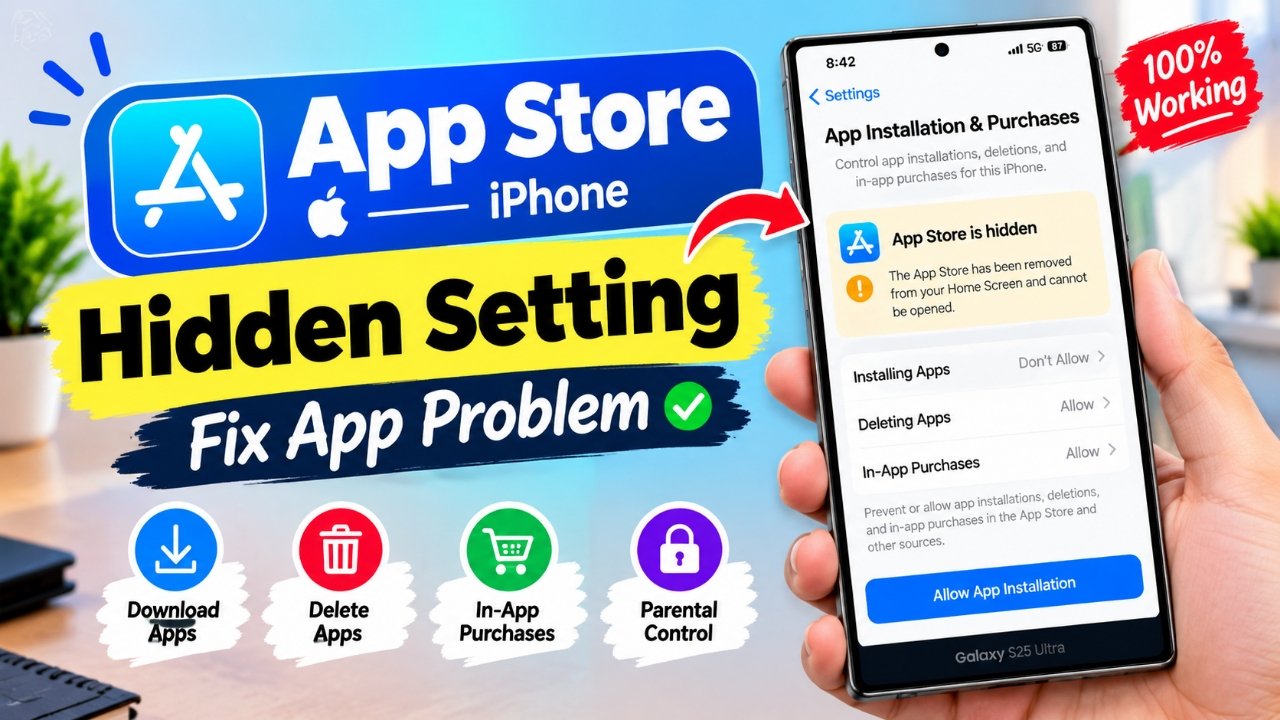
Can’t find the App Store on your iPhone? Don’t panic. In most cases, the App Store hasn’t actually been removed. Its icon may have been moved to another Home Screen page, placed in the App Library, hidden, or blocked by a Screen Time setting.
The good news is that you can usually bring it back in just a few minutes. Below are several methods, starting with the simplest ones. You won’t need any technical knowledge to try them.
Also Read: How to Reduce Loud Sounds on iPhone With iOS 26
First, Search for the App Store
Before changing any settings, use your iPhone’s built-in search. The App Store may still be installed even if its icon is no longer visible on the Home Screen.
Use Spotlight Search
Spotlight can quickly locate apps on your iPhone.
- Unlock your iPhone.
- Swipe down from the middle of the Home Screen.
- Tap the search field if necessary.
- Type App Store.
- Look for the App Store in the results.
- Press and hold its icon.
- If the option is available, choose to add or move it to the Home Screen.
If you can open the App Store from the search results, the application itself is still available. The problem is likely related to where its icon is displayed.
Look in the App Library
Every iPhone with the App Library feature organizes installed apps automatically. So, an app missing from the Home Screen can still be available there.
To check:
- Go to the last page of your Home Screen.
- Swipe left again to open the App Library.
- Tap the search field at the top.
- Enter App Store.
- Press and hold the App Store icon when it appears.
- Move it back to the Home Screen if the option is available.
You can also browse the App Library categories if you don’t want to use search.
Check Your Home Screen Pages and Folders
It is easy to move an app icon accidentally while rearranging the Home Screen. The App Store could also be sitting inside a folder or on a page that has been hidden.
Check your folders carefully, particularly folders where you keep Apple or utility apps.
You should also review your Home Screen pages:
- Touch and hold an empty area of the Home Screen.
- Tap the page indicator near the bottom.
- Look at the available Home Screen page previews.
- Enable any page that has been hidden.
- Tap Done.
If the App Store was located on a hidden page, it should become visible again.
Check Screen Time Restrictions
If you still can’t access the App Store, a restriction may be preventing app installations. This can happen when Screen Time settings have been configured to limit app-related activity.
Here’s where to look:
- Open Settings.
- Tap Screen Time.
- Select Content & Privacy Restrictions.
- Enter your Screen Time passcode if requested.
- Tap iTunes & App Store Purchases.
- Select Installing Apps.
- Make sure Allow is selected.
The exact wording and menu arrangement can vary slightly depending on your iOS version.
If Screen Time is managed by a parent, guardian, or organization, you may need the person who controls those settings to make the change.
Check Whether the App Store Is Hidden
On supported iOS versions, certain apps can be hidden and protected with Face ID or a passcode. If you recently changed your privacy settings, check the Hidden folder in the App Library.
To check:
- Open the App Library.
- Look for the Hidden folder.
- Tap it and authenticate with Face ID or your passcode.
- Check whether the App Store appears there.
- If an option to stop requiring Face ID is available, follow the onscreen instructions.
Keep in mind that Apple’s app-hiding features depend on the iOS version and the type of application involved. Not every built-in Apple app can necessarily be hidden in the same way as third-party apps.
Reset the Home Screen Layout
If you think the App Store icon has simply become difficult to locate, resetting the Home Screen layout can be a useful next step.
This does not erase your photos, messages, apps, or other personal information. It does, however, rearrange your Home Screen and remove your customized folder arrangement.
Go to:
Settings → General → Transfer or Reset iPhone → Reset → Reset Home Screen Layout
Confirm the reset when prompted.
Afterward, your Home Screen will use Apple’s default arrangement. You’ll have to reorganize your icons and folders if you prefer a different layout.
Update Your iPhone
A software issue can sometimes cause unexpected behavior. If your iPhone is running an older version of iOS, check whether an update is available.
Open:
Settings → General → Software Update
If an update is available, follow Apple’s onscreen instructions to install it.
Before starting a major iOS update, it’s sensible to keep your iPhone connected to power and use a reliable Wi-Fi connection. Keeping iOS updated can also provide security improvements and bug fixes.
Restart the iPhone
A simple restart is also worth trying before moving to more disruptive solutions.
Turn your iPhone off, wait a few seconds, and turn it back on. Then check Spotlight, the App Library, and the Home Screen again.
This won’t change your settings or delete your data, making it one of the easiest troubleshooting steps to try.
Don’t Factory Reset Unless It’s Really Necessary
A factory reset should not be your first solution for a missing App Store icon. Erasing the iPhone removes your personal information, installed apps, settings, and other stored content from the device.
If you’ve tried the other methods and are experiencing broader software problems, you can consider an erase as a last resort. Before doing so, create a current backup and make sure the backup has completed successfully.
The relevant option is:
Settings → General → Transfer or Reset iPhone → Erase All Content and Settings
Read the information shown on the screen carefully before confirming. If you are unsure about erasing the device, contacting Apple Support first is a safer choice.
What If the App Store Still Doesn’t Appear?
If the App Store remains unavailable after checking the Home Screen, App Library, restrictions, and software updates, the issue may require further investigation.
At that point, consider contacting Apple Support or visiting an Apple-authorized service provider. Avoid randomly changing important system settings or erasing the iPhone without first securing your data.
Frequently Asked Questions
Can the App Store be permanently deleted from an iPhone?
The App Store is a built-in Apple application, so you generally won’t be able to permanently uninstall it like an ordinary third-party app. However, its visibility or access can be affected by Home Screen organization, restrictions, or supported privacy features.
Why did the App Store disappear from my Home Screen?
It may have been moved to another Home Screen page, placed inside a folder, or moved out of the Home Screen while remaining in the App Library. Screen Time restrictions can also affect access to installing apps.
How can I get the App Store back on my Home Screen?
Start by searching for App Store with Spotlight or looking for it in the App Library. If you find it there, you can move the icon back to the Home Screen when the relevant option is available.
How do I allow app installations on an iPhone?
Go to Settings → Screen Time → Content & Privacy Restrictions → iTunes & App Store Purchases → Installing Apps, then select Allow if the setting is currently preventing installations.
Will resetting the Home Screen delete my apps?
No. Reset Home Screen Layout does not erase your apps or personal files. It restores the default Home Screen arrangement, so you may need to reorganize your icons and folders afterward.
Should I factory reset my iPhone to restore the App Store?
Usually, no. A factory reset is far too disruptive for a problem that can generally be solved through search, Home Screen settings, App Library, or Screen Time. Consider an erase only after other troubleshooting options have failed and you’ve secured a backup.
Also Read: iPhone Touch Disease: Symptoms, Causes, Affected Models and Repair Options
Final Thoughts
A missing App Store icon usually doesn’t mean the application has been deleted. Start with the easiest checks: Spotlight Search, App Library, Home Screen pages, and folders. If you still can’t find it, review your Screen Time restrictions and check whether your iPhone needs a software update.
Resetting the Home Screen can help when the icon arrangement has become confusing, while a factory reset should be kept as a last resort. If none of these steps works, getting assistance from Apple Support is the better option than making major changes to the device.

Sourav Gorai, founder of sabhigyan.com, is passionate about technology, smartphones, apps, and digital tools. With 8+ years of experience in the digital and tech space, he focuses on creating easy-to-understand, practical, and helpful content that makes everyday technology simpler for readers.