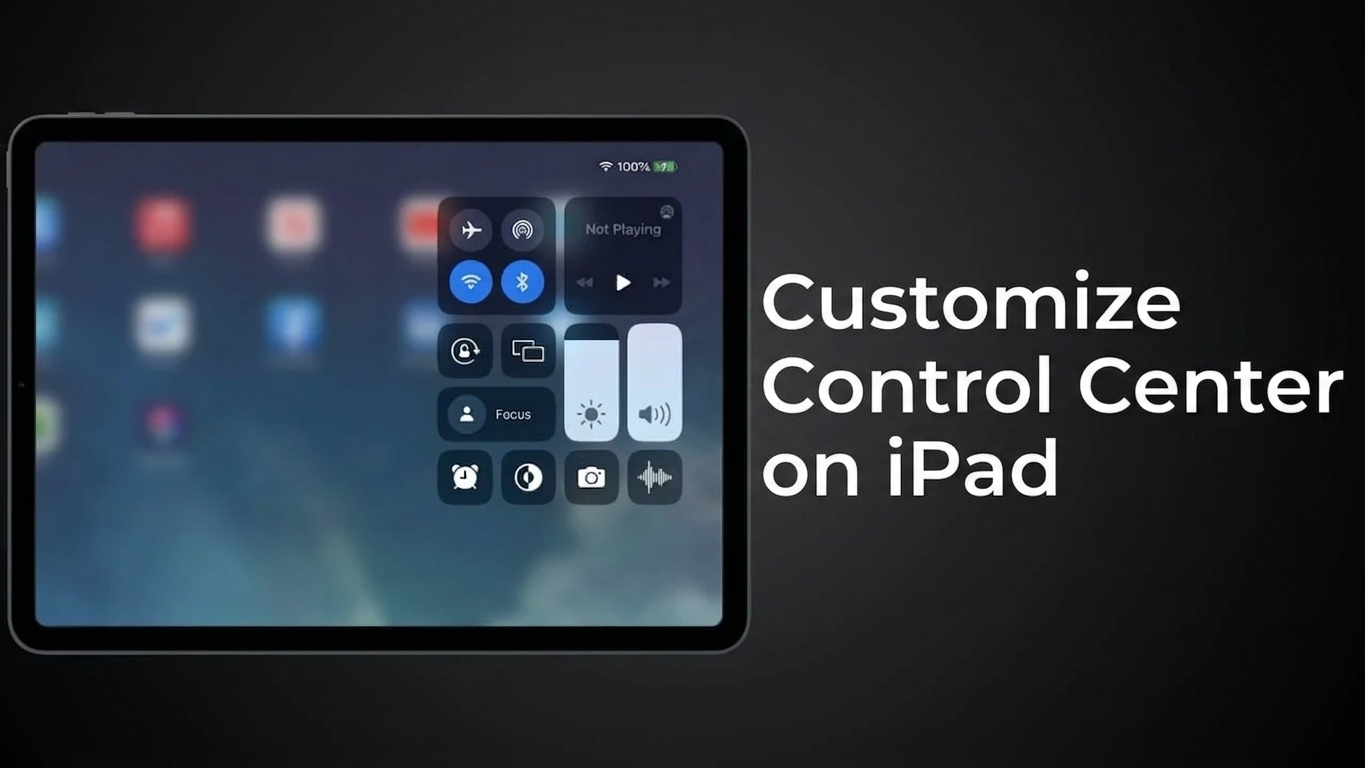
The Control Center on an iPad gives you quick access to several frequently used settings and features without having to open individual apps or dig through the Settings menu. You can use it to adjust screen brightness, change the volume, manage wireless connections, turn on a Focus mode, start a screen recording, and access other shortcuts.
If you rarely use some of the default controls, there’s no reason to keep them taking up space. On supported versions of iPadOS, you can adjust the Control Center so that the shortcuts you use most are easier to reach.
This guide walks you through the process of customizing Control Center on iPad, including adding, removing, and rearranging controls.
Also Read: How to Make Your Android Battery Last Longer: Easy Ways to Reduce Battery Drain
What You Can Do With a Customized Control Center
Depending on your iPad model and iPadOS version, you may be able to:
- Add frequently used controls
- Remove shortcuts you don’t need
- Change the position of controls
- Access important settings more quickly
- Keep the Control Center organized around your daily usage
The exact controls available can vary depending on your iPad and the version of iPadOS installed.
How to Edit Control Center on an iPad
Before making changes, unlock your iPad and open the Settings app.
1. Open the Settings App
Find Settings on your Home Screen or in the App Library and tap it.
The Settings app contains the options you need to manage various iPad features.
2. Find the Control Center Settings
Look through the Settings menu for Control Center and select it.
This section provides access to the available Control Center customization options on your device.
3. Add Shortcuts You Frequently Use
Look through the available controls and choose the ones that would be useful to have within quick reach.
When an option has a plus (+) button, tap it to add that control.
Depending on your iPadOS version, examples may include features such as:
- Screen Recording
- Notes
- Low Power Mode
- Dark Mode
- Home controls
- Other system shortcuts
After adding a control, it should become available from Control Center.
4. Remove Controls You Don’t Need
Your Control Center doesn’t have to contain every available shortcut.
If a control isn’t useful to you, use the minus (-) option next to it, where available, to remove it from the Control Center.
Removing a shortcut does not uninstall an app or erase information from your iPad. It simply removes that shortcut from the Control Center interface.
5. Put the Controls in a Convenient Order
You can also organize the available controls according to your preferences.
If your version of iPadOS provides a drag handle for rearranging controls, press and hold it and move the control to your preferred position.
For example, you could place screen recording or other frequently used shortcuts where they’re easier to reach.
6. Open Control Center to See the Result
Once you’ve finished editing, open Control Center by swiping down from the top-right corner of the iPad screen.
Check whether the controls are arranged the way you want. If something needs changing, go back to the relevant Control Center settings and make another adjustment.
7. Try the New Shortcuts
It’s a good idea to test a few of the controls after customizing the layout.
Some shortcuts perform an action immediately when tapped, while others may provide additional settings when you press and hold them.
Tips for a Cleaner iPad Control Center
A little organization can make Control Center much more useful. Here are a few practical suggestions:
Keep frequently used features accessible: Don’t fill the Control Center with options you rarely use.
Prioritize your daily shortcuts: Put the features you use most often in convenient positions.
Consider Screen Recording: If you regularly create tutorials, demonstrations, or presentations, having quick access to screen recording can be useful.
Add battery-related controls if needed: If you frequently try to reduce battery consumption, consider adding an available battery-saving shortcut such as Low Power Mode.
Review your setup occasionally: Your usage can change over time, so there’s nothing wrong with updating the Control Center later.
Control Center Customization Not Working? Try These Fixes
Sometimes an option may not appear or your changes may not behave as expected. Here are a few things to check.
The Control Center Option Isn’t Available
The available customization options depend on your iPad model and iPadOS version. If your device is running an older release, some features may be different or unavailable.
Check whether a software update is available by going to the iPad’s software update settings.
The Shortcut You Want Isn’t Available
Not every iPad feature can necessarily be placed in Control Center. The list of available controls depends on the device and software version.
If you can’t find a particular feature, it may need to be accessed through Settings or the app where that feature is provided.
My Changes Aren’t Showing
Close and reopen Control Center after making changes. If the problem continues, restarting the iPad can sometimes help resolve temporary software issues.
A Control Changed After an iPadOS Update
Apple can modify the Control Center experience when it releases new versions of iPadOS. If you notice that a shortcut has moved or is no longer available, check the current Control Center settings on your device.
Customization Is Restricted on a School or Work iPad
Some iPads managed by schools or organizations can have restrictions configured by an administrator. In such cases, you may not have permission to change certain settings.
If that’s the situation, you’ll need to contact the organization responsible for managing the device.
Frequently Asked Questions
Can I customize Control Center on every iPad?
Control Center features vary according to the iPad model and installed version of iPadOS. iPads running newer software generally provide more customization options than some older devices.
Does customizing Control Center delete anything from my iPad?
No. Changing the Control Center layout does not delete your photos, documents, apps, or other personal files. You’re only changing which shortcuts are displayed and, where supported, how they are organized.
Why does pressing and holding a control show more options?
Some Control Center buttons provide additional settings. Instead of performing only one action, pressing and holding certain controls can open an expanded menu with related options.
Can I change the Control Center again later?
Yes. You can revisit the Control Center customization settings whenever you want and adjust the available shortcuts according to your current needs.
Also Read: How to Check Storage on iPhone 16: A Complete Guide
Final Thoughts
A well-organized Control Center can make everyday iPad use a little quicker and more convenient. Rather than keeping a long list of shortcuts you rarely touch, you can focus on the controls that actually fit your routine.
Take a few minutes to review the available options, remove unnecessary shortcuts, and arrange your frequently used features where they’re easiest to access. Since the available customization features can differ between iPad models and iPadOS versions, the options shown on your device may not be exactly the same as those on another iPad.

Sourav Gorai, founder of sabhigyan.com, is passionate about technology, smartphones, apps, and digital tools. With 8+ years of experience in the digital and tech space, he focuses on creating easy-to-understand, practical, and helpful content that makes everyday technology simpler for readers.
Advertisements