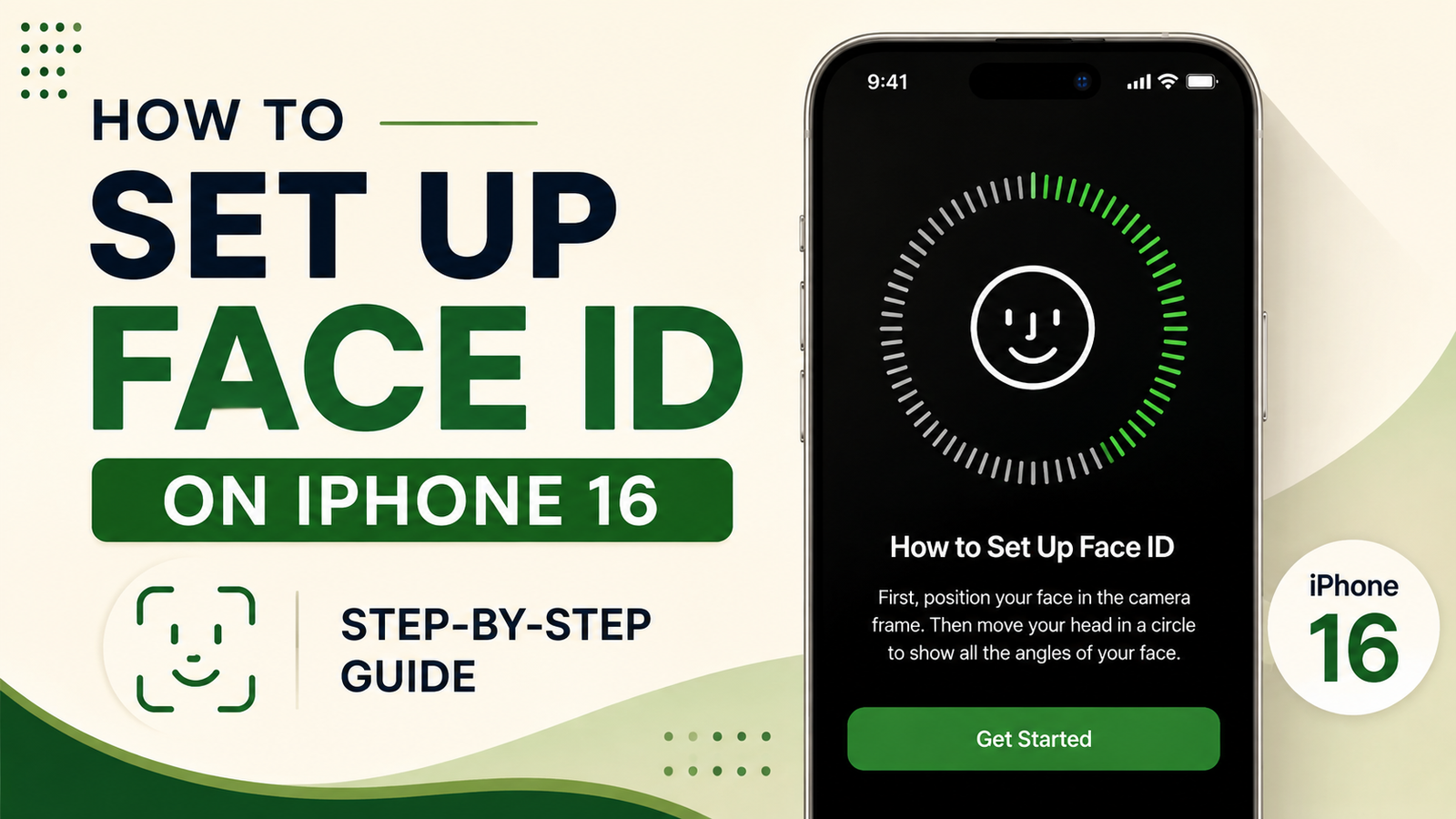
Setting up Face ID on your iPhone 16 is a simple way to make everyday phone use faster and more convenient. Once configured, you can use your face to unlock the device and authenticate certain actions, such as purchases, Apple Pay transactions, password autofill, and sign-ins in apps that support Face ID.
If you have just bought an iPhone 16 and are unsure where to begin, you can complete the setup in only a few minutes. Below is a straightforward guide covering the setup process, useful settings, and solutions for common Face ID problems.
Also Read: How to Transfer Photos from iPhone 16 to a Laptop: Easy Methods
Face ID Setup at a Glance
Here’s the basic process:
- Open Settings on your iPhone.
- Select Face ID & Passcode.
- Enter your iPhone passcode.
- Tap Set Up Face ID.
- Position your face inside the frame.
- Slowly move your head as instructed.
- Complete the second Face ID scan.
- Select the features where you want to use Face ID.
- Lock your iPhone and test it.
Setting Up Face ID on iPhone 16
1. Go to Face ID Settings
Start by opening the Settings app on your iPhone 16.
Scroll through the menu and tap Face ID & Passcode. You’ll be asked to enter your device passcode before continuing.
This additional step is intentional because Face ID settings control important security features on your phone.
2. Start Face ID Setup
After entering your passcode, look for Set Up Face ID and tap it.
Your iPhone will display instructions explaining how to position your face. You’ll also see a circular guide on the screen that helps you keep your face in the correct position.
If Face ID was previously configured on the phone, you may need to tap Reset Face ID first and then start a new setup.
3. Get Ready for the Face Scan
Hold your iPhone comfortably in front of your face. Make sure your entire face is visible and positioned within the circle shown on the display.
For a smoother setup:
- Look toward the iPhone screen.
- Keep your face unobstructed.
- Avoid covering the front sensor area.
- Hold the phone at a comfortable viewing distance.
- Try to remain relatively steady while starting the scan.
You don’t need to hold the phone perfectly still throughout the process because the setup will guide you through the required movement.
4. Perform the First Scan
When your iPhone asks you to move your head, slowly follow the circular motion shown on the screen.
As you move, the progress indicator will gradually fill. This allows the iPhone to capture different views of your face.
Move at a normal, controlled speed. If the scan isn’t completed correctly, your iPhone will provide instructions to try again.
5. Complete the Second Scan
Once the first scan has finished, tap Continue.
You’ll be asked to repeat the head movement for the second scan. Follow the same instructions until the progress indicator is complete.
After both scans are successfully recorded, your iPhone will indicate that Face ID setup has finished.
6. Decide Where Face ID Should Be Used
After creating your Face ID profile, you can choose which features are allowed to use it.
Depending on your iPhone and software configuration, these options can include:
- iPhone Unlock
- iTunes & App Store purchases
- Wallet & Apple Pay
- Password AutoFill
- Other apps that support Face ID
You can turn individual options on or off according to your preferences. These settings can also be changed later from Settings > Face ID & Passcode.
How to Check Whether Face ID Works
After completing the setup, testing Face ID is a good idea.
Lock your iPhone and wake the display. Then look toward the phone.
If Face ID recognizes you, the lock icon should change to indicate that the device has been authenticated. You can then swipe up to access the Home Screen.
You can also check Face ID when using another supported feature, such as authentication inside a compatible app.
Can You Set Up Face ID During iPhone Setup?
Yes. If you’re setting up a new iPhone 16 for the first time, the initial setup process may offer the option to configure Face ID.
You can complete it during the initial device setup or choose to configure it later through Settings > Face ID & Passcode.
Skipping it initially doesn’t prevent you from setting it up afterward.
How to Reset Face ID and Scan Your Face Again
If Face ID has stopped recognizing you reliably, creating a new facial scan can help.
Go to:
Settings > Face ID & Passcode > Reset Face ID
After resetting it, select Set Up Face ID and complete the scanning process again.
Before doing this, it’s worth checking whether the problem is simply caused by a dirty sensor area, an obstructed face, or an unusual viewing angle.
Can You Add an Alternate Appearance?
Face ID includes an Alternate Appearance option that can be useful if your everyday appearance varies significantly.
To check whether you have this option, go to:
Settings > Face ID & Passcode > Set Up an Alternate Appearance
Follow the instructions on the screen to complete another facial scan.
For example, this may be useful for someone whose regular appearance changes because of different hairstyles or commonly worn accessories.
Does Face ID Work With Glasses?
Face ID can work with many types of glasses. If you normally wear prescription glasses, you can test Face ID while wearing them after completing the initial setup.
If recognition becomes inconsistent, make sure the glasses are clean and that nothing is blocking the front sensor area.
Some sunglasses or heavily tinted lenses may affect Face ID functionality depending on their design.
What If Face ID Is Not Showing Up?
If you cannot find the Face ID option or it appears unavailable, several things could be responsible.
Possible causes include:
- Restrictions configured on the device
- Screen Time settings
- Device management policies
- A temporary software problem
- A hardware-related issue
Start by restarting your iPhone and checking the relevant settings. If Face ID remains unavailable, updating iOS and contacting Apple Support may be appropriate, particularly if the problem persists.
Common Face ID Problems and Solutions
Face ID Setup Gets Stuck
If the facial scan won’t complete, check the following:
- Make sure your whole face is inside the scanning frame.
- Keep the front sensor area clear.
- Try setting up Face ID in a location with adequate lighting.
- Follow the head-movement instructions slowly.
- Avoid moving the phone unnecessarily during the scan.
Face ID Doesn’t Recognize You Every Time
First, check that the front camera and sensor area are clean.
Also make sure your face isn’t partially covered and that you’re looking toward the display. If you’ve experienced major changes in appearance, setting up an alternate appearance may be worth trying.
“Face ID Is Not Available” Appears
If your iPhone displays a Face ID availability warning, restart the device and check for an available iOS update.
If the message continues after updating and restarting, there may be a deeper software or hardware problem. In that situation, Apple’s support service can help determine the cause.
Face ID Seems Slow
Face ID should normally authenticate quickly, but several factors can affect recognition.
For better results:
- Keep the sensor area clean.
- Hold the iPhone at a comfortable distance.
- Look toward the screen.
- Make sure nothing is blocking the front sensors.
- Keep your face reasonably visible.
Face ID Tips for Everyday Use
Once Face ID is working, a few simple habits can make the experience more consistent.
Keep the sensor area clean: Dust, fingerprints, or other obstructions around the front camera and sensor area can interfere with recognition.
Use a strong passcode: Face ID works alongside your passcode rather than replacing it completely. Your passcode remains an important part of your iPhone’s security.
Check your Face ID settings: You don’t have to enable Face ID for every supported feature. Review the available options and activate the ones you actually need.
Try your normal accessories: If you regularly use glasses or other everyday accessories, test Face ID with them so you know how reliably it recognizes you.
Frequently Asked Questions
Is a passcode required to use Face ID?
Yes. You need to create a passcode when using Face ID. The passcode provides an additional authentication method and is required in certain situations.
Can Face ID work in a dark room?
Yes. Face ID uses the iPhone’s facial-recognition hardware rather than relying only on ordinary visible-light camera images, allowing it to work in low-light conditions.
Can Face ID work when wearing a mask?
Face ID with a mask is supported on compatible iPhone models and supported iOS versions. The exact behavior can depend on your device and software settings.
Can I change Face ID settings later?
Yes. Open Settings > Face ID & Passcode to review or change the available Face ID options.
What should I do if Face ID still doesn’t work?
Start with basic troubleshooting such as cleaning the sensor area, restarting the iPhone, checking for software updates, and resetting Face ID if necessary. If the problem continues, consider contacting Apple Support for further assistance.
Also Read: How to Add Filters to Photos on iPhone in 2026
Final Thoughts
Face ID makes many everyday tasks on the iPhone 16 more convenient. After completing the initial two-scan setup, you can use facial authentication for supported functions without repeatedly entering your passcode.
If recognition isn’t working as expected, check the sensor area, your phone’s position, and the Face ID settings before resetting the facial scan. In cases where Face ID remains unavailable despite basic troubleshooting, professional support may be needed.

Sourav Gorai, founder of sabhigyan.com, is passionate about technology, smartphones, apps, and digital tools. With 8+ years of experience in the digital and tech space, he focuses on creating easy-to-understand, practical, and helpful content that makes everyday technology simpler for readers.
Advertisements