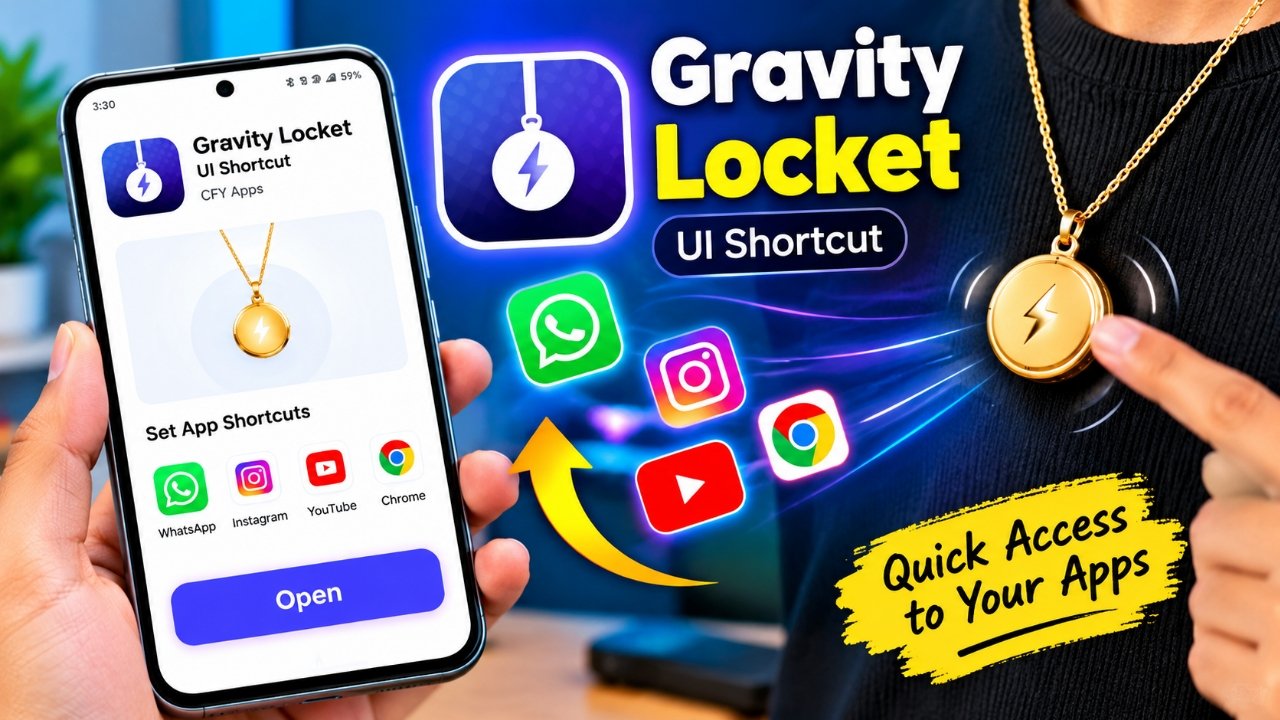
Android phones already offer plenty of ways to personalize the user experience, but Gravity Locket: UI Shortcut takes a less conventional route. Instead of replacing the launcher or simply adding another static widget, the app places a small floating locket on the screen that can move with your phone.
The floating element can be customized with your own image, resized, repositioned and connected to different shortcut actions. Its motion is designed around a physics-style effect, making the locket appear to swing or bounce when the device is moved.
Developed by CFY Apps, Gravity Locket is listed under the Personalization category on Google Play. The current listing indicates that the app includes advertisements and in-app purchases. Features, pricing, compatibility and other app details can change when new versions are released.
Also Read: Privacy Display: Screen Filter App Review – Features, How It Works, Uses and Privacy
What Does Gravity Locket Do?
Gravity Locket is essentially a combination of an Android customization tool and floating shortcut system.
Once configured, a small locket can appear above the regular Android interface. Rather than remaining completely static, it can respond to movement detected through the phone’s sensors. Tilting or moving the handset can make the locket move with a gravity-inspired animation.
The app doesn’t replace your existing launcher. Your normal home screen remains intact while the floating control works as an additional layer on top of it.
Depending on the version and available settings, you can customize things such as:
- Locket appearance and shape
- Personal images
- Floating element size
- Thread length
- Screen position
- App shortcuts
- Gesture actions
- Automatic hiding behavior
- Motion effects
That combination gives Gravity Locket a different feel from a conventional Android widget.
A Floating Control With a Physics Effect
The movement-based animation is one of the app’s most distinctive features.
Instead of behaving like a fixed shortcut icon, the locket can react when you move or tilt your smartphone. For instance, moving the phone from one side to another may cause the floating element to swing in a pendulum-like manner.
This doesn’t necessarily add a major practical function, but it can make the interface feel more dynamic and personalized.
For people who enjoy animated Android interfaces, this small visual effect may be the main attraction.
Personalize It With Your Own Picture
Another interesting option is the ability to incorporate a personal image into the locket.
Rather than being restricted to a generic shortcut graphic, users can choose an image stored in their phone’s gallery. Depending on the options available in the installed version, the image can be displayed using different shapes or styles.
You could choose something like:
- A personal photo
- A pet’s picture
- A simple logo
- An illustration
- A favorite character
- Any other suitable gallery image
This gives the floating shortcut a more personal appearance than a standard app icon.
Change Its Size, Position and Appearance
A floating control can quickly become inconvenient if it occupies the wrong part of the screen. Gravity Locket provides customization options intended to help users position it according to their preferences.
You can adjust elements such as the size of the locket, thread length and its position on the display.
Someone who prefers a discreet interface might choose a smaller locket, while a larger one may be easier to notice and interact with.
Changing its location can also be useful if a particular area of the screen is easier to reach, especially when holding a large smartphone with one hand.
Quick Access to Frequently Used Apps
Gravity Locket isn’t only about appearance. Its floating control can also be used as a shortcut for selected applications or actions.
Depending on the available configuration, users may be able to associate different gestures with specific functions. For example, a tap or another supported interaction could be assigned to open a chosen application.
This can be convenient if there are a few apps that you open repeatedly throughout the day. Instead of returning to the home screen each time, the floating control can provide another route to those apps.
The exact gestures and actions available may vary according to the app version and device configuration.
Access Shortcuts Without Returning Home
One potential advantage of a floating shortcut is that it isn’t necessarily limited to the home screen.
When the required permissions and settings are enabled, the locket may remain available while another application is open. This means users can potentially access a frequently used shortcut without first closing or minimizing the current app.
For example, someone browsing a website could use the floating control to launch another configured application.
However, this behavior isn’t guaranteed to work identically on every Android phone. Android version, manufacturer-specific software, permissions and the app’s configuration can all influence how floating controls behave.
Could It Make One-Handed Use Easier?
Large smartphone displays are convenient for watching videos and browsing content, but they can also make certain parts of the screen difficult to reach with one hand.
Placing a frequently used shortcut in an easily accessible location could make particular tasks more convenient.
Gravity Locket may therefore be useful for people looking for:
- Faster access to selected apps
- A floating shortcut available across different screens
- More convenient one-handed interaction
- A personalized interface
- An alternative to traditional shortcut icons
That said, it shouldn’t be viewed as a dedicated accessibility feature or a replacement for a purpose-built one-handed launcher.
The Floating Locket Can Hide When Necessary
A floating element isn’t desirable in every situation. It could become distracting while watching videos, playing games or using an app in full-screen mode.
According to the app’s current description, Gravity Locket can stop its physics effects and hide the floating element under certain conditions. These may include situations such as the screen being turned off, particular secure applications being opened, or the phone switching to landscape mode.
This behavior is intended to reduce interference when the floating control isn’t useful.
Because app behavior can change with updates and may differ across Android devices, users should check the current app information for the exact functionality available on their phone.
What About Battery Consumption?
Since Gravity Locket uses motion sensors and animated effects, battery usage is something potential users may reasonably consider.
The developer indicates that the physics functionality can be paused when the floating locket isn’t needed. Reducing unnecessary activity may help limit background resource use.
Still, there is no single battery-impact figure that applies to every smartphone. Battery consumption can depend on several factors, including:
- Phone hardware
- Android version
- Screen-on time
- Sensor activity
- App configuration
- Permissions
- How frequently the animation is running
So, it would be inaccurate to claim that the app has no noticeable effect on battery life for every device.
Privacy and Permissions You Should Check
Privacy is worth considering before installing any application that uses device sensors, images or floating-screen functionality.
According to the developer’s information, certain data such as selected images and accelerometer information is processed locally on the device, while the developer states that personal app-usage or shortcut information isn’t collected.
However, the privacy information shown on Google Play can include separate data-safety disclosures concerning collection or sharing. These details may also change when the developer updates the application.
For that reason, it’s sensible to review the latest Google Play data-safety section, permissions and privacy information before installation.
Only provide permissions that are necessary for the features you actually intend to use.
Official Google Play listing:
How to Get Started With Gravity Locket
Setting up the app should be relatively straightforward, although the exact screens and permission requests can vary between versions.
A typical setup may look like this:
- Install Gravity Locket from Google Play.
- Launch the application and complete the initial setup.
- Grant the permissions required for the features you want.
- Choose an image from your phone if you want a personalized locket.
- Select an available shape or appearance.
- Adjust the locket’s size and position.
- Set up the gestures or shortcuts you want to use.
- Turn on the floating locket.
- Test it while using different applications.
If a particular permission isn’t required for the features you plan to use, there is generally no reason to grant it simply for the sake of setup.
Who Is Gravity Locket For?
Gravity Locket is likely to appeal most to Android users who enjoy experimenting with unusual customization ideas.
It could be worth trying if you like:
- Floating controls
- Android customization
- Quick shortcuts
- Animated interfaces
- Physics-based effects
- Personalized phone layouts
- Using your own images in interface elements
On the other hand, if you prefer a simple home screen with no additional floating elements, the animation may feel unnecessary.
Is Gravity Locket Free to Download?
The current Google Play listing describes Gravity Locket as a free app with ads and in-app purchases.
However, app listings are updated over time. Pricing, advertisements, available purchases, supported Android versions, download figures and features may change.
Therefore, check the current Google Play listing before downloading the app so you can see the latest information applicable to your device.
Things to Know Before Installing
Gravity Locket is best viewed as a floating customization and shortcut tool, rather than a replacement Android launcher.
Your existing launcher continues to handle the normal home-screen experience. Gravity Locket simply adds another interactive element on top of it.
Some of its functionality may depend on Android permissions, device manufacturer restrictions or the Android version installed on your phone. Floating apps and overlay features can also behave differently across devices.
It’s also worth remembering that app descriptions and privacy disclosures can change following updates. Always refer to the latest information provided by the developer before making a decision.
Official Play Store App Link
Also Read: Droid Lab App for Android Review: A Handy Tool for Gestures and Shortcuts
Final Thoughts
Gravity Locket: UI Shortcut takes a creative approach to Android customization by combining a floating shortcut with a gravity-inspired animation.
The ability to add a personal image, change the locket’s appearance, adjust its position and size, and configure shortcuts gives users several ways to make the feature their own. Its biggest appeal is likely to be the combination of visual customization and quick access, rather than any major change to the Android operating system itself.
If you enjoy experimenting with personalized interfaces, floating controls and interactive animations, Gravity Locket could be an interesting app to explore. Before installing it, however, check the latest Google Play listing, required permissions, privacy information, compatibility and pricing details for your particular device.

Sourav Gorai, founder of sabhigyan.com, is passionate about technology, smartphones, apps, and digital tools. With 8+ years of experience in the digital and tech space, he focuses on creating easy-to-understand, practical, and helpful content that makes everyday technology simpler for readers.